1
2
3
4
5
6
section
34
4-2 Virtual Media Menu Options
Floppy Disk
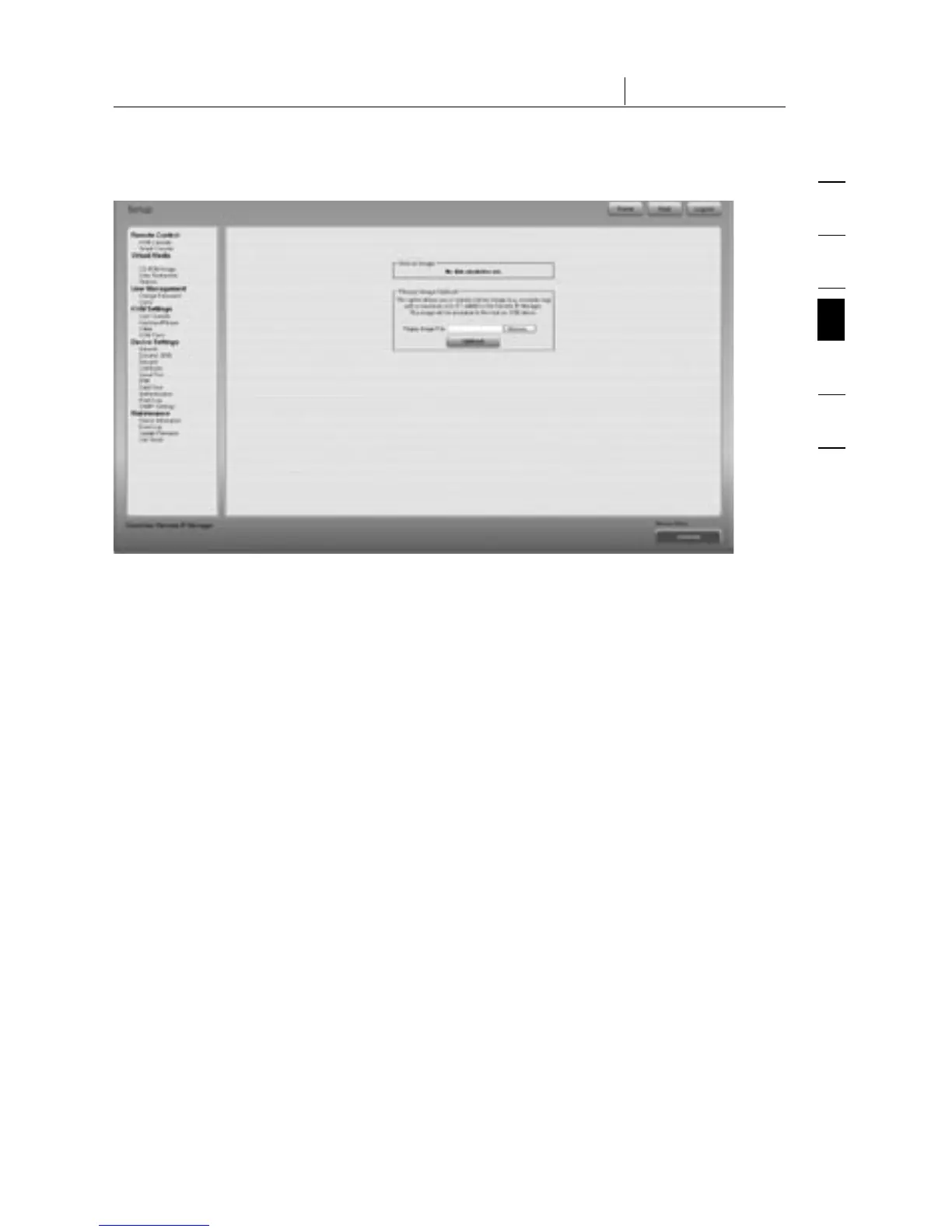
This feature is for uploading and transferring image files. This option allows
you to upload a binary image (example.img) with a maximum size of 1.44MB to
the RIPM. This image will be emulated to the host as a USB device. All other
formats need to be transferred using the drive-redirection feature. To use a larger
image, mount this image using a Windows Share.
Upload a Floppy Image
Step 1: Click “Browse” to specify the file to be transferred.
Step 2: Click “Upload” to upload the file to the RIPM. You will receive a
message confirming that the file has been successfully uploaded to
the RIPM.
Step 3: Click on “KVM Console” in the Remote Console section of the RIPM
interface to access the desktop of the remote computer.
Step 4: Double-click on the My Computer icon to open its folder.
Step 5: A second entry for the floppy drive will be listed in My Computer. This
entry is called “3-1⁄2 Floppy (B)”. You can access the files you have
transferred here.


 To Next Page
 Loading...