EasyManua.ls Logo

Bell System bellissimo - User Manual

Bell System bellissimo
44 pages
Print Icon
To Next Page IconTo Next Page
Loading...
PD-098 Issue 4B January 2015
Bell System (Telephones) Ltd.
bell
issimo
Video Door Entry System
2-72 Way
Installation & Operation Manual
This manual applies to the following:
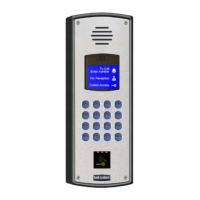
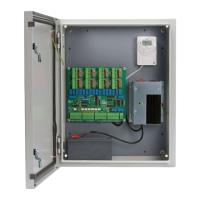
BSD8/72 2 to 72 Way Door Controller Version 2 Build 6 onward
BSC4 Video Controller Version 2 Build 4 onward
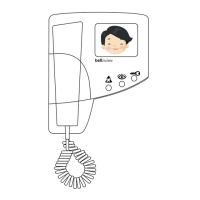
BS Colour Videophone Version 3
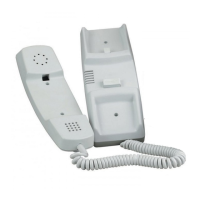
BSA Audio Phone Version 1

Other manuals for Bell System bellissimo

Questions and Answers

  • B
    Brandon WintersAug 31, 2025
    What to do if 28V LED doesn't light on Bell System Intercom System controller?
    • D
      Daniel HicksAug 31, 2025
      If the 28V LED does not light on the controller of your Bell System Intercom System: * Temporarily remove the connection to the 28V+ output. If the LED then comes on, there is a short on the phone cabling. * Check that the 12V input connections are not reversed or missing.
  • B
    Brett KennedySep 9, 2025
    What to do if there is no picture when calling videophone on Bell System bellissimo Intercom System?
    • W
      williamsjenniferSep 10, 2025
      To solve the problem, make sure to check that the Auto display switch is on. See page 19.
  • C
    Cody BradleyAug 30, 2025
    Why Bell System bellissimo lock works only from exit button?
    • J
      John DavisAug 30, 2025
      If the lock on your Bell System Intercom System operates from the exit button but not the test button or phone, a normally closed switch may have been used for the exit button.
  • A
    Andre WrightSep 23, 2025
    Why is the 28V LED not lighting on the Bell System bellissimo Intercom System controller?
    • C
      Christopher MorseSep 23, 2025
      If the 28V LED on your Bell System Intercom System controller isn't lighting, temporarily remove the connection to the 28V+ output. If it then comes on, there is a short on the phone cabling. Alternatively, the 12V input connections may be reversed or missing.
  • B
    beardwesleySep 12, 2025
    How to troubleshoot a Bell System bellissimo Intercom System with no display?
    • A
      Andrew FosterSep 12, 2025
      If your Bell System Intercom System has no display, first check for a minimum of 10V of power at the display. To further test the display, cycle the power on BSD-DIG and check for both version numbers displayed: “BDV1” then “V4.0”.
  • L
    Leonard VaughanSep 15, 2025
    How to fix a blank picture on Bell System Intercom System?
    • N
      nhartSep 15, 2025
      A blank picture on your Bell System Intercom System when calling a videophone or pressing view can stem from a few issues: a broken or missing Video + or Video – wire, incorrectly configured cameras (refer to CAM2 setting on page 18), or the call originating from an audio-only panel.
  • F
    fisherkellySep 23, 2025
    Why is the picture unstable and looks like a photographic negative on Bell System Intercom System?
    • J
      Jacob MosesSep 23, 2025
      If your Bell System Intercom System displays an unstable picture possibly with areas looking like a photographic negative, it is likely due to reversed Video + and – connections, or reversed M and S connections.
  • K
    Kimberly FloresAug 27, 2025
    Why my Bell System Intercom System videophone keeps resetting?
    • C
      Cindy RobbinsAug 27, 2025
      If your Bell System Intercom System videophone is resetting (with the three indicator lights showing the power-on sequence), the possible causes are: * An intermittent short or overload in the power supply. * More than one extension enabled for auto display. * A short-circuit in the lock output (refer to ‘Lock Problems’)
  • M
    Monica MurphyAug 26, 2025
    Why is my Bell System bellissimo picture unstable?
    • J
      Jessica DyerAug 26, 2025
      An unstable picture on your Bell System Intercom System could be caused by several factors: * Low power supply voltage. * Incorrect terminator switch settings on the last videophone (or too many on). * The video gain jumper being set too high for a short run. * A very bright area in the background affecting the camera.
  • L
    larajoyceAug 25, 2025
    How to fix a blank picture on Bell System bellissimo videophone?
    • A
      Amber DiazAug 26, 2025
      If you are getting a blank picture when calling a videophone or pressing view on your Bell System Intercom System, it could be due to: * A broken or missing Video + or Video – wire. * Incorrectly configured cameras. * The call originating from an audio-only panel.

Summary

Introduction

Description

Provides a general overview of the bellissimo video door entry system components and function.

Main Features

Lists the key functionalities and capabilities of the 2-72 Way Video Entry System.

Bellissimo Colour Videophone

Basic System Operation

Call Sequence

Explains the step-by-step process of a visitor call and resident response.

Videophone Controls

Describes the functions of the monitor controls, including contrast and volume.

Auto Display

Details the 'Auto Display' mode for automatic picture activation during a call.

Call Mute

Explains how to mute the videophone's ringing sound and its duration settings.

Silent Viewing

Describes how to view visitors without lifting the handset.

Door Status Indication

Explains the indicator for doors left open after a call.

Call Privacy

Details how only one videophone can be active per call.

System Features

User Activation (CCTV Mode)

Notes that user activation is not available on multi-way systems.

Cameras

Discusses the possibility of using one or two cameras, including CCTV integration.

Extension Videophones

Explains how to add additional videophones to a flat.

Lock Type

Covers support for fail-secure and fail-safe lock types, including magnetic locks.

Exit Button and Fire Switch

Details the input for an exit button or fire switch for door release.

Trades Facility

Explains the use of a time clock for tradesperson access.

DDA Functionality

Covers accessibility features for the Disability Discrimination Act.

System Configuration Options

Multiple Entrances

Explains how to configure the system for multiple building entrances.

Gate and Block Systems

Details integration with gate controllers for shared entrances.

Door Bell

Describes using the videophone as a doorbell replacement.

Slave Output

Explains the slave output for operating external devices.

Design Considerations

Equipment List

Lists the components included in various Bellissimo video kits.

Options

Details available optional components and features for system expansion.

Component Placement and Power

Entrance Panel - Important Note

Provides guidance on optimal placement of the entrance panel for camera performance.

Door Controller

Specifies placement requirements for the door controller and its power supply.

Video Controller

Specifies placement requirements for the video controller and its power supply.

Gate Controller

Details placement for the gate switch controller.

Separately Powered Videophones

Explains how to overcome limitations with additional power supplies for videophones.

Power Supply Requirements

Outlines the system's 12V power supply needs and specific models.

Power Supply Calculations

Power Supply Requirements

Provides examples of controller and power supply configurations for different system sizes.

Cable Specification

Cat5 Cable Specification

Details the required Cat5 cable type and specifications for system wiring.

Cable Distances

Video Controller to Videophone

Specifies maximum cable distances between video controllers and videophones.

Door Controller to Video Controller(s)

Specifies maximum cable distances between door controllers and video controllers.

Panel to Door Controller

Specifies maximum cable distances between entrance panels and door controllers.

Power Supply to Controller

Specifies maximum cable distances for power supply connections.

Installation & Commissioning

Checklist

Provides a checklist of required items and steps before installation.

Wiring

General guidance on wiring procedures using Cat5 and 1mm² cables.

Entrance Panel

Instructions for mounting the entrance panel at the correct height and condition.

Videophone

Instructions for wall mounting the videophone unit and securing it.

Component Functions

Audio Phones

Details the BSA audio phone as an alternative extension unit.

Electric Door Release

Explains the connection and setting for electric door releases, including maglocks.

Fail Safe Exit: Notes

Important notes and considerations for fail-safe exit door releases.

Advanced Functions & Commissioning

Fail Secure Exit: Notes

Important notes and considerations for fail-secure exit door releases.

Exit Button Input

Details the function and wiring of the exit button input.

Door Open Switch

Explains the function of the door open switch for status indication.

Time Clock Sharing

Describes how to share a time clock signal across distributed areas.

BSD8;72 Door Controller Switch Settings

Talking Time;Videophone Active DIP SW1 (1-4)

Configuration of DIP SW1 (1-4) for talk time and videophone activation.

Ringing Time;Call Time and Ring Effect DIP SW1 (5-8)

Configuration of DIP SW1 (5-8) for ringing time and call effects.

Door Controller DIP Switch Settings

Lock Operate Time Dip SW2 (1-3)

Configuration of DIP SW2 (1-3) for setting the lock release time.

Individual Functions DIP SW2 (4-8)

Configuration of DIP SW2 (4-8) for various system functions like lock type and camera selection.

Door Controller Configuration

Camera Numbering DIP SW3 (1-8)

Configuration of DIP SW3 (1-8) for assigning numbers to cameras at the door.

BSD8;72 Door Controller Jumper Settings

Details jumper settings for camera termination, video gain, and DDA reassurance tones.

BSC4 Video Controller Settings

Jumper settings

Details jumper settings for video gain and video termination on the BSC4 controller.

Switch settings

Configuration of SW6 rotary switch for videophone addressing on BSC4 controller.

Address Offset SW7 - Builds up to 6 C

Configuration of SW7 for adjusting address offset on BSC4 controller (Builds up to 6C).

BSC4 Advanced Addressing

Address Offset SW7 - Build 7 onwards

Configuration of SW7 for adjusting address offset on BSC4 controller (Build 7 onwards).

Extended Addressing Jumper PROG pins 2-3 - Build 7

Jumper configuration for extended addressing on BSC4 controller (Build 7).

Custom Alternate Addressing

Details special versions of BSC4 for addressing beyond standard ranges.

Odd;Even Addressing Jumper PROG pins 1-2 - Builds 5 C, 6 C and 7 onwards

Jumper configuration for odd/even addressing of BSC4 outputs.

BS Videophone Switch Settings

Mute Time Settings (1-4)

Configuration of DIP SW1 (1-4) for setting the mute duration on the videophone.

Individual Functions Settings (5-8)

Configuration of DIP SW1 (5-8) for master/extension and auto display settings.

Video Terminator Jumper Setting

Details the jumper setting for video termination on the videophone.

Troubleshooting

Common Faults

Identifies common installation and wiring issues leading to system faults.

Quick Fault Reference

Provides tables for quick identification of power and call-related problems.

BSC4 Video Controller Tests

Lock Release Problems

Troubleshooting guide for issues with lock release operation and maglocks.

System Problem Diagnosis

Video Problems

Diagnoses and provides solutions for various video display issues.

Speech Problems

Diagnoses and provides solutions for audio issues like feedback and low volume.

Specifications

BSD8;72 Door controller

Technical specifications for the BSD8/72 door controller unit.

Model CAMBS-C Colour Camera

Technical specifications for the CAMBS-C colour camera.

BSC4 Video Controller

Technical specifications for the BSC4 video controller.

BS Colour Videophone

Technical specifications for the BS Colour Videophone.

Model BSA Phone

Technical specifications for the BSA audio phone.

Model 61 Speech Unit

Technical specifications for the Model 61 speech unit.

Power Supply and Gate Switcher Specifications

PS4 Power Supply

Technical specifications for the PS4 power supply unit.

340 C Power Supply

Technical specifications for the 340C power supply unit.

840 Power Supply - Battery Backed

Technical specifications for the battery-backed 840 power supply.

BSSW Gate Switcher; Block Isolator

Technical specifications for the BSSW Gate Switcher.

Diagram A - 2-72 Way Basic System Overview Cabling

Diagram B - Large system Overview

Diagram C - BSD8 PCB Detail

Diagram D - 2-72 Way Basic System Wiring Detail

Diagram E - 2-72 Way Multiple Entrance Wiring Detail

Diagram F - Extension Videophone Wiring

Diagram G - Videophone Local Power Wiring

Diagram H - Videophone Connections

Local Bell Connection

Wiring instructions for connecting a local bell push to the videophone.

Auxiliary Ring Circuit

Explains the auxiliary ring output for DDA devices.

Diagram I - Option Details

Camera Termination Options

Provides options for camera wiring using twisted pair or coax cable.

Time Clock Sharing

Explains how to share a time clock signal using Cat5 wiring.

Diagram J - 2-72 Way Additional DDA Wiring

Diagram K - Bellissimo Combined System Connections

Connecting a Bellcode Coded Access Controller

Wiring guide for connecting a Bellcode access controller to the system.

Connecting a Bell PAX1 Proximity Reader

Wiring guide for connecting a Bell PAX1 proximity reader.

Opening a Gate or Locks on Third Party Systems

Wiring guide for connecting to gate controllers or other third-party access systems.

Diagram L - ACT Proximity to Bellissimo Connections

ACT 1000;2000;3000 Proximity Controller

Wiring details for ACT 1000/2000/3000 proximity controllers.

ACT 100 e Proximity Extender

Wiring details for ACT 100e proximity extenders.

Safety Information and Declarations

Model 840 Power Supply (with battery standby)

Safety information and installation guidelines for the Model 840 power supply.

Model PS4 and 340 C Power Supplies

Safety information and installation guidelines for PS4 and 340C power supplies.

Bell System bellissimo Specifications

General IconGeneral
BrandBell System
Modelbellissimo
CategoryIntercom System
LanguageEnglish

Related product manuals