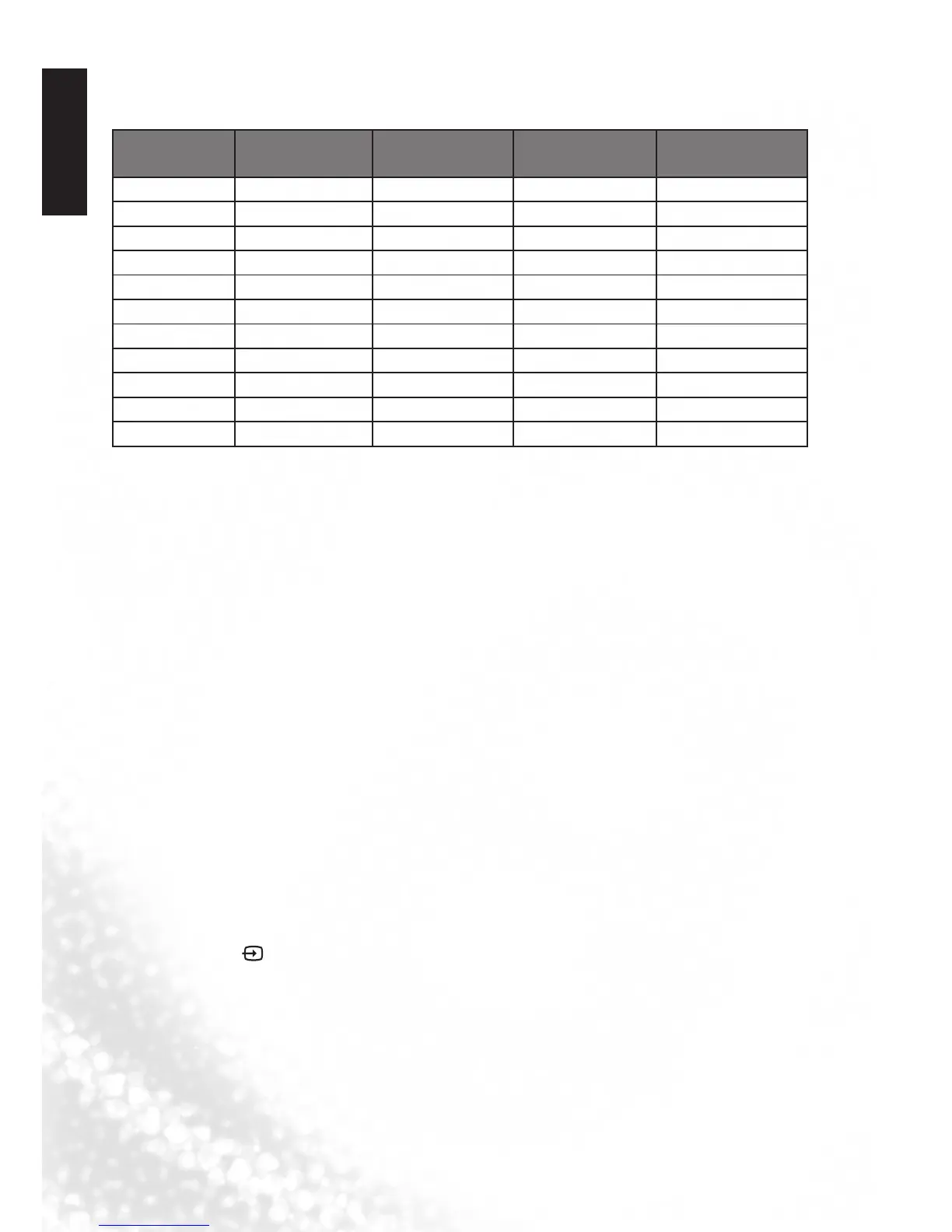
Supported HDMI input signal resolutions
Resolution
H-Frequency
(KHz)
V-Frequency
(Hz)
Clock Frequency
(MHz)
Note
720 × 480 15.735 60i 13.5 SDTV 480i
720 × 480 31.468 60p 27 EDTV 480p
720 × 576 15.625 50i 13.5 SDTV 576i
720 × 576 31.25 50p 27 EDTV 576p
1280 × 720 45 60p 74.25 HDTV 720p
1280 × 720 37.5 50p 74.25 HDTV 720p
1920 x 1080 28.13 50i 74.25 HDTV 1080i
1920 x 1080 33.75 60i 74.25 HDTV 1080i
1920 x 1080 27 24p 74.25 HDTV 1080p
1920 x 1080 56.25 50p 148.5 HDTV 1080p
1920 x 1080 67.5 60p 148.5 HDTV 1080p
• Resolutionsoutsideofthesetablesarenotrecognisedandwillnotbedisplayed.
• WhenyouconnectthedisplaytoaPC,youshouldadjusttheresolutioninthedisplaypropertiesofthe
computer to closely match the native resolution of the display (for example, 1920 x 1080 pixels).
•ToviewthebestqualitypicturewhenusingthePCinput,youwillthenneedtoinstructthedisplayto
calibrateitselftothePCsignaltiming.Todoso,select'Auto'inthe'Picture'menu.See"AutoAdjust"
on page 34.
Setting up appropriate output resolution on PC
Before connecting the display to a PC to display PC video, please follow the
instructions below (in Windows XP for example) to setup appropriate output
resolution.
1. On Windows Desktop, right-click and select Properties from the menu that appears.
2. Click the Settings tab in the window that follows.
3. DragtheResolutionsliderandselectacompatibleresolutionaccordingto"Supported
PC(D-Sub/DVI)inputsignalresolutions"onpage45.IfyourPCsupportsit,select
1680× 1050 as the output resolution for the best result.
4. Click OK to save the setting and close the window.
5. Press INPUT on the remote control and use
▲▼
to select the VGA input then
press OK.


 To Next Page