Operation
27
Fine-tuning the image clarity
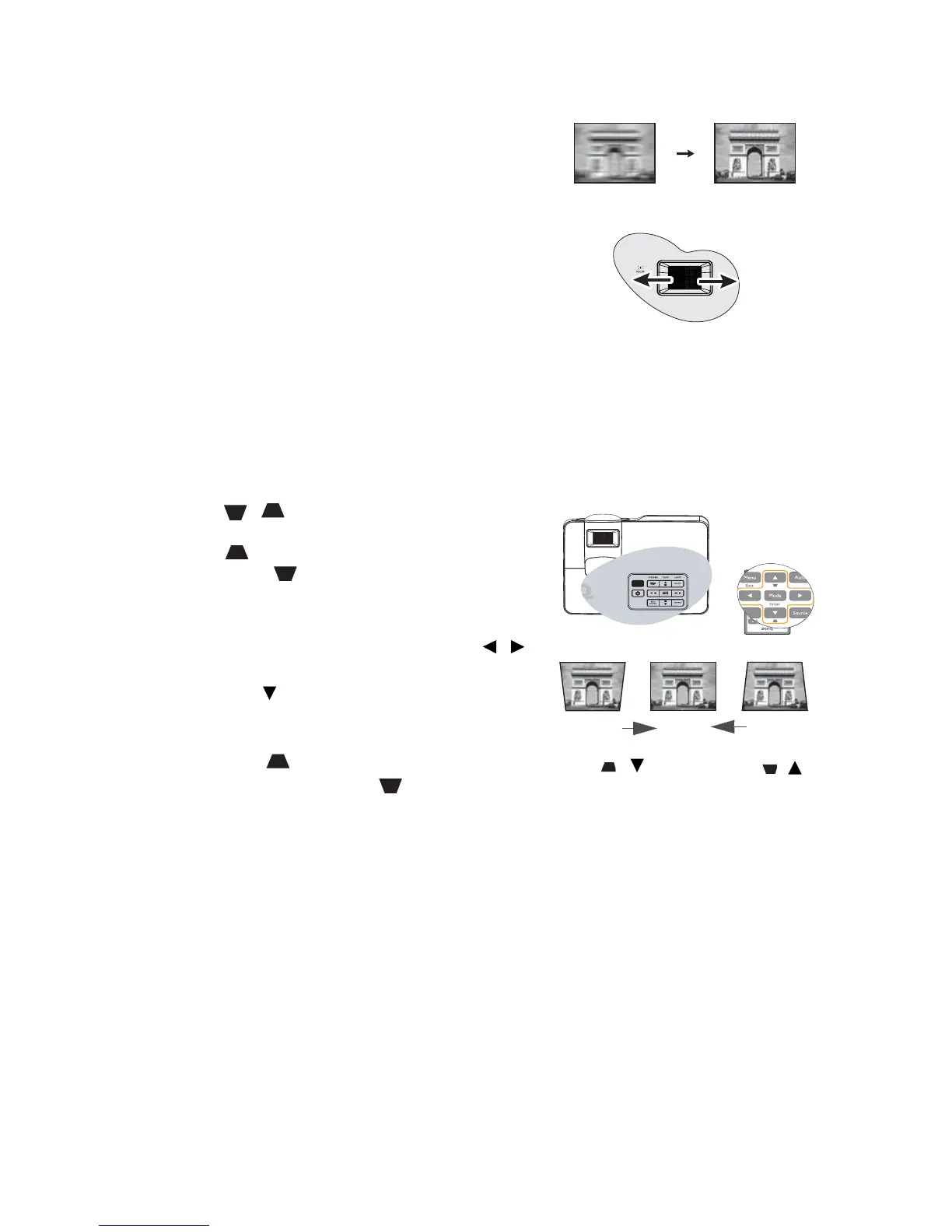
Sharpen the image by rotating the focus ring.
Correcting keystone
Keystoning refers to the situation where the projected image is noticeably wider at either
the top or bottom. It occurs when the projector is not perpendicular to the screen.
To correct this, besides adjusting the height of the projector, you will need to manually
correct it following one of these steps.
• Using the remote control
Press / on the projector or remote
control to display the Keystone correction page.
Press to correct keystoning at the top of the
image. Press to correct keystoning at the
bottom of the image.
•Using the OSD menu
1. Press MENU/EXIT and then press /
until the
DISPLAY menu is highlighted.
2. Press to highlight Keystone and press
MODE/ENTER. The Keystone correction
page displays.
3. Press to correct keystoning at the top
of the image or press to correct
keystoning at the bottom of the image.
Press /.
Press /.


 To Next Page