31
052815
Workbook 4—Embroidery Basics
or
BERNINA 560, 580, 750 QE, 770 QE, 780, 790 880
Saving a Design to Machine
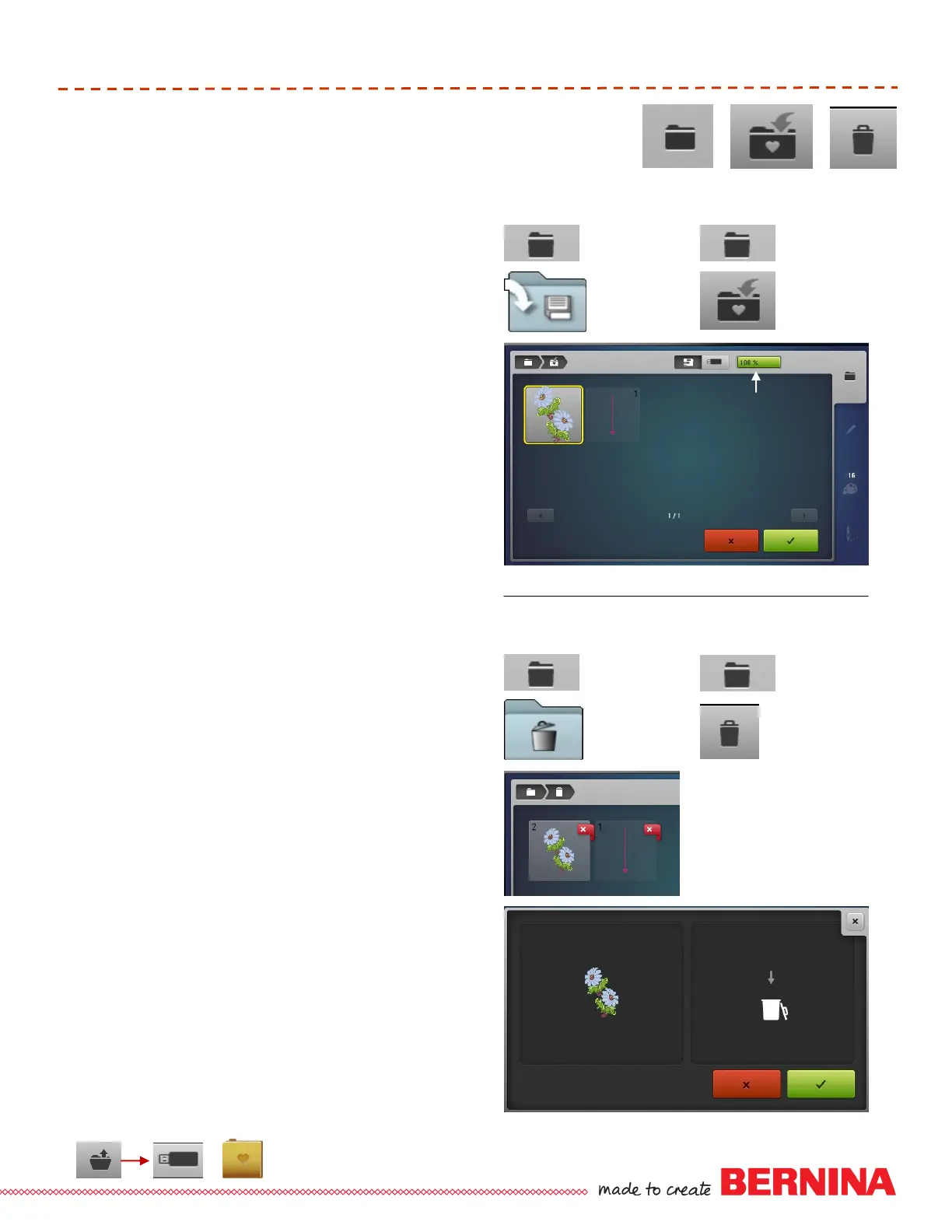
In the Embroidery Selection Menu, select Save
icon. The motif to be saved is displayed as with a
yellow border around it.
The folder defaults to the Machine’s My Designs
folder when saving a design.
In the Save screen, the Embroidery Machine icon
is activated and the My Designs folder is auto-
matically opened.
Select the motif to be saved; the Edit screen
appears again.
Saving a Design to a USB Stick
In the Embroidery Selection Menu, select Save
icon. The motif to be saved is displayed as with a
yellow border around it.
The motif to be saved is displayed with a yellow
border around it.
Insert the USB stick; touch USB Stick icon in the
Save screen.
Select the motif to be saved; the embroidery motif
is saved on the USB stick; the Edit screen
appears again.
Deleting a Design
In the Embroidery Selection Menu, select the
Delete icon (trashcan).
Select the USB Stick icon or Embroidery Machine/
My Designs folder.
Select the motif to be deleted in the opened
screen.
In the Delete screen, select the Green Check to
confirm; the motif is deleted.
Touch the Selection icon to return to embroidery.
Retrieving a Saved Design
In the Embroidery Selection Menu, select the
Open New Motif icon and select the USB Stick
icon or Embroidery Machine/My Designs folder.
Select design of choice and the Embroidery Edit
screen appears with the selected design.
Saving & Deleting Designs
DELETING DESIGNS
560,
580,
750 QE
770 QE,
780,
790,
880
SAVING DESIGNS
560,
580,
750 QE
770 QE,
780,
790,
880
Available Memory
Capacity by %




 To Next Page