35
052815
Workbook 4—Embroidery Basics
Changing Lettering Height
deco 340
Note: While the Lettering Height cannot be changed on the Deco machine,
it is possible to stitch letters in three sizes, small, medium, and large.
Select Alphabet tab and desired font. Select small font size (10mm).
Select the Large Hoop.
Enter Deco; touch OK. Use Positioning arrows to move word up.
Select Alphabet tab and desired font. Select medium font size (20mm).
Enter Deco: touch OK. Use Positioning arrows to move word up.
Select Alphabet tab and desired font. Select large font size (30mm).
Enter Deco; touch OK. Position as needed.
Embroider. Return carriage to stored position.
bernette Chicago 7
Note: Lettering size may be adjusted using Rescaling on the Editing
screen.
Select Alphabets icon and type Chicago.
Using the arrow buttons, move the cursor to the icon on the right side of
the display and press the OK button.
Press the Rescale button on the front of the machine.
Use the right or left arrows to increase or decrease the lettering by 5%
increments from a minimum of 80% to a maximum of 120%
Press OK to accept the size change, and OK again to stitch out the
lettering.
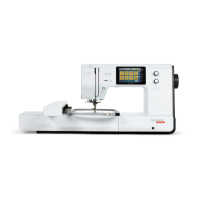
BERNINA 580
While lettering can’t be resized directly on the 580 E, the size of the
lettering object can be changed using the Rescale Motif Proportionally
tool.
Select Alphabets folder: select folder #5 Chateau fonts.
Enter BERNINA; touch Green Check to confirm.
Select Hoop icon and select Oval Hoop, touch Back arrow.
Touch “i” and select Duplicate; repeat for a total of three words.
Select each word onscreen and move to arrange words as shown.
Starting with the top word make changes to the size of each selected
word; Select the word, touch the “I”. Select Rescale using the Stitch
Width knob to make changes to size.
Touch the next word to be changed and use the Stitch Width knob to
make change. Repeat for the third word.
Touch Back arrow two times.




 To Next Page