MAIN MENU
13 Technical Help – Please contact the helpline on 0844 557 9677
Power on/off
Your dash camera will power on and start to record automatically as soon as it is
connected to power. You can also power it on and off manually. Press the power
button for 1 second to power on, press and hold the power button for 2 seconds to
power off.
Video/Camera/Playback mode
You can only switch the working mode when your dash camera is not recording. You
dash camera has 3 working mode: Video, Camera and Playback. You can press
Lock button to switch.
Audible recording (Mic on/off)
When recording video you have a choice of whether you want to have the mic turned
on to record audible sounds within your vehicle or to record video without sound.
Press the Up button to turn the mic on or off. The Mic icon on the LCD display will
change to confirm your selection.
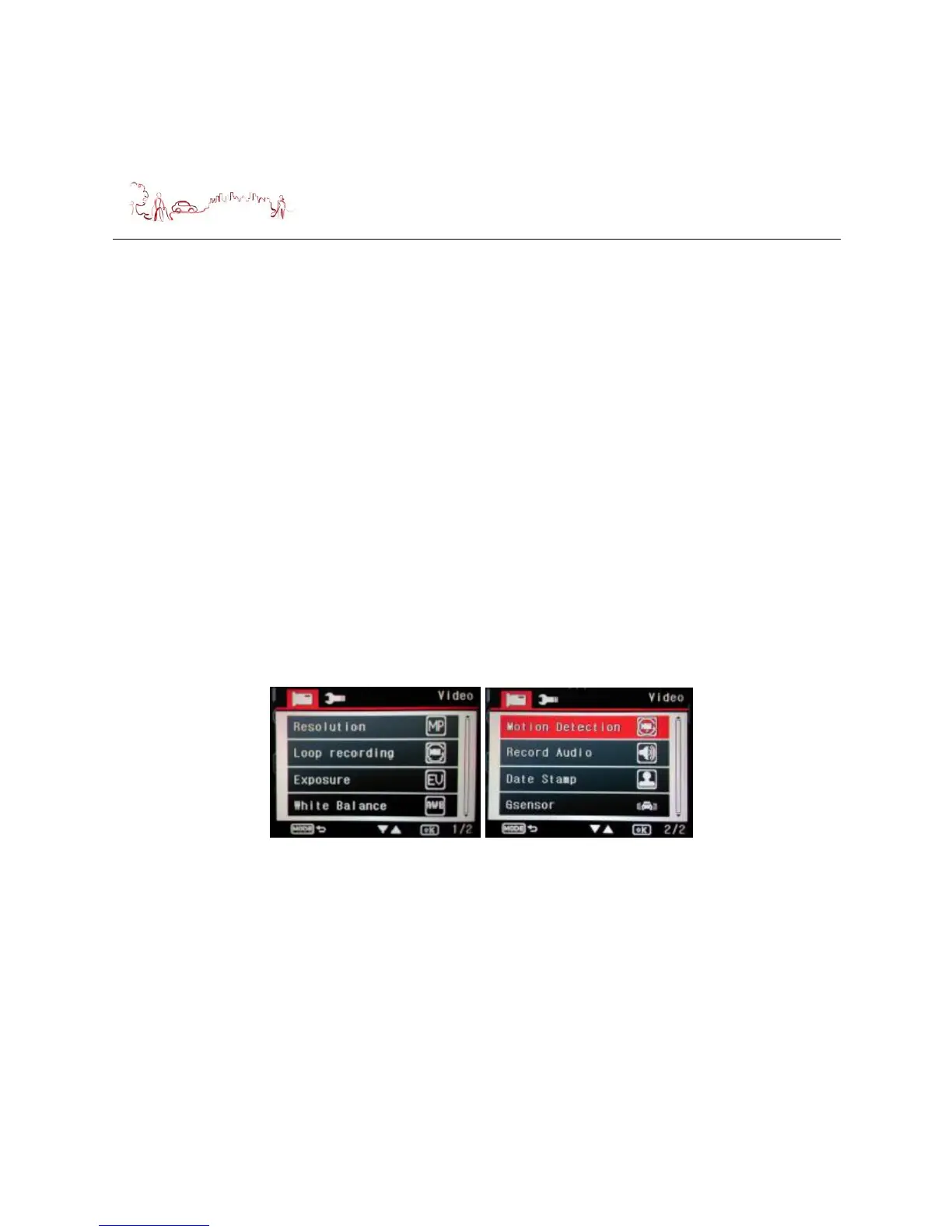
Video Settings
Press menu button during the device in video mode standby, the following screen
are displayed. Press Up or Down button to select item or switch to page 2. You will
be able to change related parameters about the video.
1) Resolution setting
Press Up or Down button to select Resolution menu, then press OK button, the
following screen is displayed. Press Up or Down button to select the resolution
which you want, then press OK button, the resolution will be save and return to
the menu.


 To Next Page