EasyManua.ls Logo

Biostar TPower I45 - User Manual

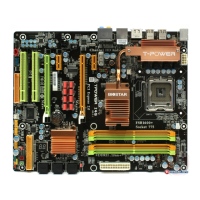
Biostar TPower I45
71 pages
Print Icon
To Next Page IconTo Next Page
Loading...
TPower I45 Setup Manual
FCC Information and Copyright
This equipment has been tested and found to comply with the limits of a Class
B digital device, pursuant to Part 15 of the FCC Rules. These limits are designed
to provide reasonable protection against harmful interference in a residential
installation. This equipment generates, uses, and can radiate radio frequency
energy and, if not installed and used in accordance with the instructions, may
cause harmful interference to radio communications. There is no guarantee
that interference will not occur in a particular installation.
The vendor makes no representations or warranties with respect to the
contents here and specially disclaims any implied warranties of merchantability
or fitness for any purpose. Further the vendor reserves the right to revise this
publication and to make changes to the contents here without obligation to
notify any party beforehand.
Duplication of this publication, in part or in whole, is not allowed without first
obtaining the vendor’s approval in writing.
The content of this user’s manual is subject to be changed without notice and
we will not be responsible for any mistakes found in this user’s manual. All the
brand and product names are trademarks of their respective companies.

Questions and Answers

  • R
    Rhonda MedinaJul 31, 2025
    What to do if my Biostar TPower I45 Motherboard has no power?
    • D
      dyangJul 31, 2025
      If your Biostar Motherboard system shows no power, with no power light and the power supply fan not turning on, ensure the power cable is securely plugged in. If the problem persists, try replacing the power cable.
  • C
    carolyn56Aug 7, 2025
    What to do if Biostar TPower I45 won't boot from hard drive?
    • D
      Daniel MorrisonAug 7, 2025
      If your Biostar Motherboard boots from the optical drive but not the hard drive, check the cable connecting the hard drive to the disk controller board, ensuring both ends are securely plugged in. Also, verify the drive type in the standard CMOS setup. Backing up your hard drive data is crucial as hard drives can fail.
  • D
    Donald HernandezAug 15, 2025
    Why can't I boot after installing a second hard drive on my Biostar TPower I45 Motherboard?
    • V
      vazquezkristineAug 15, 2025
      If you cannot boot your system after installing a second hard drive on your Biostar Motherboard, ensure that the master/slave jumpers are set correctly. Additionally, run the SETUP program and select the correct drive types for both hard drives.
  • A
    Abigail McmahonAug 21, 2025
    How to fix Biostar TPower I45 when it only boots from optical drive?
    • G
      garrettpatriciaAug 22, 2025
      If your Biostar Motherboard only boots from the optical drive, even though the hard disk can be read, back up your data and application files. Then, reformat the hard drive and reinstall your applications and data using backup disks.

Summary

Chapter 1: Introduction

Before You Start

Essential preparation steps before installing the motherboard.

Motherboard Features

Rear Panel Connectors

Motherboard Layout

Chapter 2: Hardware Installation

Installing Central Processing Unit (CPU)

Procedure for installing the CPU into the motherboard socket.

Fan Headers

Installing System Memory

Memory Modules

Details on installing RAM sticks correctly.

Connectors and Slots

PCI-Express Slots

Chapter 3: Headers & Jumpers Setup

BIOS POST Code;CPU Temperature Indicator and CrossFire Jumpers

Chapter 4: CrossFire Function

Requirements

Prerequisites for using the CrossFire feature.

Installing CrossFire-Ready Graphics Cards

Steps to install graphics cards for CrossFire setup.

Chapter 5: RAID Functions

How RAID Works

Detailed explanation of how RAID 0, RAID 1, RAID 1+0, and RAID 5 function.

Chapter 6: T-Power BIOS & Software

T-Power BIOS

Features and functions available within the T-Power BIOS.

Overclocking Navigator Engine (O.N.E.)

BIOS utility for automated and manual system overclocking.

Manual Overclock System (M.O.S.)

BIOS Settings Explained

Automatic Overclock System (A.O.S.)

Beginner-friendly BIOS feature for automated overclocking.

Memory Integration Test

BIO-Flasher Utility

Updating BIOS with BIO-Flasher

Step-by-step guide to updating the BIOS using BIO-Flasher.

Self Recovery System and Smart Fan Function

T-Power Software

OC Tweaker Features

Auto Over-clock

Function to automatically set optimal system performance.

BIO-watch Utility

Fan Control Features

Fan Control Settings

eHot-Line Support Utility

Chapter 7: Useful Help

Driver Installation Note

Instructions for installing motherboard drivers for optimal performance.

Driver and Software Installation

AMI BIOS Beep Codes

Troubleshooting POST BIOS Beep Codes

Guidance on resolving issues indicated by POST beep codes.

AMI BIOS POST Code Descriptions

Troubleshooting Common Issues

Biostar TPower I45 Specifications

General IconGeneral
Number of memory slots4
Maximum internal memory16 GB
Processor socketLGA 775 (Socket T)
Processor manufacturerIntel
Compatible processor seriesIntel Celeron Dual-Core, Intel Pentium Dual-Core
USB 2.0 connectors3
S/PDIF out connectorYes
Number of SATA connectors6
PS/2 ports quantity2
USB 2.0 ports quantityUSB 2.0 ports have a data transmission speed of 480 Mbps, and are backwards compatible with USB 1.1 ports. You can connect all kinds of peripheral devices to them.
Parallel ports quantity-
Ethernet LAN (RJ-45) ports1
Firewire (IEEE 1394) ports0
Audio chipRealtek ALC888S
Motherboard form factorATX
Compatible operating systemsWindows 2000/XP/Vista
RAID levels0, 1, 5, 10
LAN controllerRealtek RTL8111C
Networking featuresGigabit Ethernet

Related product manuals