EasyManua.ls Logo

BIXOLON SRP-352plusIII - 5-4 Barcode Configuration

BIXOLON SRP-352plusIII
47 pages
Print Icon
To Next Page IconTo Next Page
To Previous Page IconTo Previous Page
Loading...
SRP-352plusIII
Rev. 1.01
- 29 -
5-4 Barcodes
1) Open the Printer Properties window for the corresponding OS.
2) Click the “Preferences” button in the “General” tab.
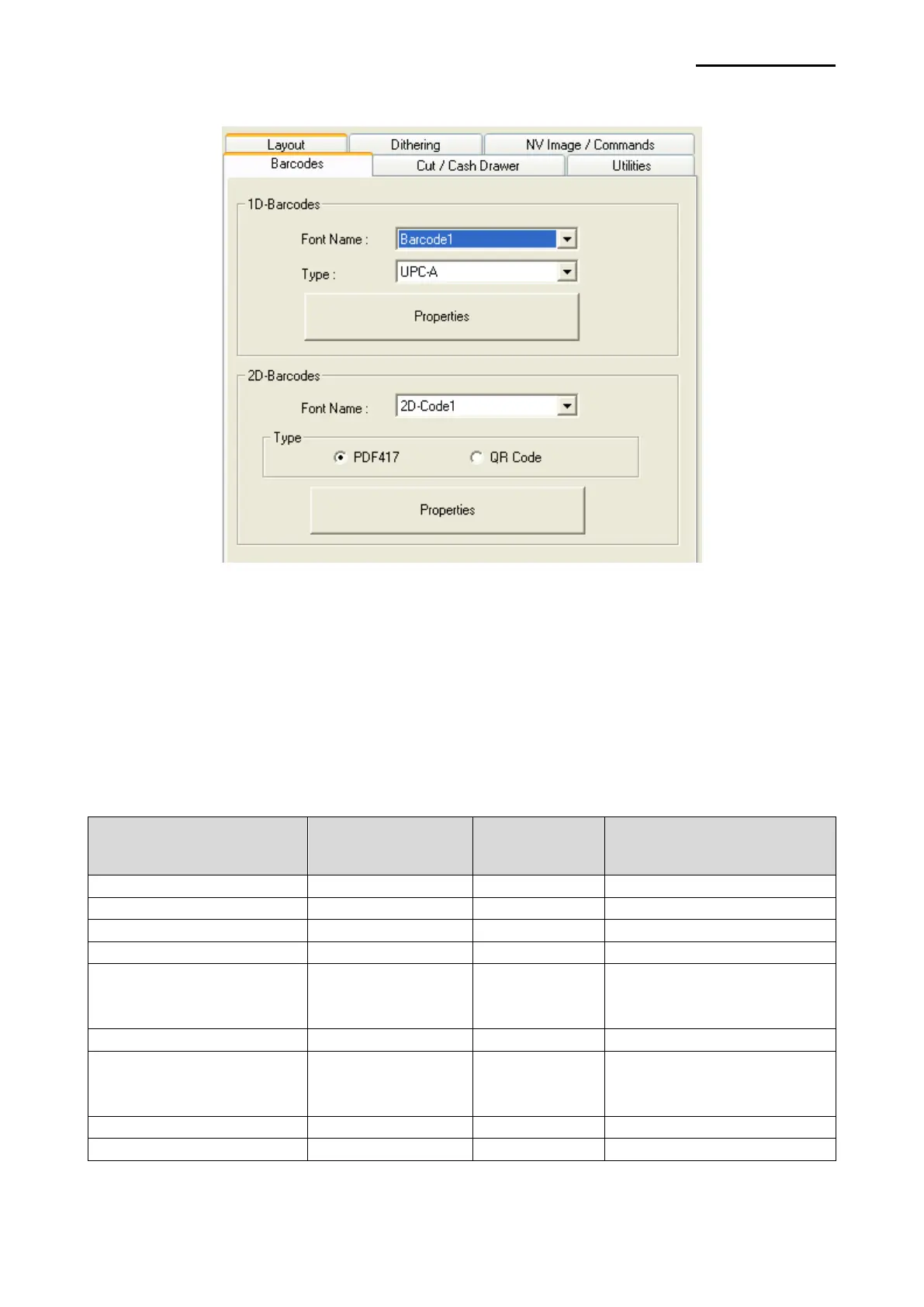
3) Click “Barcodes”.
5-4-1 1d Barcodes
Windows driver supports one-dimensional barcode type as shown in the following table.
Set the one-dimensional barcode type supported by the Windows driver in the “Barcode
Font Name” field to print the bar code.
Barcode Font Name
Barcode Type
Size (Point)
Supported Characters
Barcode1
UPC-A
18/35.5/53/71
Numeric: 0~9
Barcode2
UPC-E
18/35.5/53/71
Numeric: 0~9
Barcode3
JAN13(EAN)
18/35.5/53/71
Numeric: 0~9
Barcode4
JAN8(EAN)
18/35.5/53/71
Numeric: 0~9
Barcode5
Code39
18/35.5/53/71
Numeric: 0~9
Symbols: $, +, -, ., /
Letters: A~Z
Barcode6
ITF
18/35.5/53/71
Numeric: 0~9
Barcode7
Codabar
18/35.5/53/71
Numeric : 0~9
Symbols: $, +, -, ., /, :
Letters: A~D

Barcode8
Code93
18/35.5/53/71
ASCII CODE: 0~127
Barcode9
Code128
18/35.5/53/71
ASCII CODE: 0~127

Related product manuals