724-746-5500 | blackbox.com
Page 38
Chapter 4: Configuring the Hardened Serial Server
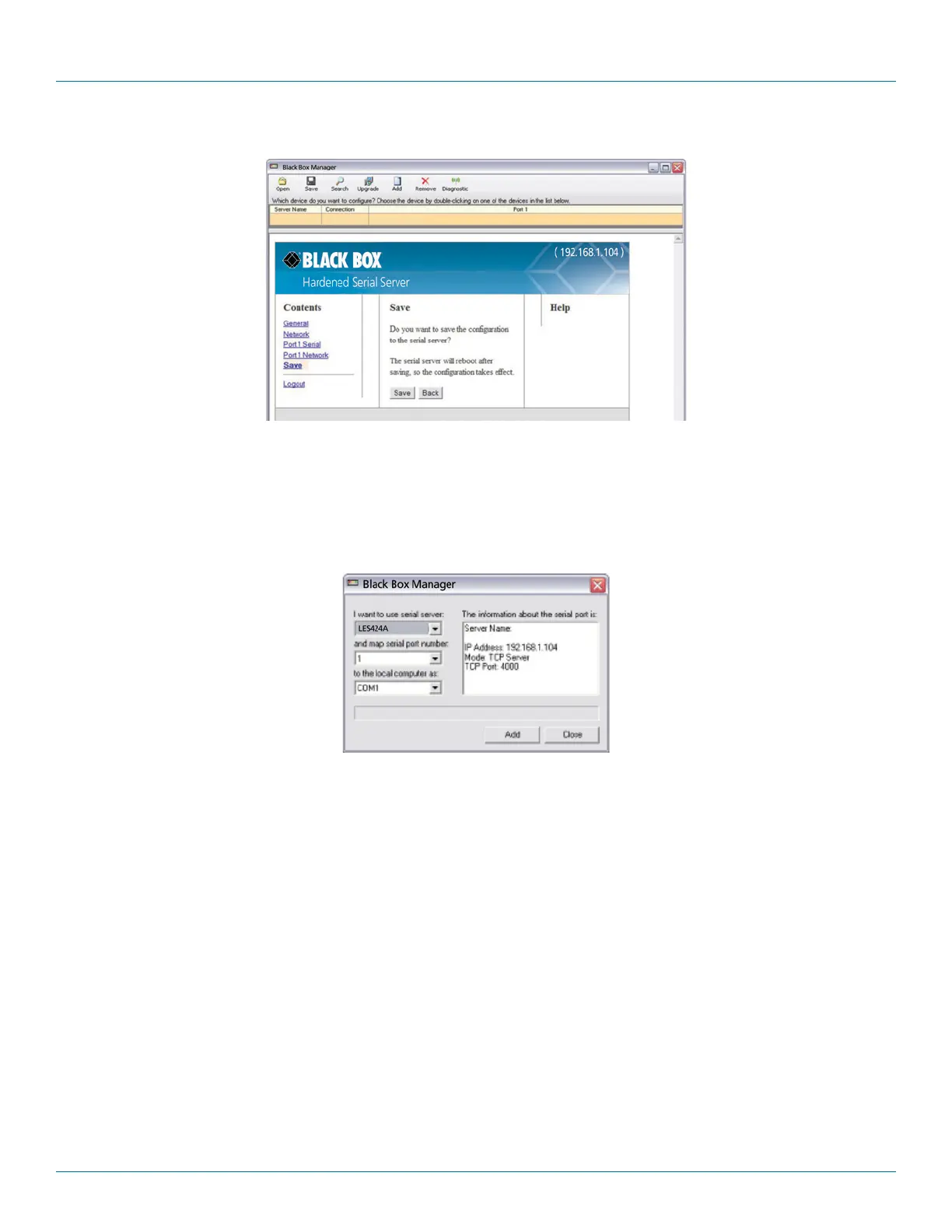
Figure 4-21. Save Configuration page.
To save the configuration to the Hardened Serial Server, and re-boot it so that the configuration settings will take effect:
1. Click “Save.”
4.10 Adding Virtual COM Ports
Clicking the “Add” icon (located at the top of the Hardened Serial Server Software Configuration window) opens the Add Virtual COM
Port dialog box.
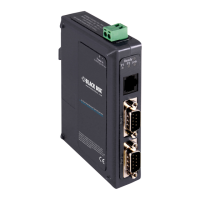
Figure 4-22. Add Virtual COM Port dialog box.
Using the drop-down boxes, you can select the Hardened Serial Server you want to map the virtual COM port to, the number of the seri-
al port on the Hardened Serial Server, and the COM port on the local computer. The information box displays the server name, its IP
address, operating mode, and TCP port.
1. On the Hardened Serial Server Software window, click the “Add” icon.
The “Add Virtual COM Port” dialog box appears.
2. Select the Hardened Serial Server to which you want to map the virtual COM port.
3. Select the serial port number on the Hardened Serial Server.
4. Select the COM port number you want to use on the local computer.
5. Click the “Add” button.



 To Next Page