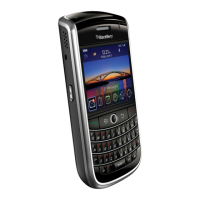
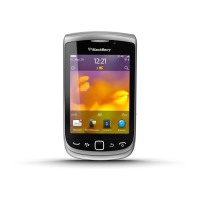
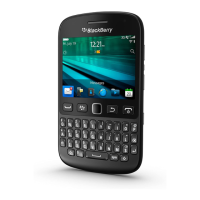
Update your BlackBerry Device Software from your
computer.
On your computer, visit www.blackberry.com/update. Click
Check for Updates. Connect your smartphone to your
computer.
Set your BlackBerry Desktop Software to check for updates
automatically.
For instructions, see the Help in BlackBerry Desktop
Software.
Update your BlackBerry Desktop Software. Visit www.blackberry.com/desktopsoftware.
Tips: Doing things quickly
For full instructions, click the links under Related information at the bottom.
Access popular options such as setting the alarm, viewing
notifications, and turning on or turning off network
connections.
Highlight and click the areas at the top of the home screen.
See all the apps and folders on the Home screen, or
minimize the panel and view the wallpaper.
On the navigation bar, click All.
Switch to another app.
Press and hold the key. Click an app.
Note: The other app might still be running in the
background.
Open an app with a convenience key. Press a convenience key on the side of your BlackBerry
smartphone.
Note: You can customize which app a convenience key
opens.
Use pop-up menus. Pop-up menus provide common available actions, and
appear in the center of the screen. For example, you can
use the pop-up menu in a message to file, forward, or reply
to the message. To open a pop-up menu, touch and hold
the screen or press and hold the trackpad. To select a
command, tap the icon or click the trackpad.
Switch to the Favorites, Media, Downloads, and Frequent
panels.
On the home screen, highlight All on the navigation bar and
slide your finger on the trackpad right or left.
Add an app to the Favorites panel. Highlight an app on the home screen or in a folder. Press
the key > Mark as Favorite.
Change options for the home screen such as the wallpaper.
On the home screen, press the key > Options.
User Guide Quick Help
35


 To Next Page
 Loading...