Settings41
File Naming Convention
Clips are recorded to your CFast cards in the CinemaDNG RAW format or to a ProRes QuickTime
movie, depending upon which recording format you have chosen. Blackmagic URSA uses the following
file naming convention when recording video.
[Camera ID]_[Reel Number]_[yyyy-mm--dd]_[hhmm]_C[Clip number].mov
The table below shows an example of the file naming convention:
For CinemaDNG files, the folder of the image sequence will also be named the same way.
Display Settings
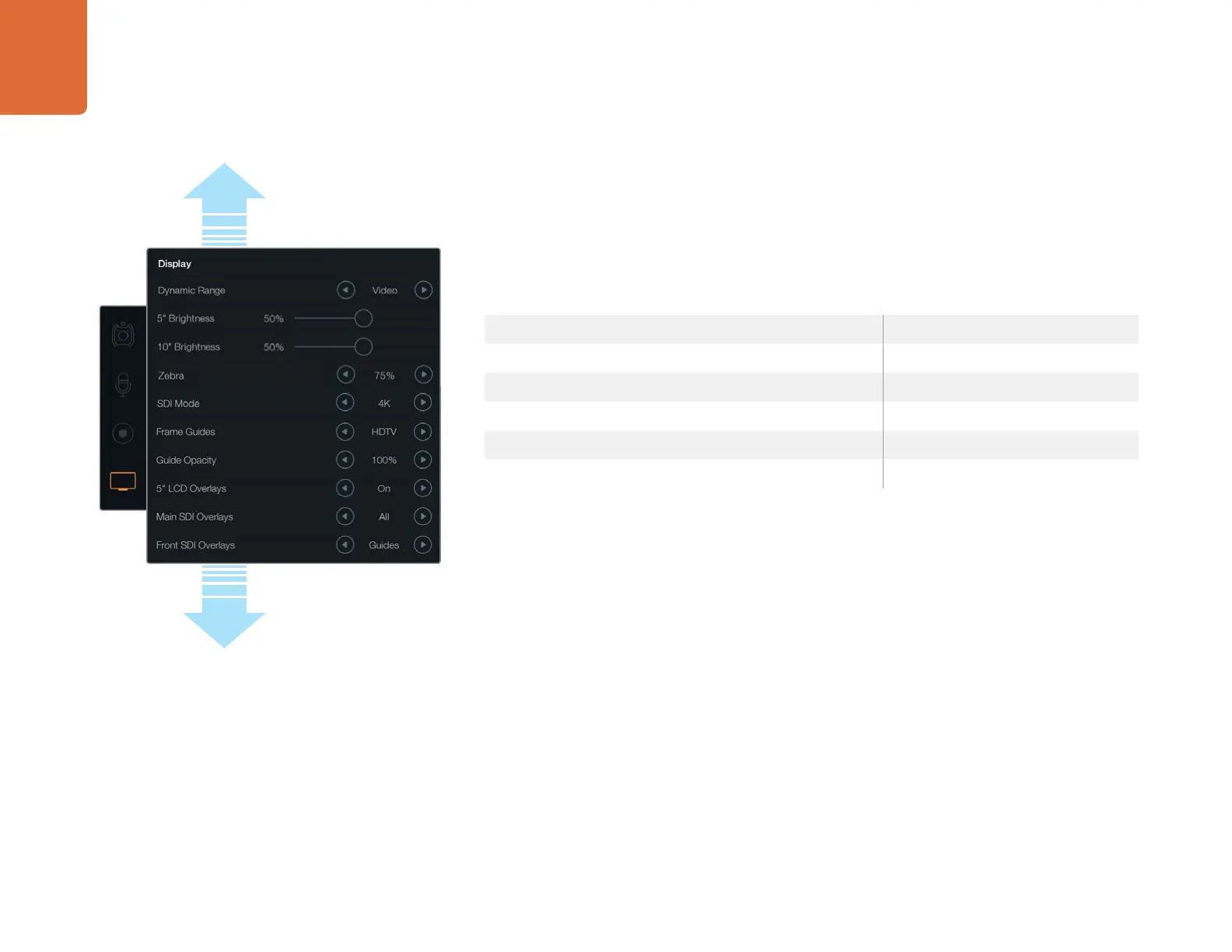
To adjust the 'display' settings on a touchscreen, select the display touchscreen menu, then touch or
slide the relevant arrows and sliders. Scroll the menu with your finger to reveal more display settings.
Dynamic Range
Blackmagic URSA’s fold out monitor and touchscreens let you view your video as you are recording.
You can set the display dynamic range to 'video' or 'film' settings. The 'display' settings dynamic range
lets you monitor your video with the display set to video even when the recording format is set to film!
To adjust the 'display' settings dynamic range, touch the dynamic range arrow icons.
5" Brightness/Brightness
On Blackmagic URSA, move the 5" Brightness setting slider icon left or right to adjust brightness
for each touchscreen. On URSA Mini, move the 'brightness' setting slider to adjust the brightness
of the touchscreen LCD.
BMC01_1_2014-08-08_1631_C0002.mov QuickTime Movie Filename
BMC01_1_2014-08-08_1631_C0002.mov Camera ID
BMC01_1_2014-08-08_1631_C0002.mov Reel Number
BMC01_1_2014-08-08_1631_C0002.mov Date (2014 Aug 08)
BMC01_1_2014-08-08_1631_C0002.mov Time (16:31pm - 24hrs)
BMC01_1_2014-08-08_1631_C0002.mov Clip Number
Set the dynamic range of your fold out monitor and
touchscreen displays using the 'display' settings. This feature
lets you view your recording in 'video' dynamic range, even if
your 'recording' settings are set to 'film' dynamic range. You
can choose what overlays to display on each monitor and
SDI output by tapping on the arrow icons for each setting.
SDI overlays can always be viewed on the fold out monitor by
pressing the fold out monitor's 'disp' button. Press more than
once to cycle through them.
Scroll the menu to reveal
more display settings.



 To Next Page