Blackmagic URSA Features23
Blackmagic URSA Work Station Buttons
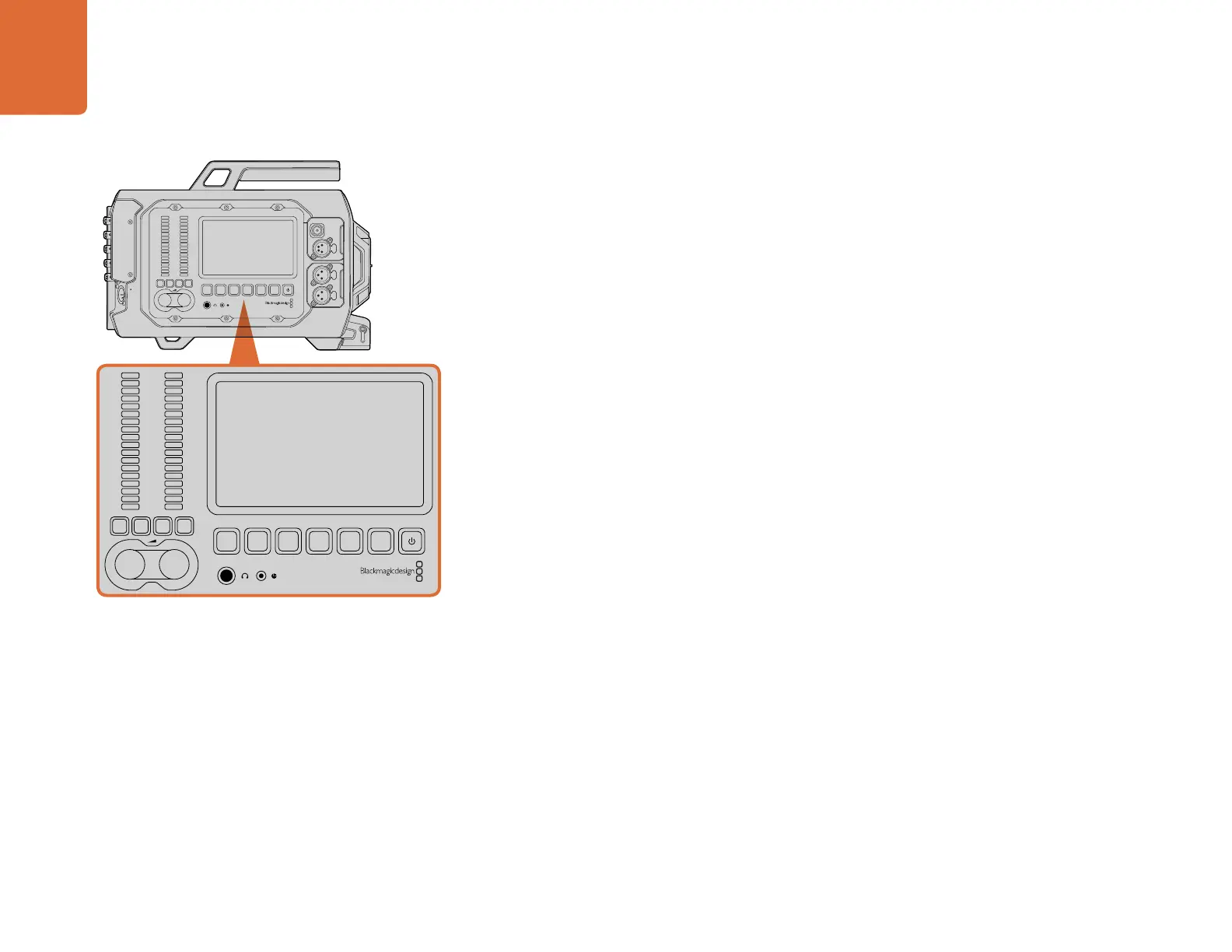
All of Blackmagic URSA's settings are easily adjusted using the work station buttons and touchscreens.
The buttons and touchscreens on each station perform the same functions, but work independently.
For example, a camera assistant can adjust settings from the camera assist and audio station, while
the camera operator is setting a feature from the DOP station.
IRIS Button
The 'iris' button activates the automatic aperture setting on compatible EF lenses. When using video
dynamic range settings, a single press of the iris button will set an average exposure based on the
highlights and shadows in your shot. When using film dynamic range settings, pressing the iris button
sets your exposure to the brightest highlight in your shot.
To set your aperture manually, press the forward and reverse skip transport buttons on the fold
out monitor.
FOCUS Button
When using an EF mount with an EF lens that supports electronic focus adjustments, press the 'focus'
button to activate auto focus. A white focus square will appear on the fold out monitor. Anything
within the square will be correctly focussed. When the lens is focussed, the square will disappear. It's
important to know that while most lenses support electronic focus, some lenses can be set to manual
or auto focus modes, and so you need to ensure your lens is set to auto focus mode.
PEAK Button
Press the 'peak' button to activate focus peaking. The focus peaking feature creates a green edge
around the sharpest parts of the image so you can easily confirm your focus. Focus peaking is not
recorded to the CFast 2.0 cards, but can be displayed via the monitoring SDI output, and on URSA's
fold out monitor, by activating overlays using touchscreen menu.
DISP Button
Press the 'disp' button to cycle through the display modes on each touchscreen. For example, pressing
the disp button lets you view the camera's status and scopes, view your clips during recording and
playback, and access camera features and settings via the dashboard.
Adjust camera settings using the work station buttons
on each side of Blackmagic URSA. Each station can be
operated independently.
Blackmagic URSA Features
REC
ZOOM
DISP
PGM
1
CFAST
IRIS
FOCUS
REC
IRIS
FOCUS PEAK DISP MENU SLATE
2
IRIS
SDI OUT
0
-6
-12
-18
-24
-30
-36
-42
-48
L R
SDI IN
REF IN
TIMECODE IN
TIMECODE OUT
12V
CH1
SOLO
CH1
MUTE
CH2
MUTE
CH2
SOLO
FOCUS PEAK DISP MENU SLATE
PUSH PUSHPUSH
REC
ZOOM
DISP
PGM
1
CFAST
IRIS
FOCUS
REC
IRIS
FOCUS PEAK DISP MENU SLATE
2
IRIS
SDI OUT
0
-6
-12
-18
-24
-30
-36
-42
-48
L R
SDI IN
REF IN
TIMECODE IN
TIMECODE OUT
12V
CH1
SOLO
CH1
MUTE
CH2
MUTE
CH2
SOLO
FOCUS PEAK DISP MENU SLATE
PUSH PUSHPUSH



 To Next Page