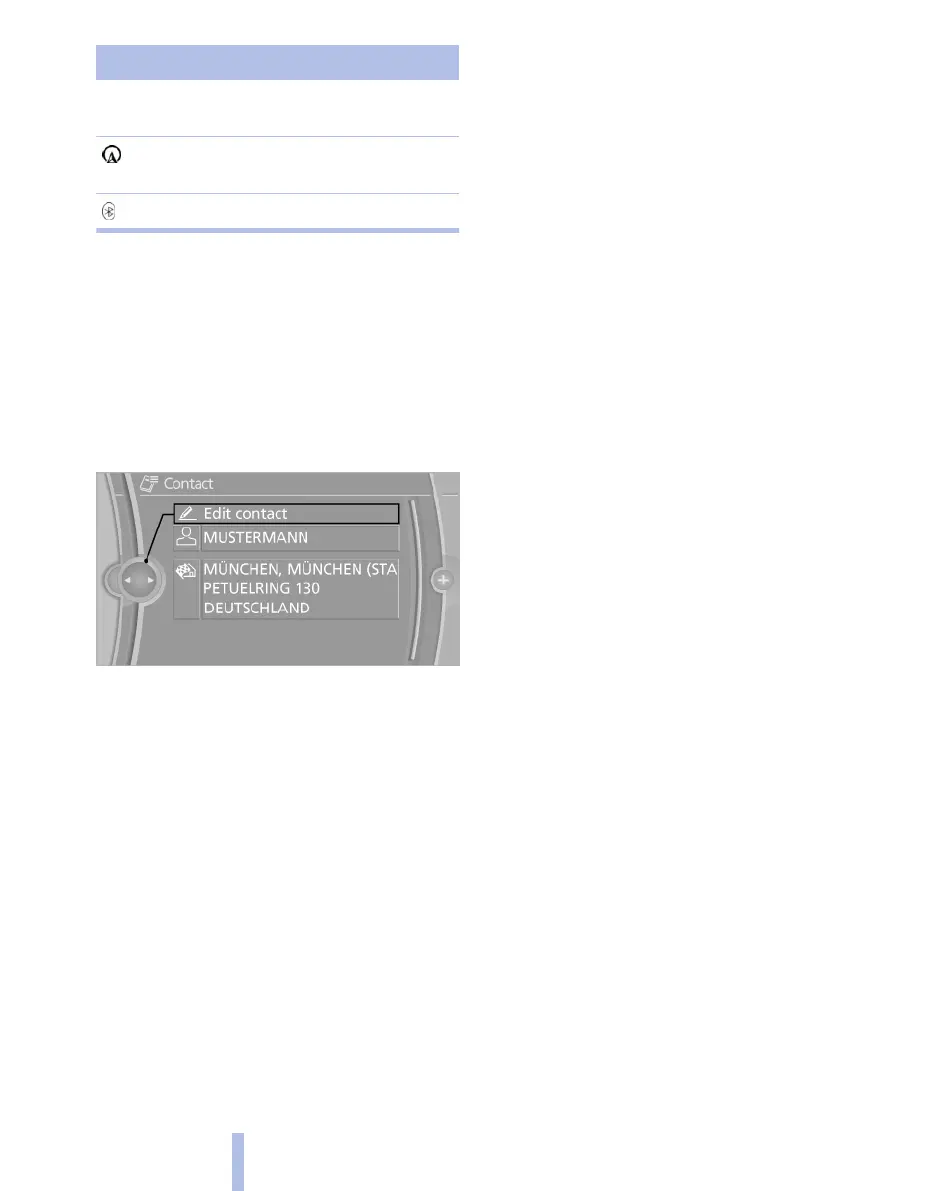
Symbol Storage location
No symbol In the vehicle, address not
checked as destination.
In the vehicle, address checked as
destination*.
Mobile phone*.
Dial a phone number*
1. Select the desired contact.
2. Select the phone number.
The connection is established.
Editing contacts
1.
Select the desired contact.
2. "Edit contact"
3. Change entries.
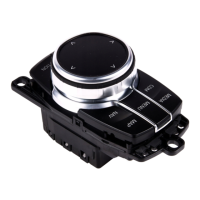
4. Tilt the controller to the left.
5. "Yes"
If a contact that comes from the mobile phone is
edited, the changes are not saved on the mobile
phone. A copy of the entry is saved in the vehicle
and only the copy is displayed. Under certain
circumstances an identical contact entry is cre‐
ated.
Selecting a contact as navigation
destination*
1.
Select the desired contact.
2. Select address.
In the case of contacts from the mobile
phone, the address might have to be
matched to the navigation data in the vehi‐
cle. If that is the case:
Correct the address.
3. "Start guidance" or "Add as another
destination"
Checking address as destination*
An address that is to be added to the route guid‐
ance must match the navigation data contained
in the vehicle. Here, the address can be
checked.
1. Select the desired contact and highlight the
address.
2. Call up "Options".
3. "Check as destination"
4. If necessary, correct and save the address.
If the address is corrected and saved, a copy is
created in the vehicle. The address is not
changed on the mobile phone.
Selecting sort order for names
Names can be displayed in a different order.
1.
"My contacts"
2. Call up "Options".
3. "Show: surname, first name" or "Show: first
name, surname"
The sort order for names might not be the same
as the selected sort order, depending on how
contacts are saved on your mobile phone.
Exporting/importing contacts
Contacts can be exported and imported via Per‐
sonal Profile, see page 29.
Deleting contacts
Only contacts saved in the vehicle are deleted.
It is not possible to delete contacts from the mo‐
bile phone.
1.
"My contacts"
2. Highlight the contact.
3. Call up "Options".
4. "Delete contact" or "Delete all contacts".
Seite 216
216
Online Edition for Part no. 01 40 2 607 643 - 07 11 490
Contacts



 To Next Page