16
P063GUI001 - User guide eCelsius Performance Connect.1 - EN
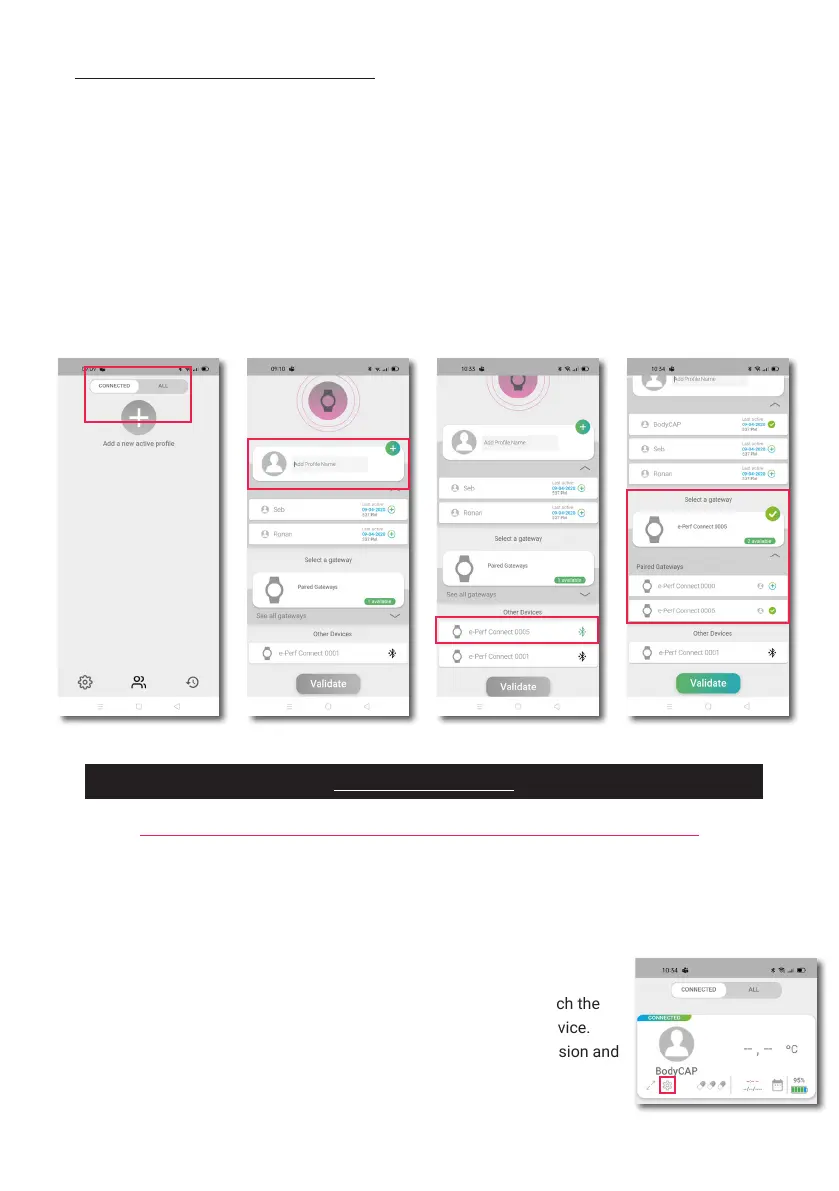
Figure 6: BLE peering ePerf Connect with ePerf Mobile
Before use of ePerf Connect, it is necessary to congure few parameters.
To do so, please go to the ePerf Connect setting options thanks to the ‘‘Nut’’ symbol on the main screen
below the prole concerned.
The parameters available are:
MAIN FUNCTIONS
EPERF CONNECT CONFIGURATION ON EPERF MOBILE
2- Association of an available ePerf Connect: You may then select an existing ePerf Connect device or
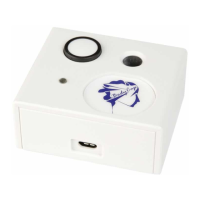
pair a new device to the ePerf Mobile application. To pair a new device, you have to make a long press on
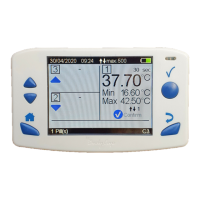
the up button (bouton 2) until the message ‘‘Associat. BLE’’ appears on the screen of the ePerf Connect
device.
On ePerf Mobile, a green reference ‘‘ePerf Connect XX.XX’’ should appear that indicates the ePerf
Connect device is available for a BLE association. Once selected, please validate the peering by entering
in ePerf Mobile Application the code displayed on the screen of the ePerf Connect device. The ePerf
Connect device will appear in the list of available paired devices. In case of error, please try again the
whole process.
Note: the BLE name of the ePerf Connect corresponds to the serial number at the back of the device
(SN: XXX).
• The date and time (automatic)
The date and time of the Android support (Smartphone or tablet) on which the
ePerf Mobile Application is installed will be sent to the ePerf Connect device.
This information will allow data timestamp for the coming recording session and
is also displayed on the screen of the ePerf Connect device.


 To Next Page