21
P063GUI001 - User guide eCelsius Performance Connect.1 - EN
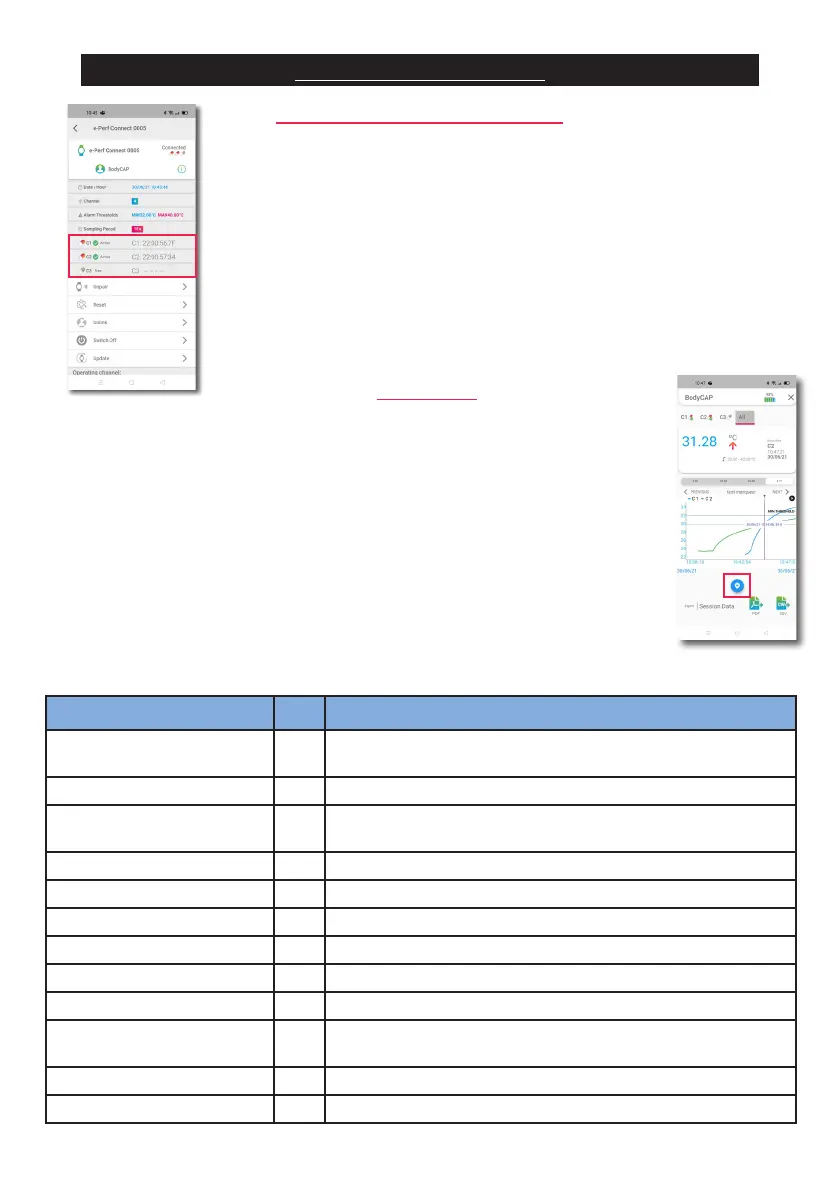
It is possible to access to the unique ID of the capsule going on ePerf Mobile
application and then access to the ePerf Connect parameters (‘‘Nut’’ logo at the
bottom of the android device).
The capsule ID are in an hexadecimal format: XX.XX.XX.XX in wich X may be
from 0 to 9 and from A to F.
Once the capsule is deactivaed, it disappears of this list and is transfered to the
Archives (Cf. page 22).
Marker button Auto Signication
User marker no
Marker added through a long press on button 1
or through the ePerf Mobille App
Power ON yes ePerf Connect turned on
Power OFF yes
ePerf Connect volontary turned off
(through the ePerf Mobile App)
Critical battery yes The ePerf Connect is turned off due to a too low battery level
Pause activated (1/2/3) yes A capsule (1/2/3) is put in Pause mode
Pause deactivated (1/2/3) yes A capsule (1/2/3) previsously in Pause mode is ‘‘on’’ again
Date and time update yes Date and time updated through the ePerf Mobile App
Capsule activated (1/2/3) yes A capsule (1/2/3) is associated
Capsule deactivated (1/2/3) yes A capsule (1/2/3) is deactivated
Internal alert XX yes
The ePerf Connect device triggered a technical alert that re-
quires an intervention of the support service team
Slot memory 1/2/3 full yes Memory of the ePerf Connect device full
Measurement period yes New measurement period applied
SECONDARY FUNCTIONS
ID CAPSULES VISUALIZATION
MARKERS
The system give the opportunity to record specic events through automatic or manual
markers.
The automatic markers are triggered and recorded once the condition observed. They
may thus appeared a posteriori in case of data synchronization.
The manual markers may be directly added:
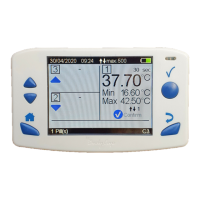
- by pushing the button 1 of the ePerf Connect device (long press)
- through the ePerf Mobile application by double-clicking on the graph of the capsule
concerned.
- by pressing the marker button
The markers are then diplayed ont the graphic through a vertical line and in the raw data
le after data export.The buttons ‘‘Next’’ and ‘‘Previous’’ on the graph allow to navigate
from one marker to another.


 To Next Page