17
P063GUI001 - User guide eCelsius Performance Connect.1 - EN
• Temperature thresholds setting
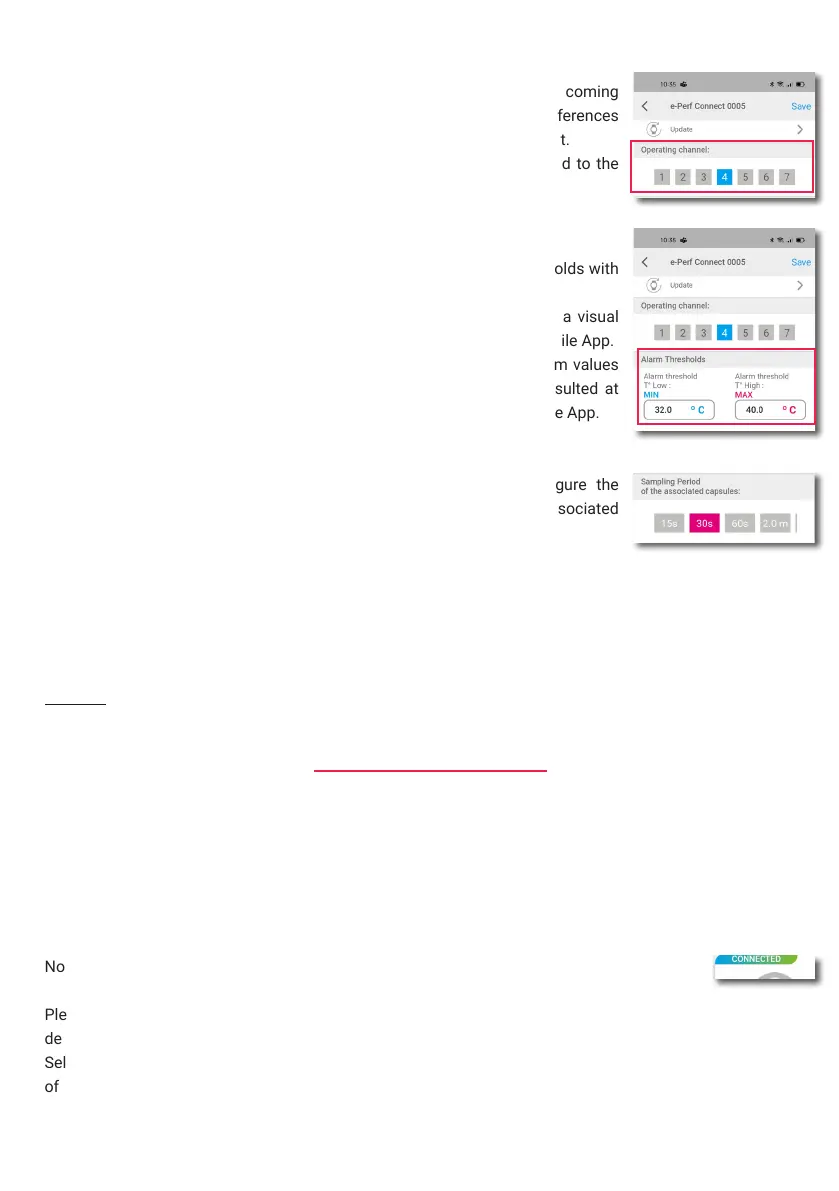
The setting of ‘‘Thresholds’’ allows to congure the up and down thresholds with
which the color of the temperature data displayed changes.
Minimum and maximum temperature thresholds may be used to have a visual
alert (color code) on the subject temperature data through the ePerf Mobile App.
The values by default are 36.0°C and 40°C. The minimum and maximum values
are limited to 5°C and 45°C. The thresholds values used may be consulted at
anytime, on the temperature visualization screen though the ePerf Mobile App.
• Measurement period setting
The measurement periods setting of the capsules allows to congure the
frequency of the temperature data measurement for all the caspules associated
to the ePerf Connect device.
• Operational canal
It allows to select the operational canal that aims to be used for the coming
recording session. This is an advanced parameter, limiting the interferences
between several ePerf Connect device operating in the same environment.
This parameter is not modiable anymore once capsules are associated to the
ePerf Connect device.
• Comment addition
The application allows to add a comment to a prole. In the prole settings, select comment and enter a
note, up to 64 characters.
Remark: A new setting has to be saved to be applied.
To associate an eCelsius Performance capsule, please have:
* the activator and its cable
* the ePerf Connect device turned on and with the charge cable removed
* the ePerf Mobile application launched and paired to the ePerf Connect device
* An eCelsius Performance capsule
Note: the application and the ePerf Connect device have to be paired to launch an association.
Please go then to the ePerf Mobile Application and select the prole associated to the ePerf Connect
device used. Extend the prole by clicking on the capsules. The detail of each capsule appears then.
Select the slot of the capsule to associate by clicking on the corresponding ‘‘+’’ and follow the instructions
of the application.
CAPSULE ASSOCIATION


 To Next Page