3
Calling up scenes automatically during
playback and recording (Auto Scene)
In Ver. 2, you can now assign scenes to markers. Once you
assign scenes to markers, the scenes are called up
automatically during playback and recording whenever a
point set with a marker is passed, thus providing you with
automated control of track faders and effects.
1.
First, go to the location in the song at which the desired
control is to take place.
2.
Hold down [STOP] and press [MARK].
A new marker is created at the current location.
A new scene is also created at the same time, and it is
automatically assigned to the marker. The track fader,
effects, and other settings are all recorded together in the
scene.
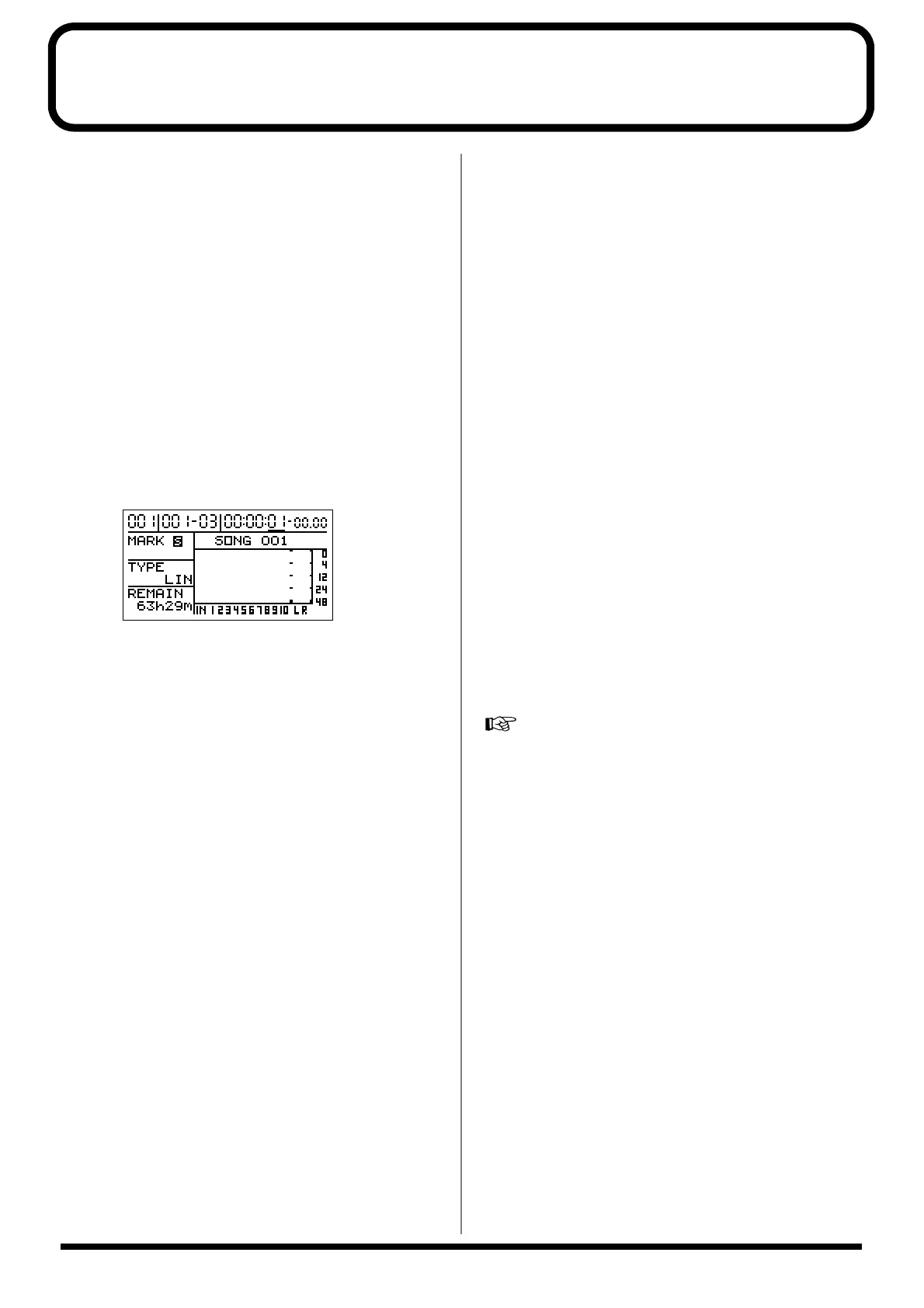
An “S” appears in the marker name area in the Top
screen when a scene is assigned.
fig.01
* You can create up to a total of 100 markers, including both
those to which scenes are assigned, as well as independent
markers. You can also create up to fifty scenes in all. If you
attempt to create any further markers or scenes, the message
“Marker Mem Full!” or “Scene Mem Full!” appears, and you
cannot create the marker or scene.
* You cannot set a new marker within 100 milliseconds before or
after an existing marker. In such instances, first clear the
existing marker, then carry out Step 3 to set the new marker
(Owner’s Manual p. 61 “Clearing a marker”).
3.
Press [ZERO] to reset the song to the beginning, and
press [PLAY] to play back the song.
When playback reaches a location where a marker has
been set, the scene assigned to the marker is called up
automatically. At that time, an “S” appears in the marker
name area of the Top screen.
*A scene is called up when the current location matches a
location where a marker has been set. This is true not only
during playback and recording, but also when the song is
stopped, for example when changing the current location.
When Auto Scene is used, not all of the parameters stored in
the scene are called up, but only the following parameters.
• Track fader 1–9/10
• Track muting
• Master fader
• Rhythm fader
• Pan (Track 1–9/10)
• EQ (Track 1–9/10) (
→
“Using Auto Scene to control track
EQ” (p. 5))
• Insert Effects (
→
“Using Auto Scene to control Insert
Effects” (p. 5))
• Chorus/Delay Send (Track 1–9/10, RHTYHM/LOOP
PHRASE)
• Reverb Send (Track 1–9/10, RHTYHM/LOOP PHRASE)
* Application of actual fader values to the performance may be
delayed by about ten to twenty milliseconds from the point at
which the marker is set. This reduces the noise. Be sure to note
this when using the Auto Scene feature.
4.
To have these settings be remembered, you must save
the song.
“Saving a song (Song Store)”; p. 80 in the Owner’s Manual



 To Next Page