5
Calling up scenes automatically during playback and recording (Auto Scene)
Using Auto Scene to control
Insert Effects
Although Auto Scene is not normally used to control the
Insert Effects, you can control them with the following
procedure.
1.
Press [UTILITY], then press [CURSOR] to move the
cursor to “SYSTEM,” then press [ENTER].
This brings up the System screen.
2.
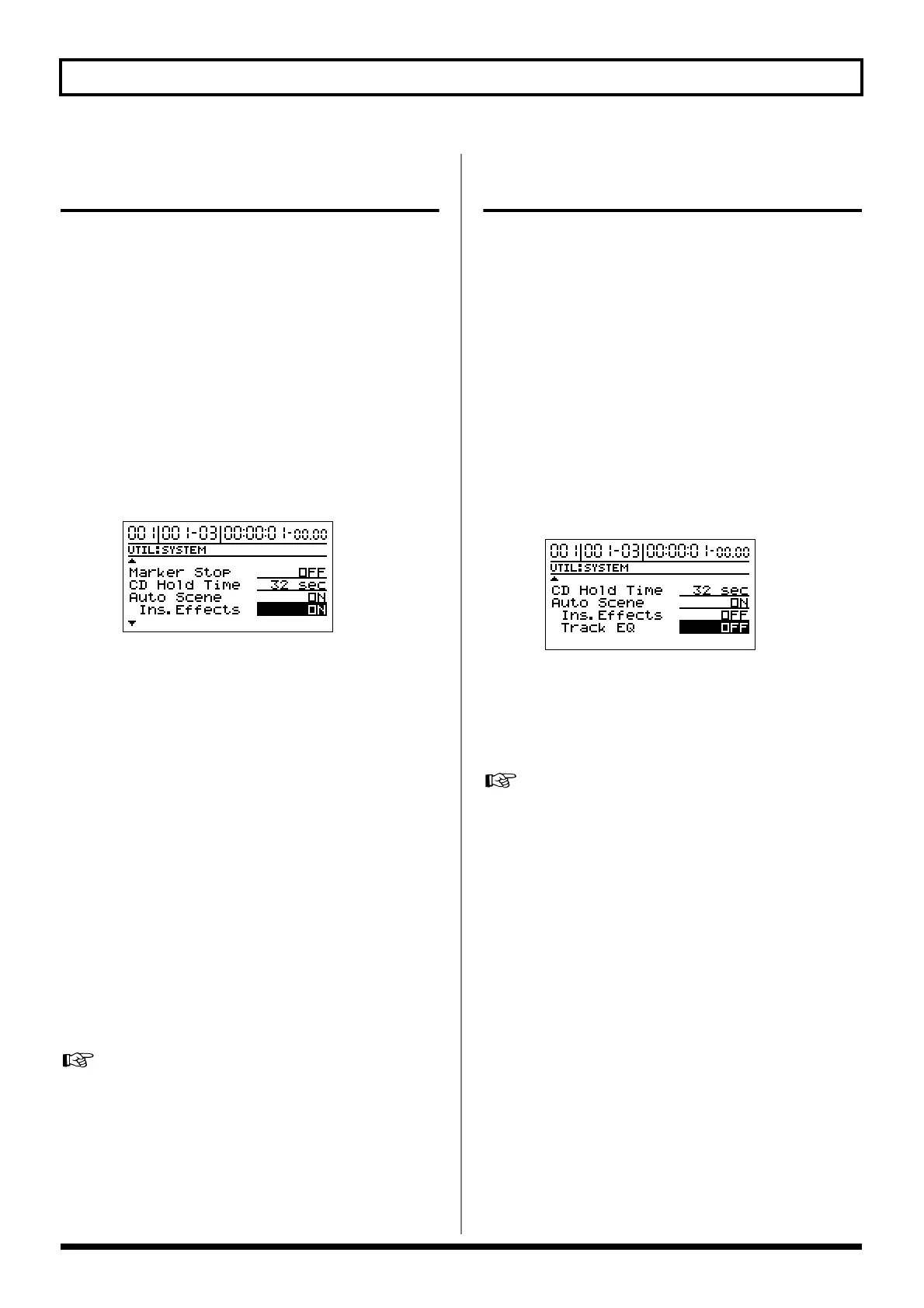
Use [CURSOR] to move the cursor to “Ins.Effects” and
switch the function to “ON” with the TIME/VALUE
dial.
This enables control of the Insert Effects parameters with
Auto Scene.
* However, you cannot control the “INSERT” parameter.
fig.06
* To stop the control function, set “Ins.Effects” to “OFF” again.
3.
Press [ZERO] to reset the song to the beginning, and
press [PLAY] to play back the song.
When playback reaches a location where a marker has
been set, the scene assigned to the marker is called up
automatically, and the settings change to those recorded
in the scene, including the Insert Effects patch
parameters.
At this point, “TMP” appears in the Effects Patch screen.
* Be sure to note that application of the Insert Effects in the
performance may be delayed from several hundred
milliseconds to one second from the point at which the marker
is set.
* Also note that noise levels may become more noticeable with
certain sounds and parameter settings used in performances
with Insert Effects.
4.
Save the song to store these settings in memory.
“Saving a song (Song Store)”; p. 80 in the Owner’s Manual
Using Auto Scene to control
track EQ
Track EQ is normally controlled with Auto Scene. However,
depending on the sounds used in a performance recorded on
a track, noise may be audible when the EQ is being adjusted.
In such situations, you may want to disable control of the
track EQ.
* Songs created in versions prior to Ver. 2 have the track EQ
disabled when loaded in Ver. 2. If you want to control the track
EQ, enable the control (set to ON).
1.
Press [UTILITY], then press [CURSOR] to move the
cursor to “SYSTEM,” then press [ENTER].
This brings up the System screen.
2.
Use [CURSOR] to move the cursor to “Track EQ” and
switch this to “OFF” with the TIME/VALUE dial.
fig.07
This disables control of the track EQ.
* To enable the control function, set “Track EQ” to “ON”
again.
3.
Save the song to store these settings in memory.
“Saving a song (Song Store)”; p. 80 in the Owner’s Manual



 To Next Page