16
7. OSD Menu
Press “Menu” to open the menu. Press up or down to choose the OSD options or
press Esc to exit. To enter a submenu, press “Auto/Enter” or the right mouse button.
Under the submenu, press “Menu” or Esc on the remote control to return to the
main Menu screen or double click to exit the OSD menu.
7.1 Image (Computer mode)
Submenu
options
Description Operation method
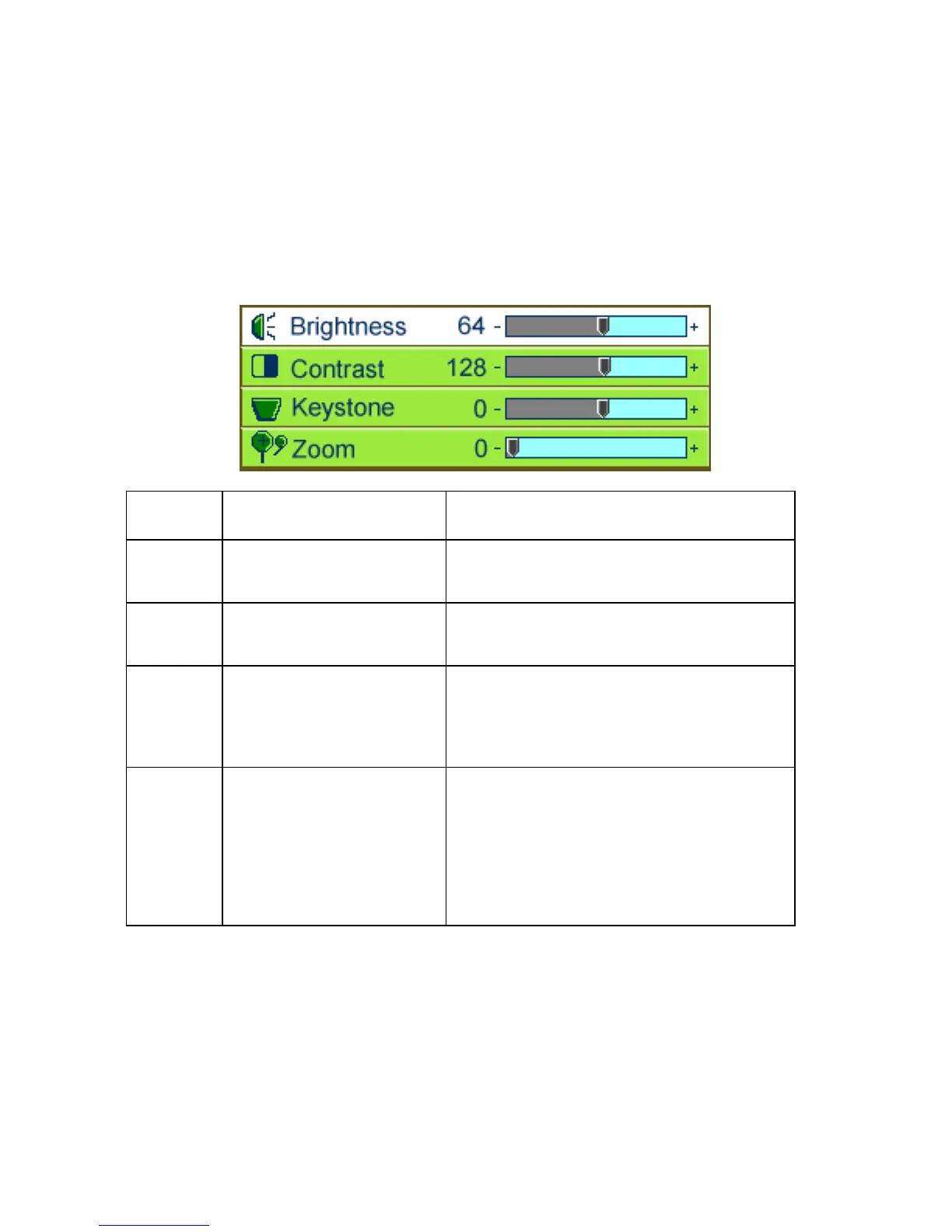
Brightness
(**)
Adjusts the overall brightness of
the image
•PressÅto reduce the brightness of the image.
•PressÆ to increase the brightness of the image.
(*)
Contrast
Adjusts the contrast of the
image.
•PressÅto reduce the contrast of the image.
•PressÆ to increase the contrast of the image.
(*)
Keystone
Corrects an image that is wider
at the top or at the bottom.
•PressÅ to correct an image that is wider at the
bottom.
•PressÆ to correct an image that is wider at the
top.
(*)
Zoom
Enlarges or reduces a portion of
the image.
•PressÅ to reduce the zoom.
•PressÆ to enlarge the zoom.
(*)
¾ Please press Auto/Enter button to enter zoom
mode.
Inthis mode, pressÅÆ to move the image,
ress Pg Up and Pg Dn on the remote control to
adjust the image size.
* Press “Auto” button to return to previous setting value.
**If the source is switched to HDTV/DVD 480P, “Brightness” becomes “Tint” which
adjusts the balance between red and blue in the image.


 To Next Page