DIGIMIC®
DCen mini
Copyright by BRÄHLER ICS AG 15
Firmware Update
The central unit DCen mini can be updated via firmware update.
1. Requirement:
The central unit to be updated must be online in a network.
The update files you get are only valid for the central unit to be updated.
2. Unzip the files
The update files will be delivered as a zip archive. Unzip all files to your computer while keeping the
folder structure intact.
There are usually 4 files per DCen mini for the update and an executable file "DCenUpdate.exe". If more
than one central unit has to be updated, please unzip all the zip archives to the update directory.
3. Copying the data files to the DCen mini
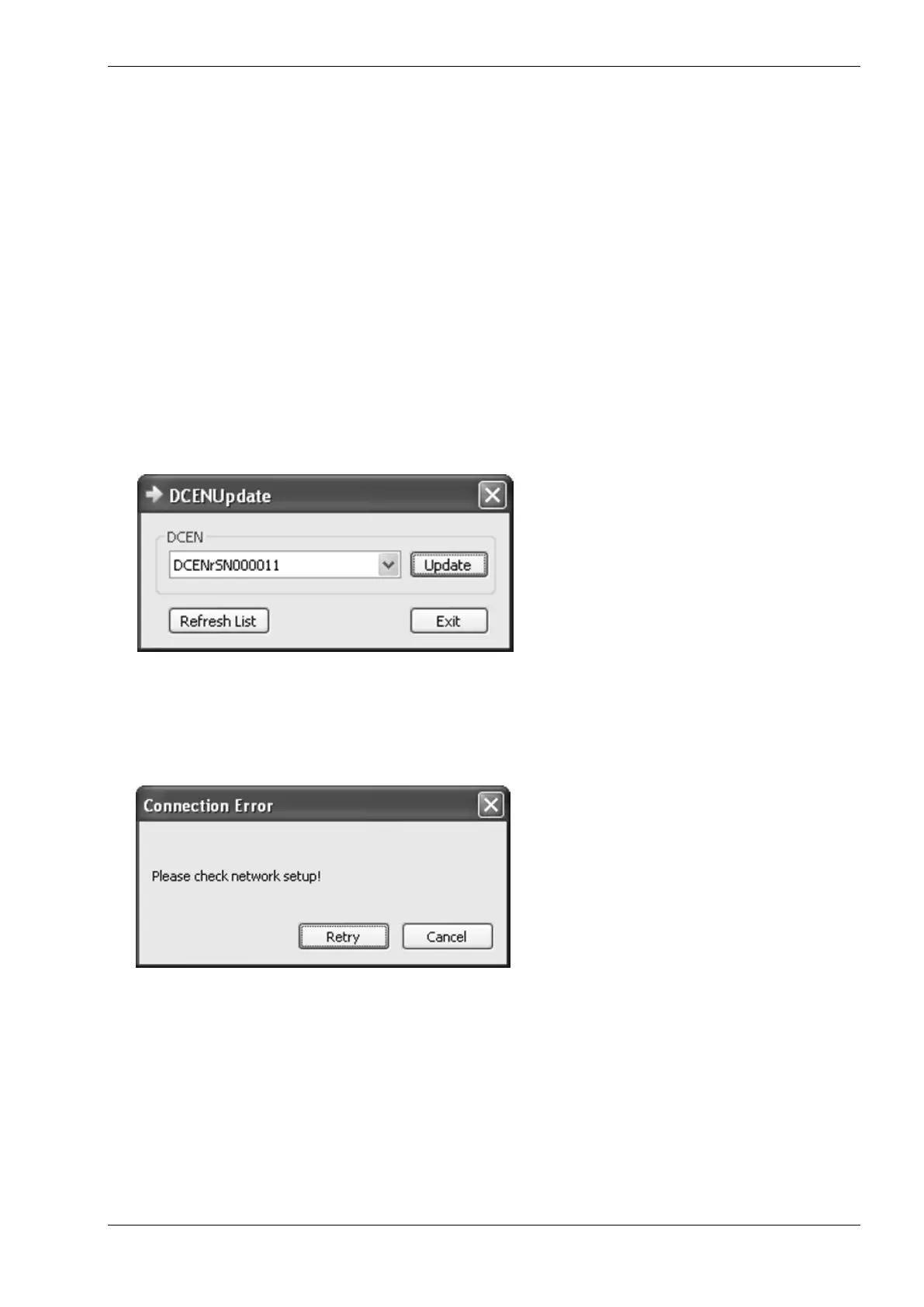
Locate and start the file DCenUpdate.exe from within the unzipped directory tree. The software will start
with the following main window:
Select the SN (serial number) of the DCen mini
you intend to update. Remember that you will
see all DCen systems found on the network in
the list.
Click on the button “Refresh List” to refresh the
list of available DCen systems in your network.
You can leave the program without installing the
files by pressing the “Exit” button.
Click on button “Update” to start the file transfer for the update. The program will show a progress
indicator while copying the files necessary for the update to the DCen system.
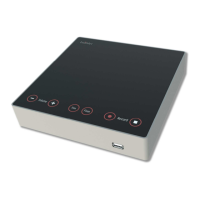
In case of a network problem, the following requester will pop up:
Please check the network connections and
settings of your computer and the DCen mini to
be updated and click on “Retry”. Otherwise
contact your system administrator.
If the procedure was only partially successful
and cannot be continued at this time, it can be
restarted from the beginning without problems
later on. Incomplete or corrupted files will be
detected by the DCen mini and will not be
installed.
On successful completion, the following requester will pop up: „File transfer successful! “


 To Next Page