64
6.2 CONNECT TO THE CONSOLE
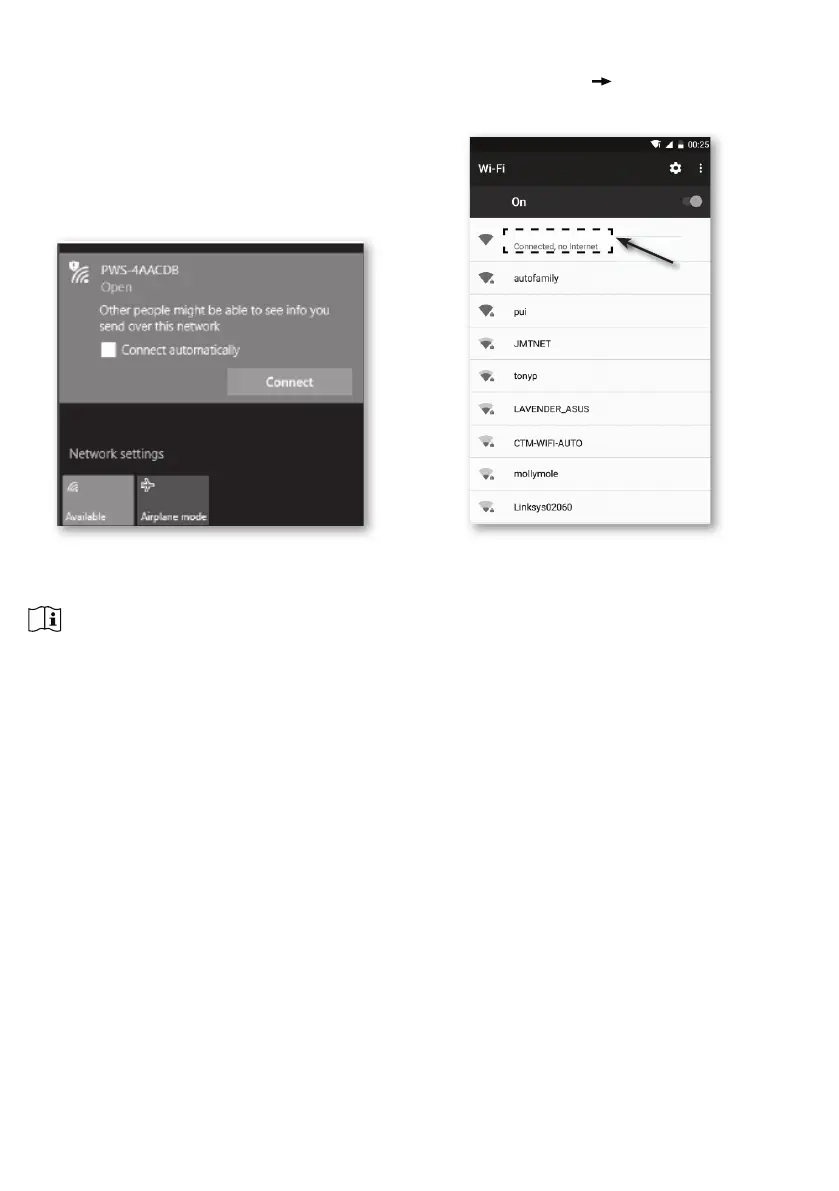
1. Use PC/Mac, smart phone or tablet to connect with the console through WI-FI network setting.
2. In PC/Mac WI-FI network settings, or In Android / iOS smart phones setting
connect WI-FI to the
console’s PWS WI-FI network as shown in gures below (console WI-FI network name will always
begin with PWS -) :
PWS-000710
E.g. PC WI-FI network interface E.g. Android smart phone WI-FI network interface
3. Once connected, enter the following IP address into your Internet browser’s address bar, to access the
console’s SETUP web interface:
http://192.168.1.1
NOTE :
- Some browsers will treat 192.168.1.1 as a search, so make sure you include header http://.
- If you cannot enter the console 's web interface, please turn o the mobile data / network in you smart
phone and try again.
- Recommended browsers include the latest version of Chrome, Safari, Edge, Firefox or Opera.
- WI-FI network interface of PC/Mac or smart phone may subject to change.


 To Next Page