26
© 2020 Brivo Systems LLC. All rights reserved. P-MAN-PUB-Panel Networking Guide
Panel Networking Guide
System Conguration (ACS6000 and ACS300 only)
The Administrative Interface allows an administrator to backup and/or restore the panel settings currently
established on the control panel:
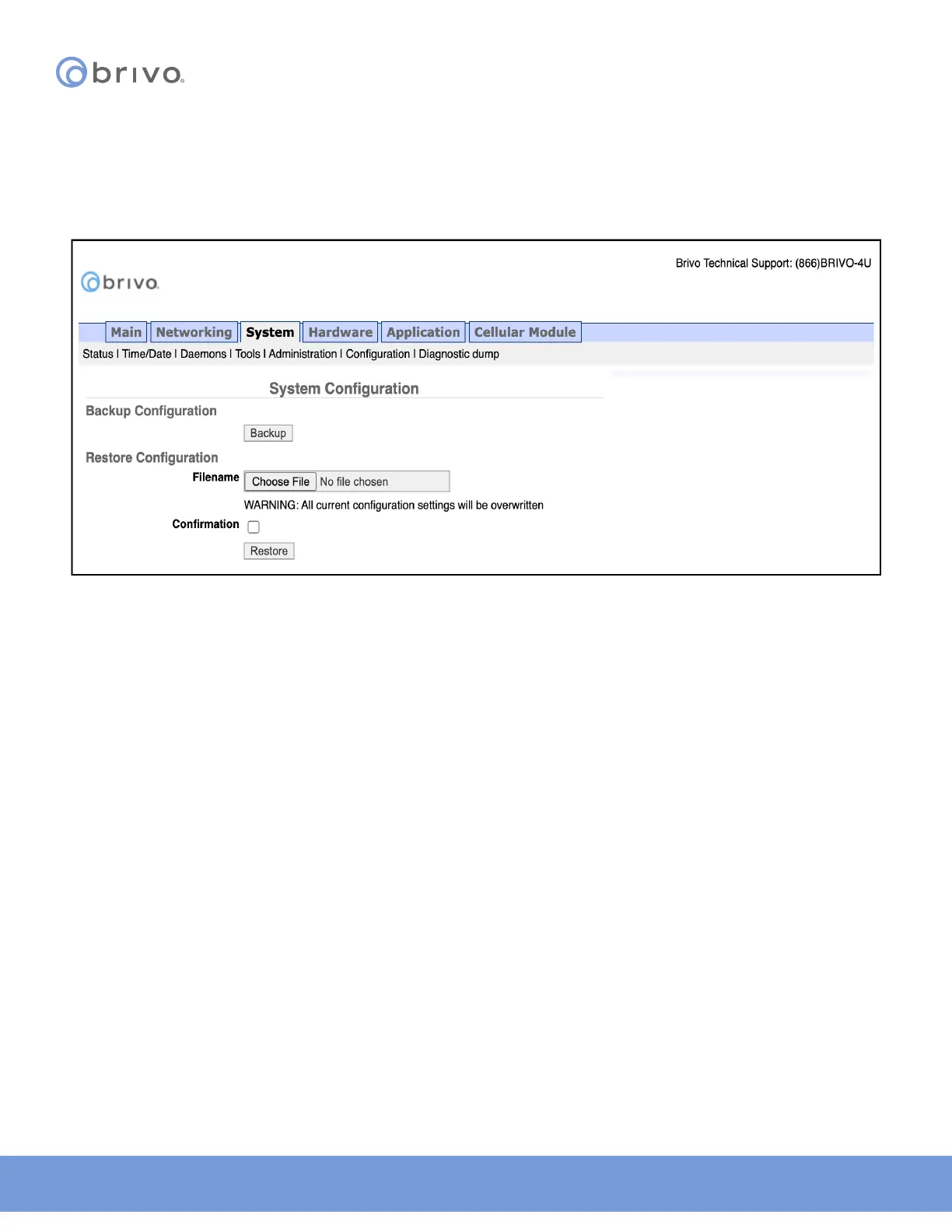
1. Click System to access the System menu bar.
2. Click Conguration to access the System Conguration page.
Figure 26: System Conguration
3. To back up the current panel settings, click on Backup to automatically backup current panel settings onto
your local storage device. The le immediately and automatically saves to your local storage device.
NOTE: In order to use Restore in System Conguration, you MUST insert a USB drive into the USB Host port prior to
performing this operation.
WARNING: System Restore - All current conguration settings will be overwritten when the System Restore
functionality is used.
4. To restore the current panel settings, click on Choose File and select the backup le you wish to restore to
the control panel. The restoration begins immediately and automatically. To receive a conrmation message
that the process is complete, check the Conrmation checkbox prior to beginning the restore process.
Diagnostic Dump
The Diagnostic Dump functionality has no particular screen, but simply downloads a log le to the local storage
device.
NOTE: It is generally recommended that the Diagnostic Dump functionality be used only at the request of Brivo
Technical Support.
1. Click System to access the System menu bar.
2. Click Diagnostic Dump to begin the download.
3. Once the le is downloaded, the process is complete.



 To Next Page