38
© 2020 Brivo Systems LLC. All rights reserved. P-MAN-PUB-Panel Networking Guide
Panel Networking Guide
ACS100
This chapter is devoted to the ACS100 control panel. For information on the ACS6000, ACS300, ACS5000, and IPDC
control panels, refer to the previous chapter.
Accessing the Local Administrative Interface
This section describes how to connect to the Brivo control panel local Administrative Interface (often described
throughout this document as the WebCLI).
NOTE: In most cases, the Brivo control panel will self-congure its network settings without any input from the
installer. You will only need to use access the Administrative Interface if you need to congure your network settings
manually or for troubleshooting.
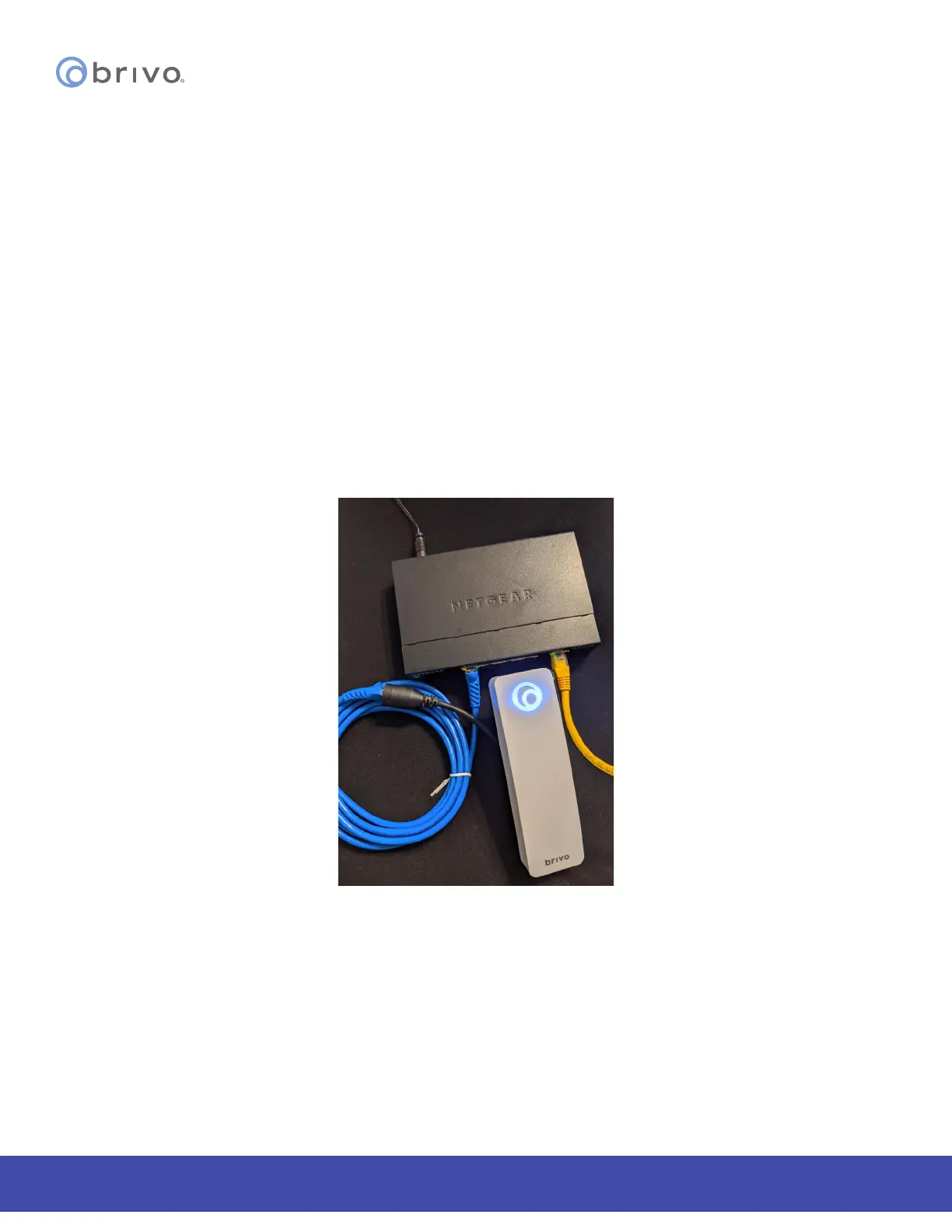
Connect a Laptop to the same subnet as the ACS100
Accessing the ACS100 local administrative interface is similar to other control panels (ACS300/ACS6000) except
there is only one LAN port. Therefore, instead of connecting your laptop directly to the control panel, you need to
connect a CAT 5 network cable with RJ45 jacks from the network jack on your laptop to the same network as the
ACS100 (usually through a PoE switch) as shown in the gure below.
Figure 38: ACS100 - Connect laptop to control panel through switch
When the Ethernet connection is working properly, you will see a blue Brivo logo illuminated on the front of the
ACS100. If the logo is not illuminated, check the connection on the ACS100 as well as the connection to the switch to
which the panel is connected.



 To Next Page