34
© 2020 Brivo Systems LLC. All rights reserved. P-MAN-PUB-Panel Networking Guide
Panel Networking Guide
Oce Mode
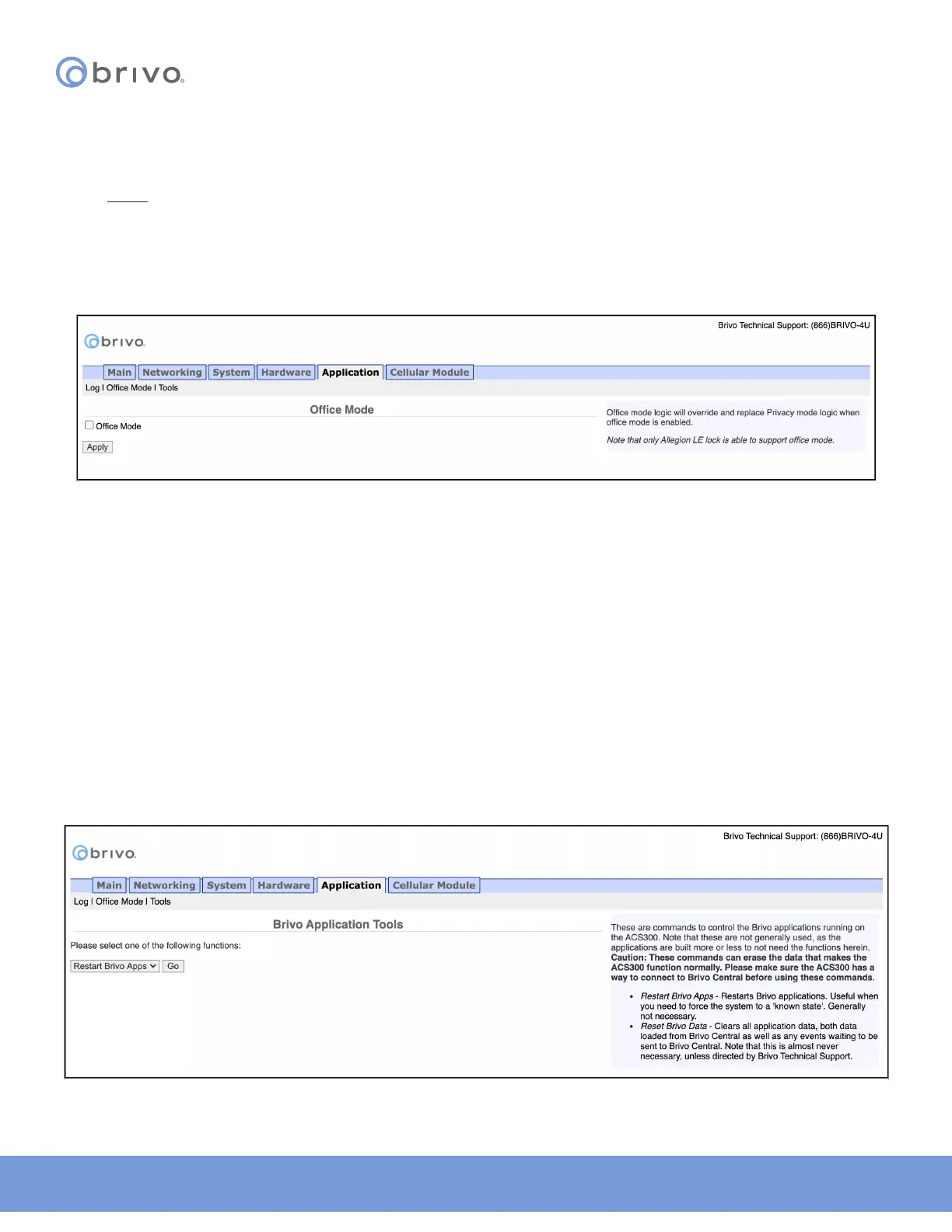
The Oce Mode page allows the administrator to activate Oce Mode. Oce Mode logic will override and replace
Privacy mode logic when oce mode is enabled.
NOTE: ONLY Allegion LE wireless locks are able to support Oce Mode.
1. Click Application to access the Application menu bar.
2. Click Oce Mode to view the Oce Mode page.
3. To enable Oce Mode, click the Oce Mode checkbox.
4. To complete the process, click Apply.
Figure 34: Oce Mode
Tools (Application)
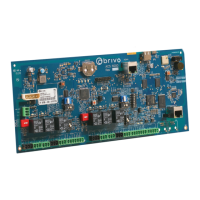
The Brivo Application Tools page provides access to two commands that are used only as part of diagnostic
procedures where you might suspect that the panel is not operating correctly or data may have been corrupted. To
access this page:
1. Click Application to access the Application menu bar.
2. Click Tools to access the Brivo Application Tools page.
3. From the pull-down menu, select:
a. Restart Brivo Apps to shut down the access control applications on the control panel, and then
restart them. Generally, this command should be used only when Brivo Technical Support requests
that you do so.
b. Reset Brivo Data to erase the local database of credentials, schedules, door settings, etc., and
forces the control panel to reacquire all this information from the Brivo Onair Cloud Server or Brivo
Onsite Server. This command should be used only if you suspect that the local data has been
corrupted, or if requested by Brivo Technical Support.
Figure 35: Brivo Application Tools



 To Next Page