44
■ Making Pattern Outlines Thicker
Additional lines can be drawn to make pattern outlines
appear thicker.
a See steps b through c in “Filling Patterns” on
page 43 to specify the drawing settings.
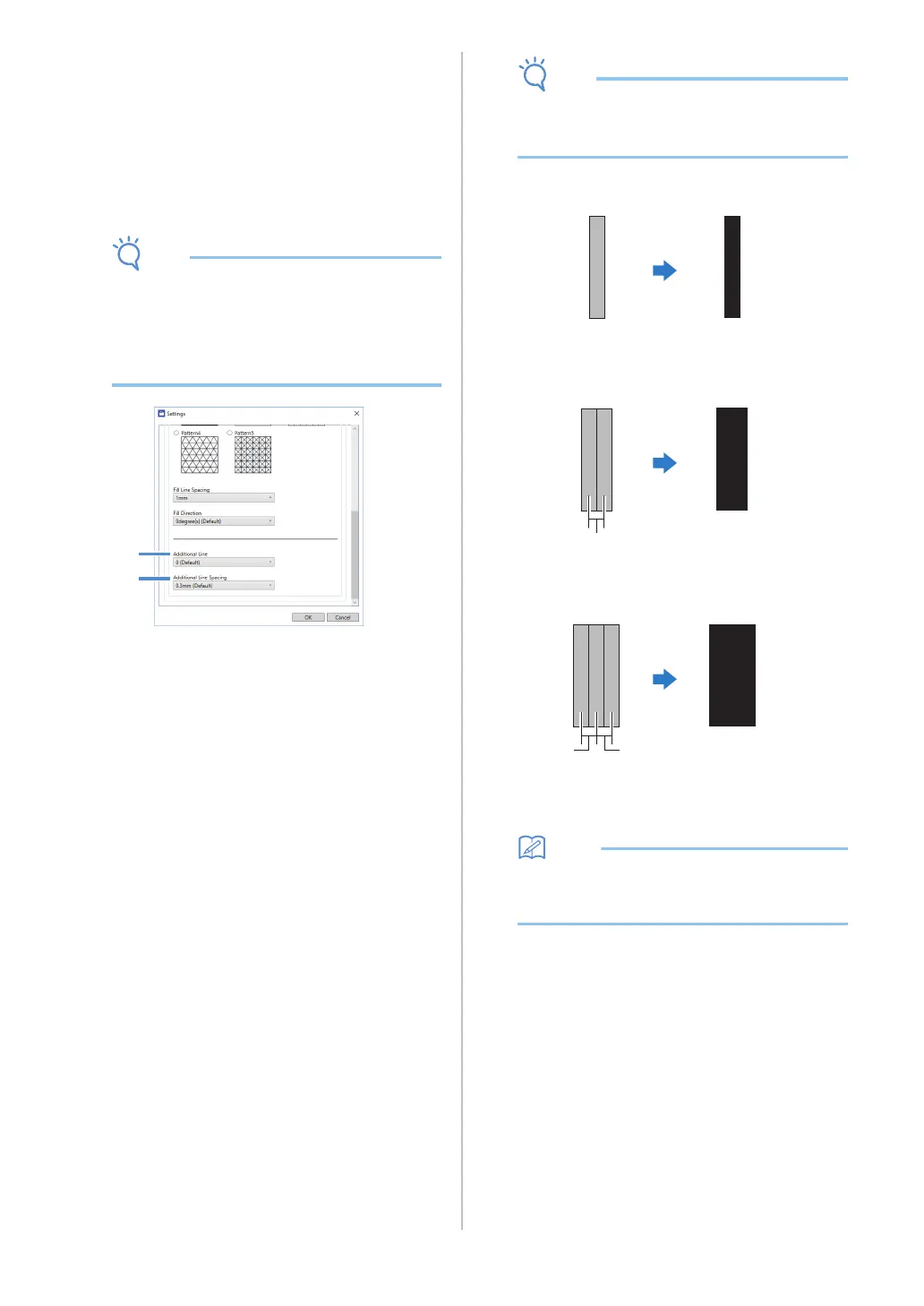
b After specifying settings for [Additional Line]
and [Additional Line Spacing], click [OK].
• The settings for “Additional Line” and
“Additional Line Spacing” will not be applied to
patterns with fill settings applied. For details on
the fill settings, see “Using Drawing Functions
to Fill Patterns/Make Outlines Thicker” on
page 43.
a Additional Line
Specify the number of lines to be added.
b Additional Line Spacing
Specify the spacing of the lines to be added.
• Refer to the following examples when
specifying settings for “Additional Line” and
“Additional Line Spacing”.
a Additional Line 0: No lines added.
b Additional Line 1: One line added.
c Additional Line 2: Two lines added.
d Additional Line Spacing: Adjusts the line
spacing. Increasing the line spacing creates a
space between the lines.
• The drawing result differs depending on the
thickness of the pen that is used. Make
adjustments according to the pen thickness.
d
d


 To Next Page