43
3
Using Drawing Functions to Fill
Patterns/Make Outlines Thicker
• Depending on the material and pen being used,
material drawn with a filled pattern may be
difficult to peel off or may tear. Perform trial
drawing with the pattern to be used in your
project.
• To fill in the pattern, select the [Fill the area in
the outline with the drawing function] check box
in the [Properties] dialog box in
ScanNCutCanvas, and then send the pattern to
the machine.
• An open pattern cannot be filled.
Example:
• The fill settings will be applied to all patterns in
the pattern preview window.
• Fill and outline settings cannot both be
specified for the same pattern.
■ Filling Patterns
a See steps c through e in “Drawing” on
page 41 to specify the drawing settings.
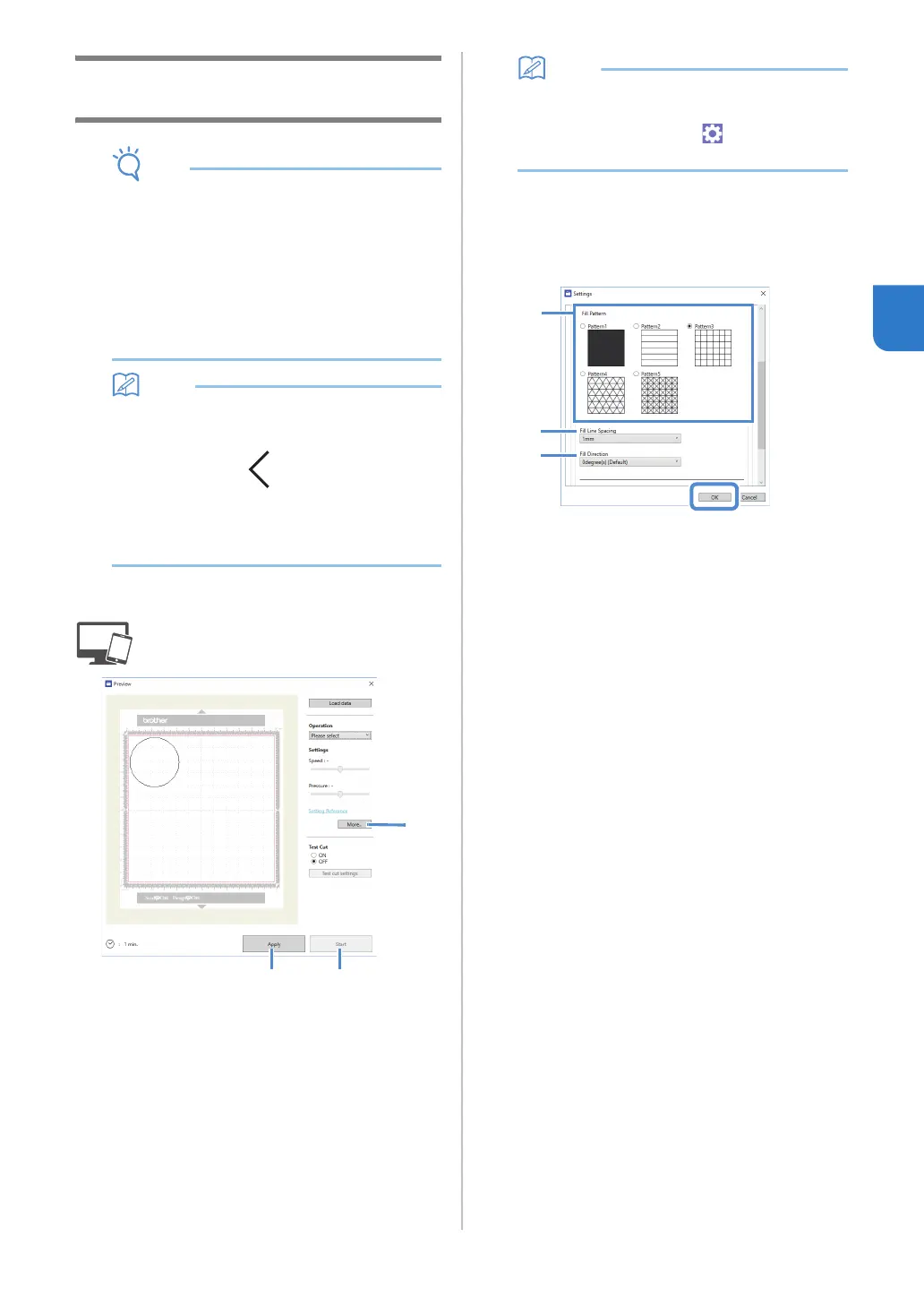
b Click [Apply].
Various fill settings can be specified.
c Click the [More…] to display the fill settings
screen.
The settings can also be changed by clicking [Settings]
in the [DesignNCut] menu of the main window.
• With the mobile device version: Preview
Window →[Settings] → [FILL / ADDITIONAL
LINE] or Main window→
→[Settings] →
[Operation]
d After selecting a design under [Fill Pattern],
specify settings for [Fill Line Spacing] and [Fill
Direction], and then click [OK].
a Fill Pattern
Select the fill pattern.
b Fill Line Spacing
Adjust the spacing of the lines filling the pattern.
c Fill Direction
Adjust the direction of the fill pattern.
e Click [Start] to begin drawing.


 To Next Page