EasyManua.ls Logo

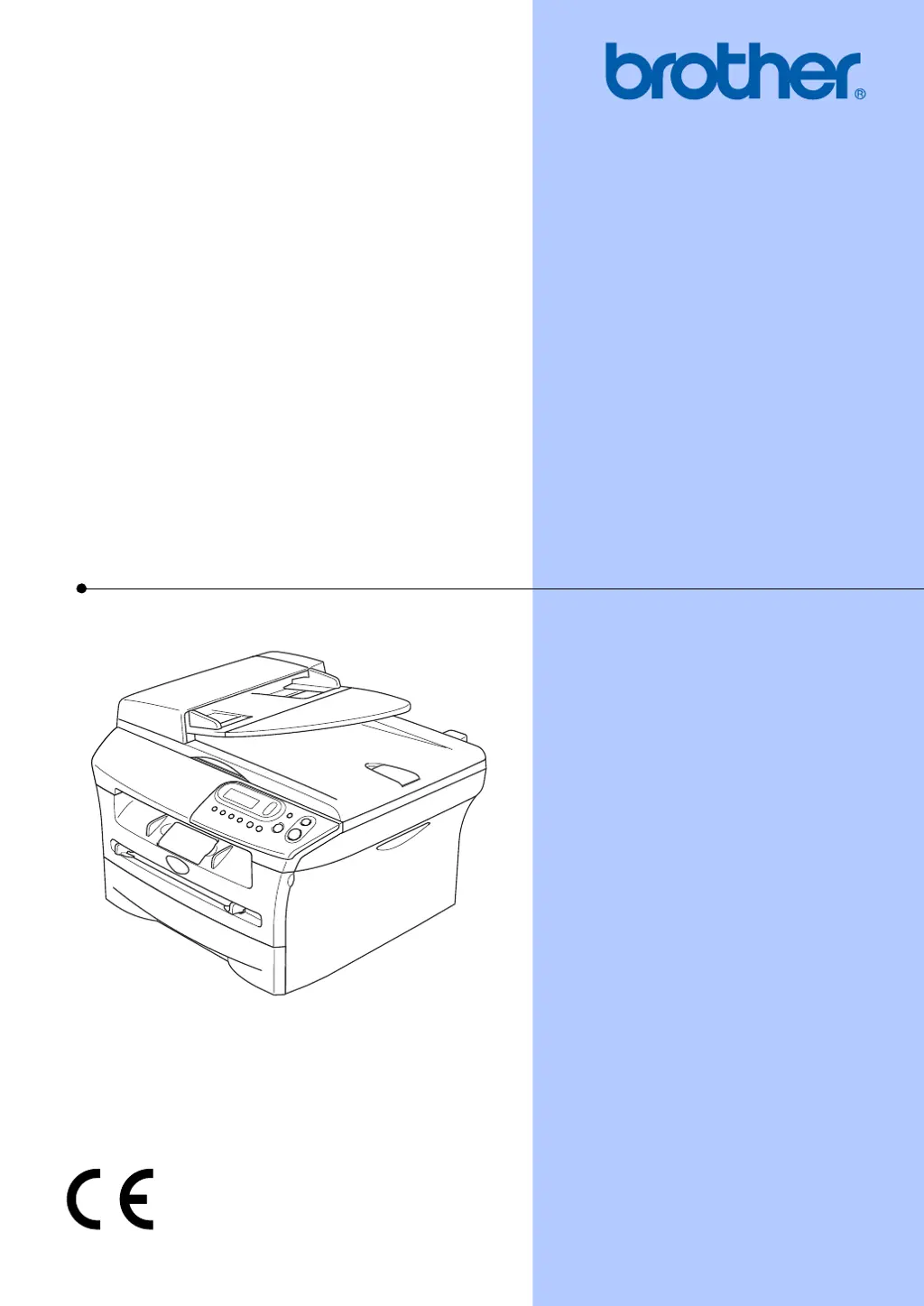
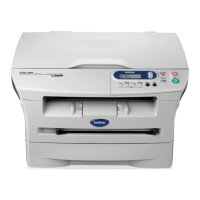
Brother DCP-7010 - User Manual

Brother DCP-7010
71 pages
Print Icon
To Next Page IconTo Next Page
Loading...
USER’S GUIDE
DCP-7010
DCP-7025
Version C

Table of Contents

Other manuals for Brother DCP-7010

Questions and Answers

  • T
    timothy76Sep 22, 2025
    The machine prints first couple of pages correctly, then some pages have text missing on my Brother printer. What to do?
    • K
      Kevin LeeSep 22, 2025
      Your computer is not recognizing the machine’s input buffer full signal. Please make sure you connect the machine cable correctly.
  • J
    James MartinezAug 23, 2025
    What does 'Out of Memory' mean on my Brother DCP-7010 Printer and how to fix it?
    • J
      jbrockAug 23, 2025
      The 'Out of Memory' message on your Brother Printer means that the machine’s memory is full. If a copy operation is in process, press Stop/Exit and wait until the other operations in process finish and then try again. If a printing operation is in process, reduce print resolution.
  • C
    Courtney WhitneyAug 25, 2025
    Why is my Brother DCP-7010 Printer printing vertical black lines?
    • E
      Edgar JacksonAug 26, 2025
      Vertical black lines on printed pages from your Brother Printer may indicate that the drum unit’s primary corona wire for printing is dirty. Clean your primary corona wire.
  • S
    Sarah ColeAug 26, 2025
    What does 'Change Drum Soon' mean on my Brother DCP-7010 Printer?
    • J
      Jonathan BakerAug 26, 2025
      The 'Change Drum Soon' message on your Brother Printer indicates that the drum unit is near the end of its life. Use the drum unit until you have a print quality problem; then replace the drum unit with a new one.
  • J
    Jerry MorrisAug 27, 2025
    What does 'Cooling Down Wait for a while' mean on Brother DCP-7010?
    • D
      Daniel BeckerAug 27, 2025
      The message 'Cooling Down Wait for a while' on your Brother Printer means that the temperature of the drum unit or toner cartridge is too hot, and the machine will pause its current print job and go into cooling down mode. You must wait 20 minutes for it to cool.
  • S
    Scott WilsonSep 18, 2025
    What to do if my Brother Printer says 'No cartridge'?
    • L
      lharrellSep 18, 2025
      If your Brother Printer displays a 'No cartridge' message, it indicates that the toner cartridge is not installed properly. Reinstall the toner cartridge.
  • R
    Richard MannSep 15, 2025
    Why are printed pages smeared on my Brother DCP-7010?
    • S
      Sean CarsonSep 15, 2025
      The Paper Type setting may be incorrect for the type of print media you are using, or the print media may be too thick or have a rough surface.
  • J
    james58Sep 16, 2025
    Why is my Brother DCP-7010 not feeding paper from the manual feed slot?
    • M
      Mason WaltersSep 16, 2025
      Reinsert the paper firmly, load one sheet at a time. Make sure that manual feed mode is selected in the printer driver.
  • D
    Destiny SmithSep 6, 2025
    What does 'Data Remaining' mean on my Brother DCP-7010 and how to fix it?
    • D
      destiny53Sep 6, 2025
      The 'Data Remaining' message on your Brother Printer indicates that print data is left in the machine’s memory. To resolve this, try re-starting printing from your computer. Another possible cause is that the USB or Parallel cable was unplugged while the computer was sending the data to the machine, in this case, press Job Cancel to cancel the job and eject the page that is being printed, then try to print again.
  • J
    Joanne MccannSep 3, 2025
    How to fix 'Back Cover Open' error on Brother DCP-7010 Printer?
    • T
      Thomas WestSep 3, 2025
      The 'Back Cover Open' error on your Brother Printer means that the back cover is not completely closed. Make sure to close the back cover of the machine.

Summary

Compilation and Publication Notice

EC Declaration of Conformity

Safety Precautions

Using the Machine Safely

Instructions for operating the machine in a safe manner.

Introduction

Using this Guide

Explains symbols, fonts, and conventions used in the guide.

Choosing a Location

Guidelines for selecting an optimal operating environment for the machine.

Control Panel Overview

Explanation of the buttons and display on the machine's control panel.

Loading Documents

Instructions for loading documents into the ADF and scanner glass.

About Paper

Information on recommended and acceptable paper types and specifications.

Getting Started

Initial Setup

Initial configuration steps for the machine.

Setting Paper Type and Size

Configuring paper type and size for optimal printing.

Beeper Volume and Toner Save

Adjusting beeper volume and enabling toner saving features.

Sleep Time and LCD Contrast

Configuring sleep mode and LCD display settings.

Making Copies

Copying Basics

Using the machine as a copier, making single and multiple copies.

Advanced Copy Settings

Enlarging, reducing, and adjusting contrast for copies.

Copy Settings Management

Changing temporary and default copy settings.

Copy Quality and Layout

Selecting copy quality and using N-in-1 or Poster layout.

Software Features

Computer Connectivity Features

Using the machine as a printer and scanner with a computer.

Software Utilities

Using ControlCenter2.0 and network features.

Important Information

Safety and Compliance

Laser safety, electrical safety, wiring, and radio interference compliance.

Disconnecting the Device

Procedures for safely disconnecting power from the machine.

Important Safety Instructions

Essential safety guidelines for operating the machine.

Troubleshooting and Routine Maintenance

Troubleshooting

Information on resolving common issues and error messages.

Error Messages

Lists common error messages and their causes and actions.

Document Jams

Steps to clear document jams in the ADF unit.

Paper Jams

Instructions for clearing paper jams within the machine.

Improving Print Quality

Tips and procedures to enhance print quality.

Replacing Consumables

Instructions for replacing toner cartridges and drum units.

Routine Maintenance

Procedures for cleaning machine parts and general upkeep.

Machine Information

Checking serial number, page counters, and drum life.

Brother DCP-7010 Specifications

General IconGeneral
Print technologyLaser
Maximum resolution2400 x 600 DPI
Time to first page (black, normal)10 s
Print speed (black, normal quality, A4/US Letter)20 ppm
Copier resize25 - 400 %
Maximum number of copies99 copies
Copy speed (black, normal quality, A4)20 cpm
Grayscale levels256
Input color depth24 bit
Maximum scan resolution9600 x 9600 DPI
Optical scanning resolution600 x 2400 DPI
Total input capacity250 sheets
Total output capacity100 sheets
Internal memory16 MB
Dimensions (WxDxH)432 x 395 x 253 mm
All-in-one functionsScan
Color all-in-one functionsscan, n
Compatible operating systemsWindows 98(SE)/Me/2000/NT/XP Mac OS 9.1-9.2 Mac OS X 10.2.4 +
USB portYes
Standard interfacesUSB 2.0
USB 2.0 ports quantity1
DisplayLCD
Market positioningHome & office
Paper tray media typesEnvelopes, Labels, Plain paper, Transparencies
Non-ISO print media sizesExecutive
ISO A-series sizes (A0...A9)A4, A5, A6
ISO B-series sizes (B0...B9)B5, B6
Maximum ISO A-series paper sizeA4
Package weight12300 g

Related product manuals