Home > Mobile/Web Connect > Brother Web Connect > Brother Web Connect Overview > Configure the
Proxy Server Settings Using the Machine's Control Panel
Configure the Proxy Server Settings Using the Machine's Control Panel
If your network uses a proxy server, the following proxy server information must be configured on the machine:
• Proxy server address
• Port number
• User Name
• Password
>> MFC-J4335DW/MFC-J4345DW
>> MFC-J4535DW
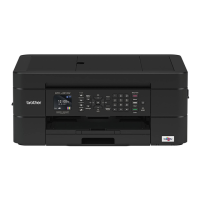
MFC-J4335DW/MFC-J4345DW
1. Press Settings.
2. Press a or b to select the following:
a. Select [Network]. Press OK.
b. Select [Web Connect Settings]. Press OK.
c. Select [Proxy Settings]. Press OK.
d. Select [Proxy Connection]. Press OK.
e. Select [On]. Press OK.
f. Select the option that you want to set. Press OK.
g. Enter the proxy server information. Press OK.
3. Press Stop/Exit.
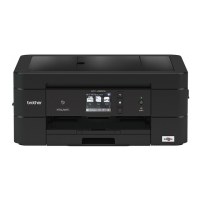
MFC-J4535DW
1. Press [Settings] > [All Settings] > [Network] > [Web Connect Settings] > [Proxy
Settings] > [Proxy Connection].
2. Press [On].
3. Press the option that you want to set, and then enter the proxy server information.
Press [OK].
4. Press
.
Related Information
• Brother Web Connect Overview
412


 To Next Page
 Loading...