Copy a Document
1
Make sure you have loaded the correct
size paper in the paper tray.
2
Do one of the following:
• Place the document face down on
the scanner glass.
• Place the document face down in the
ADF.
(If you are copying multiple pages,
we recommend using the ADF.)
3
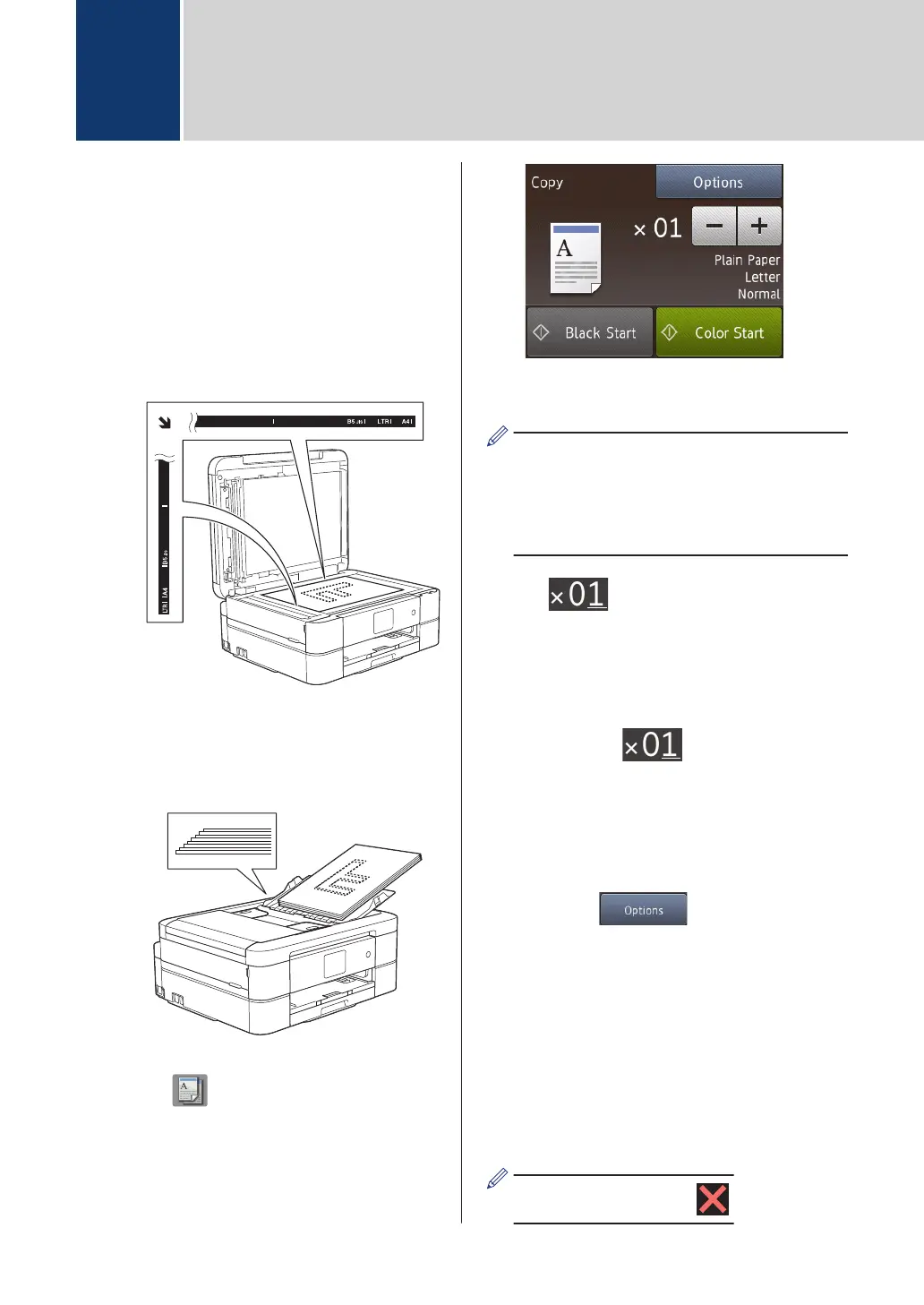
Press [Copy].
The Touchscreen displays:
4
Change the copy settings, if needed.
• When you load paper other than Letter
size Plain Paper, you must change the
[Paper Size] and [Paper Type]
settings by pressing the [Options]
button.
• (No. of Copies )
Enter the number of copies in one of
the following ways:
• Press [-] or [+] on the
Touchscreen.
• Press to display the
keyboard on the Touchscreen, and
then enter the number of copies
using the Touchscreen keyboard.
Press [OK].
• [Options]
Press
to change the copy
settings for the next copy only.
• When finished, press [OK].
• After you have finished choosing
new options, you can save them
by pressing the [Save as
Shortcut] button.
5
Press [Black Start] or [Color
Start].
To stop copying, press .
4
Copy
18


 To Next Page
 Loading...