Home > Outline, Scan, and Copy or Cut > Outline, Scan, and Copy or Cut Parts of Your Documents > Cut
an Outlined Section
Cut an Outlined Section
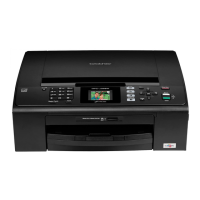
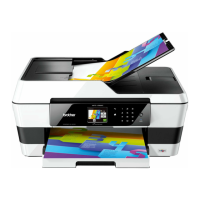
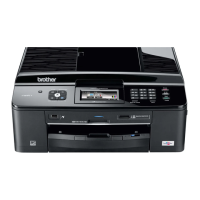
Related Models: DCP-J562DW/DCP-J785DW/MFC-J680DW/MFC-J880DW/MFC-J885DW/MFC-J985DW
After scanning the document, your machine prints the document without the outlined area(s).
1. Using a thick red pen or marker, outline the areas of the document that you want to cut.
2. Load your document.
3. Press d or c to display [Apps].
Press [Apps].
• If information regarding the Internet connection appears on the machine’s LCD, read it, and then press
[OK].
• Occasionally, updates or announcements about Brother Web Connect's features will appear on the
LCD. Read the information, and then press [OK].
4. Press a or b to display [Outline&Copy].
Press [Outline&Copy].
5. Press [Cut outlined area].
If information regarding [Cut outlined area] appears, read it, and then press [OK].
6. Change your [Print Quality] or your [Paper Size] if needed. Press [OK].
7. Press [OK].
The machine scans the document. If you are using the machine's scanner glass, follow the LCD instructions
to complete the scanning job.
8. Press [OK].
9. Press
.
Related Information
• Outline, Scan, and Copy or Cut Parts of Your Documents
44


 To Next Page
 Loading...