EasyManua.ls Logo

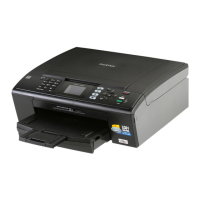
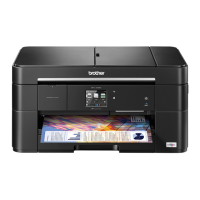
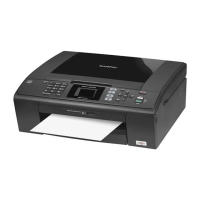
Brother MFC-J280W - User Manual

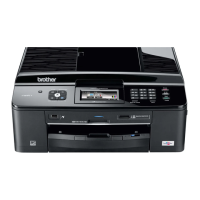
Brother MFC-J280W
85 pages
Print Icon
To Next Page IconTo Next Page
Loading...
NETWORK
USER’S GUIDE
Multi-Protocol On-board Ethernet Multi-function Print Server and
Wireless Ethernet Multi-function Print Server
This Network User's Guide provides useful information of wired
and wireless network settings, security settings and Internet fax
settings (MFC-J5910DW only) using your Brother machine. You
can also find supported protocol information and detailed
troubleshooting tips.
To find basic information about network and advanced network
features of your Brother machine, see the Network Glossary.
To download the latest manual, please visit the Brother Solutions
Center at (http://solutions.brother.com/
). You can also download
the latest drivers and utilities for your machine, read FAQs and
troubleshooting tips or learn about special printing solutions from
the Brother Solutions Center.
Version B
ENG

Table of Contents

Other manuals for Brother MFC-J280W

Questions and Answers

  • J
    Jeffrey MartinezJul 26, 2025
    What to do if Brother Printer cannot print or scan over the network?
    • R
      Rita PhillipsJul 26, 2025
      If your Brother printer cannot print or scan over the network, here are a few things you can try: * First, confirm the IP address and Subnet Mask are correct for both your computer and the Brother machine and that they are on the same network. If you need more information on how to verify the IP address and the Subnet Mask, ask the network administrator. * You can also use the Network Connection Repair Tool to fix the Brother machine's network settings. * Delete the failed printing job from your computer’s print queue. * Print the WLAN Report to confirm the state of a wireless connection. * As a last resort, uninstall the MFL-Pro Suite and reinstall it.
  • D
    Diane DukeAug 7, 2025
    What to do if Brother machine is not found on the network during the MFL-Pro Suite installation?
    • L
      lisariceAug 7, 2025
      If your Brother machine is not found on the network during the MFL-Pro Suite installation, here are some suggestions: * Confirm your settings on the installer dialog. * Allow access when the alert message of the security software appears during the MFL-Pro Suite installation. * Place your Brother machine within about 3.3 feet (1 meter) from the WLAN access point/router when you configure the wireless network settings. * Move your Brother machine to an obstruction-free area, or closer to the WLAN access point/router. * Move all the devices away from Brother machine or WLAN access point/router.
  • J
    Joseph WilliamsAug 19, 2025
    Why is my Google account locked on my Brother MFC-J280W All in One Printer?
    • E
      Eric BallAug 20, 2025
      If your Google account is locked when signing in to Google Cloud Print via Web Based Management, it may be due to an error during the sign-in process. To unlock it, simply click the link provided on the Web Based Management screen.
  • R
    Robert StrongOct 31, 2025
    How to complete wireless network setup configuration for Brother Printer?
    • J
      James PatelOct 31, 2025
      If you're having trouble completing the wireless network setup configuration for your Brother printer, here are some things to check: * Reconfirm and choose the correct security settings. The default security settings may be the manufacturer's name or model number of the WLAN access point/router. Refer to the instructions supplied with your WLAN access point/router for information on how to find the security settings. You can also ask the manufacturer of your WLAN access point/router or your Internet provider or network administrator. * Confirm that the MAC address of the Brother machine is allowed in the filter. You can find the MAC address from the Brother machine's control panel. * Make sure you type the correct SSID name or Network Key by hand. Check the SSID name or the Network...
  • M
    Mark FitzgeraldNov 12, 2025
    How to check if my network devices are working properly with Brother Printer?
    • T
      Thomas GarrisonNov 12, 2025
      To check if your network devices are working properly with your Brother printer, follow these steps: * Make sure you have confirmed all instructions in 'Make sure that the following items are configured before reading this chapter'. * Print the Network Configuration Report. * Print the Network Configuration Report and check that Ethernet Link Status or Wireless Link Status is showing Link OK. If the Link Status shows Link DOWN or Failed To Associate, start again from 'Make sure that the following items are configured before reading this chapter'. * Ping the Brother machine from your computer using the IP address or the node name. * Print the WLAN Report to confirm the state of a wireless connection. * See the instructions supplied with your WLAN access point/router to find the...

Summary

Introduction to Brother Network Features

Changing Your Brother Machines Network Settings

How to Change Network Settings (IP, Subnet Mask, Gateway)

Provides instructions on modifying the machine's TCP/IP settings via control panel or utility.

Using the BRAdmin Light Utility for Network Setup

Guides users on installing and using the BRAdmin Light utility for network setup and management.

Configuring Your Brother Machine for Wireless Network

Wireless Configuration via Temporary USB Cable

Details the recommended method for Windows users to set up wireless connection using a temporary USB cable.

Wireless Configuration via Temporary Ethernet Cable

Outlines the steps for configuring wireless settings using a temporary Ethernet cable connection.

One-Push Wireless Configuration (WPS;AOSS)

Describes how to easily configure wireless settings using WPS or AOSS™ push button methods.

Wi-Fi Protected Setup PIN Method Configuration

Explains how to use the PIN method for Wi-Fi Protected Setup to connect the machine.

Control Panel Setup Wizard for Wireless Configuration

Guides users through setting up wireless connections directly from the machine's control panel.

Configuring When SSID is Not Broadcast

Provides steps for connecting to a wireless network where the SSID is hidden or not broadcast.

Ad-hoc Mode Wireless Configuration

Details the process for setting up a direct wireless connection between the machine and a computer without a router.

Brother Control Panel Setup for Network Configuration

Restoring Network Settings to Factory Defaults

Provides steps to reset all network settings back to their original factory defaults.

Web Based Management for MFC-J5910 DW

Configuring Machine Settings via Web Browser

Step-by-step guide to accessing and using the machine's web interface for settings.

Setting a Login Password for Web Management

Explains how to set a login password for unauthorized access prevention to Web Based Management.

Secure Function Lock 2.0 Configuration

Details how to configure Secure Function Lock 2.0 for restricting machine functions and enhancing security.

Changing Scan to FTP Configuration via Web Browser

Instructions for configuring Scan to FTP settings via the web browser interface.

Changing Scan to Network Configuration via Web Browser

Steps for configuring Scan to Network settings for shared folders via the web browser.

Troubleshooting Common Network Issues

Cannot Complete Wireless Network Setup

Addresses common issues preventing successful wireless network setup.

Machine Not Found During MFL-Pro Suite Installation

Helps resolve problems where the machine is not detected during software installation.

Cannot Print or Scan Over the Network

Provides solutions for issues preventing network printing or scanning.

Troubleshooting Security Software Interference

Explains how security software might interfere with Brother machine functions and how to resolve it.

Verifying Network Device Operations

Guides on verifying the operational status of network devices like access points and routers.

Brother MFC-J280W Specifications

General IconGeneral
Dimensions (WxDxH)404 x 378 x 160 mm
All-in-one functionsCopy, Fax, Print, Scan
Connectivity technologyWired & Wireless
Color all-in-one functionscopy, fax, print, scan
Duplex printingNo
Print technologyInkjet
Maximum resolution6000 x 1200 DPI
Print speed (black, normal quality, A4/US Letter)33 ppm
Print speed (color, normal quality, A4/US Letter)26 ppm
Printing colorsBlack, Cyan, Magenta, Yellow
Maximum duty cycle2500 pages per month
Number of print cartridges4
Copier resize25 - 400 %
Maximum copy resolution- DPI
N-in-1 copy function (N=)2, 4
Copy speed (black, normal quality, A4)22 cpm
Copy speed (color, normal quality, A4)20 cpm
Scan toE-mail, File, Image, OCR
Scanner typeFlatbed scanner
Input color depth36 bit
Maximum scan areaA4 / Letter (216 x 297) mm
Image formats supportedBMP, JPG, PCX, PNG, TIF
Maximum scan resolution19200 x 19200 DPI
Optical scanning resolution1200 x 2400 DPI
FaxingColor faxing
Fax memory170 pages
Modem speed14.4 Kbit/s
Auto reductionYes
Fax transmission speed7 sec/page
Total input capacity100 sheets
Total output capacity50 sheets
Envelopes sizes10, DL
Maximum print size216 x 356 mm
Paper tray media typesEnvelopes, Glossy paper, Photo paper, Plain paper
Non-ISO print media sizesExecutive
ISO A-series sizes (A0...A9)A4
Photo paper sizes (imperial)4x6, 5x7, 5x8, 8x10 \
DisplayLCD
Display diagonal1.9 \
Market positioningHome & office
Standard interfacesUSB 2.0, Wireless LAN
USB 2.0 ports quantity1
Wi-Fi standards802.11b, 802.11g, Wi-Fi 4 (802.11n)
Sound pressure level (copying)50 dB
AC input voltage100 - 120 V
AC input frequency50 - 60 Hz
Power consumption (standby)4 W
Power consumption (average operating)29 W
Package weight10300 g
Operating temperature (T-T)50 - 95 °F
Operating relative humidity (H-H)20 - 80 %
Sustainability certificatesENERGY STAR

Related product manuals