Using the Simulator
30
CAEEndoVR
PN: 165K400000
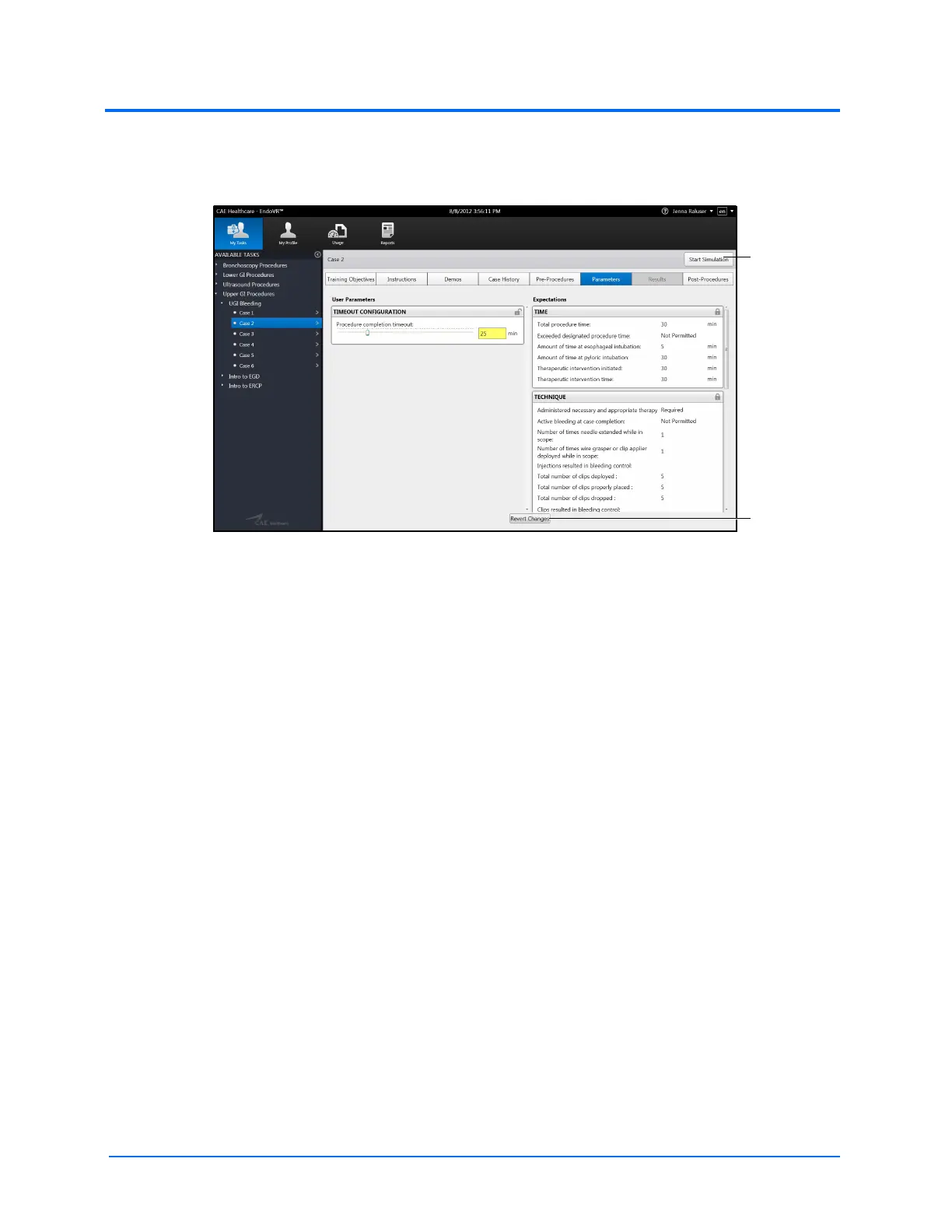
The adjusted parameter appears yellow and the changes are recognized until the user
navigates to a different task or completes the simulation. Users can also cancel the
parameter changes by clicking the Revert Changes button.
The Parameters Screen with Adjusted Parameter
Note: Parameters with a value field can also be adjusted by replacing the desired value
in the value field. The new value must be within the parameters value range.
The Revert
Changes
button
The Start
Simulation
button



 To Next Page