Using the Simulator
42
CAEEndoVR
PN: 165K400000
Using the EBUS-TBNA Accessory Tool
After the desired task is selected, the simulation is started and the accessory tool is connected, the
EBUS-TBNA accessory tool is ready to be used.
To use the EBUS-TBNA accessory tool:
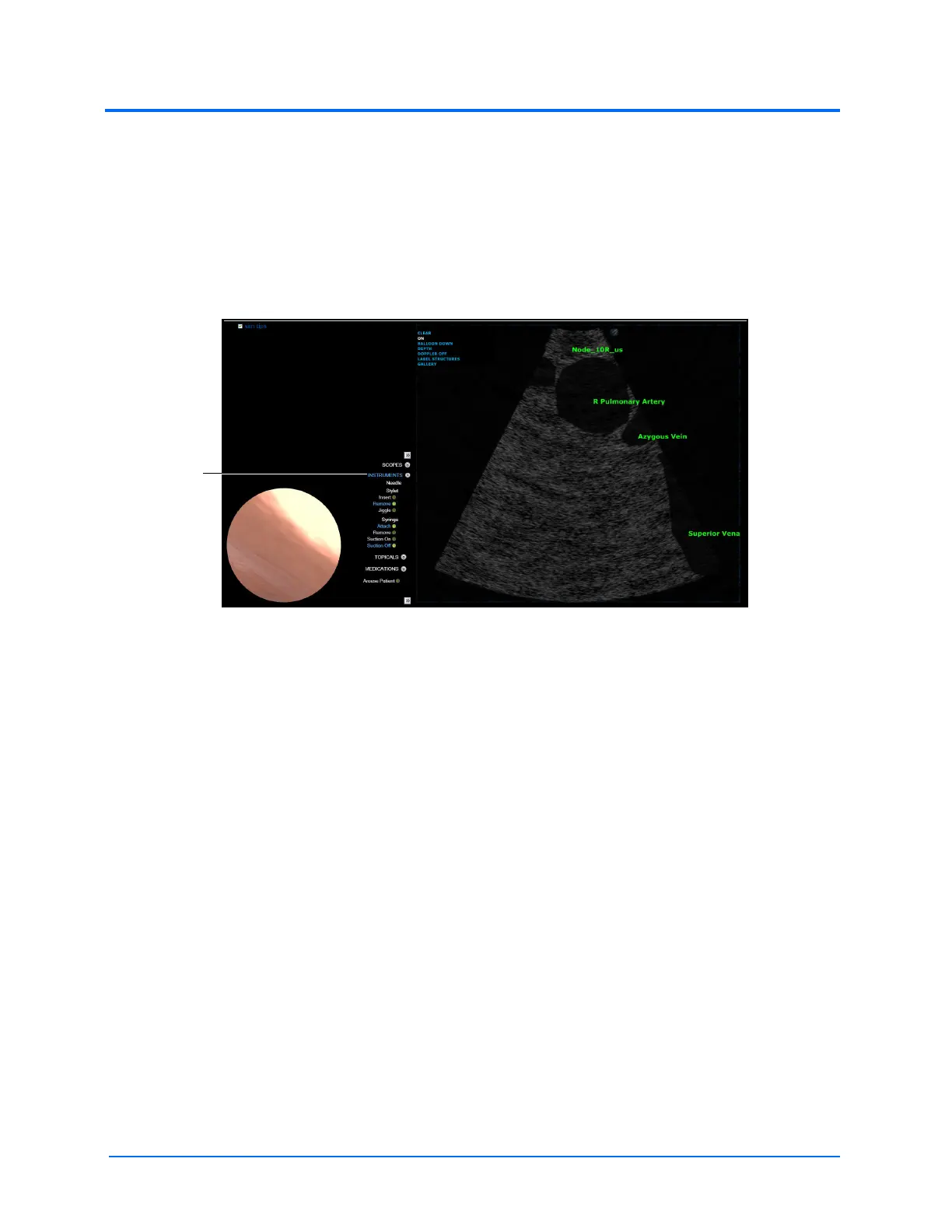
1. From the Instruments menu, located on the left monitor in the EBUS-TBNA module,
select the appropriate tool designation in the software
The Left Monitor Simulation Screen
2. On the EBUS-TBNA accessory tool, ensure the needle is fully retracted by pulling up the
hub until it clicks
3. Click OK
4. Set the catheter adjustment screw to the appropriate depth
5. Set the needle depth lock to an appropriate depth for needle penetration
6. Using the EBUS-TBNA accessory tool, insert the needle into the node while
simultaneously observing the depth of the needle on the simulation screen
7. Click Jiggle to jiggle the stylet, if desired
Note: When a menu item is selected, the green circle next the to item appears bright
green and the menu item text appears blue.
8. From the Stylet, menu, select Remove
9. From the Syringe menu, select Attach
10. From the Syringe menu, select Suction On
11. Agitate the needle within the node to obtain the sample
12. From the Syringe menu, select Suction Off or Remove Syringe
13. Retract needle fully by pulling up on the hub until it clicks into place
14. Lock the hub in place with the needle depth lock
15. Remove the accessory tool from the working channel and repeat the process as required



 To Next Page