5
EN
English
1.In remote controller turn-o mode
Press button, the remote controller will show "ON", after 10
seconds the time display will be blank.
2.In remote controller turn-on mode
Press button, the remote controller will show "OFF", after 10
seconds the time display will be blank.
3.Press button to set time
Press the button for each time, setting time in the rst 12 hours
increased by 0.5 hour every time, after 12 hours, increase by 1
hour every time.
If the button is kept pressed, time will change quickly.
4.Conrm timer setting
After adjust the time, press button and conrm the time ON
or OFF button will not ash any more.
5.Cancel timer setting
Press the button by times until the time display eliminated.
Note:
After replacing batteries or a power failure happens, time setting
should be reset.
Timer On/O On-O Operation
Healthy airow Operation
1.Press to starting
Setting the comfort work conditions.
2.The setting of healthy airow function
1) Press the button of health airow, appears on the display.
Avoid the strong airow blows direct to the body.
2) Press the button of health airow again, appears on the
display. Avoid the strong airow blows direct to the body.
3.The cancel of the healthy airow function
Press the button of health airow again, both the inlet and outlet
grills of the air conditioner are opened, and the unit goes on
working under the condition before the setting of airow function.
After stopping, the outlet grille will close automatically.
Notice: Do not direct the ap by hand. Otherwise, the grille will run
incorrectly. If the grille is not run correctly, stop for a minute and
then start, adjusting by remote controller.
Note:
1.After setting the healthy airow function, the position grill is xed.
2.In heating, it is better to select the mode.
3.In cooling, it is better to select the mode.
4.In cooling and dry, using the air conditioner for a long time under
the high air humidity, condensate water may occur at the grille .
Operation
Wi-Fi function description
Conguration method
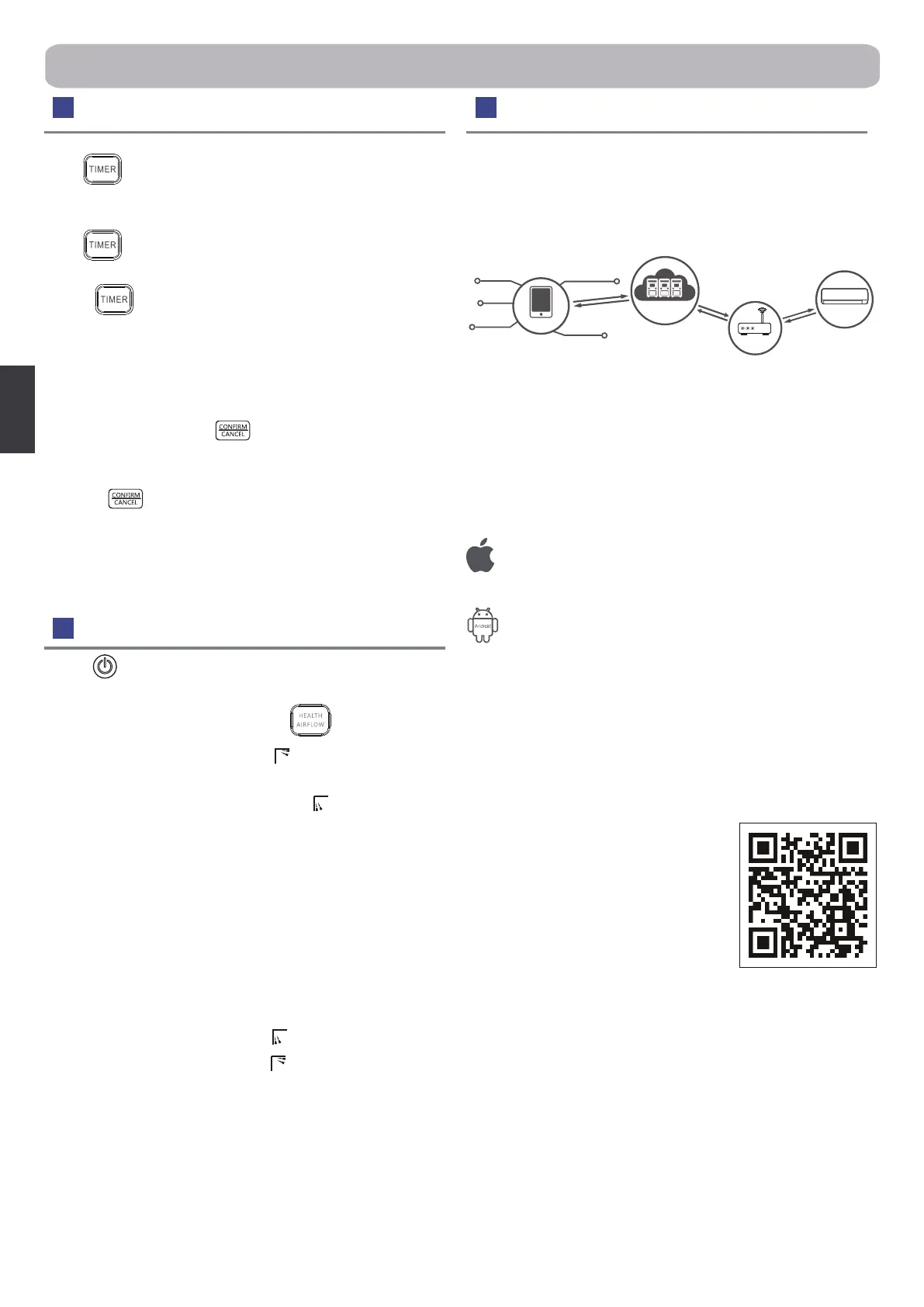
Scan the QR code below to download “hOn” APP. Other Download
options: Please search hOn APP on:
●App Store (IOS)
●Google Play (Android)
●Huawei AppGallery (Android)
After App Download, please register,
connect the air conditioner and enjoy using
hOn to manage your device. Please refer to
the HELP section inside the APP for more
details about how to register, connect the
unit, and other operations
The system architecture diagram
The application environment
Smart mobile phone and wireless router are necessary for the
application.
Wireless router must be able to connect to the Internet.
Smart mobile phone requires IOS or Android system:
IOS system
must support IOS 9.0 or above
Android system
must support Android 5.0 or above
Control
Interaction
Remind
Query
Service
APP
Cloud service
Router
Haier Smart AC
If the model has Wi-Fi function, press the “LIGHT” button for 5s to
emit the Wi-Fi binding signal. Once in the binding mode, the APP
will show how to bind.


 To Next Page
 Loading...