Protecting images
Protecting the image prevents it from being erased accidentally.
i
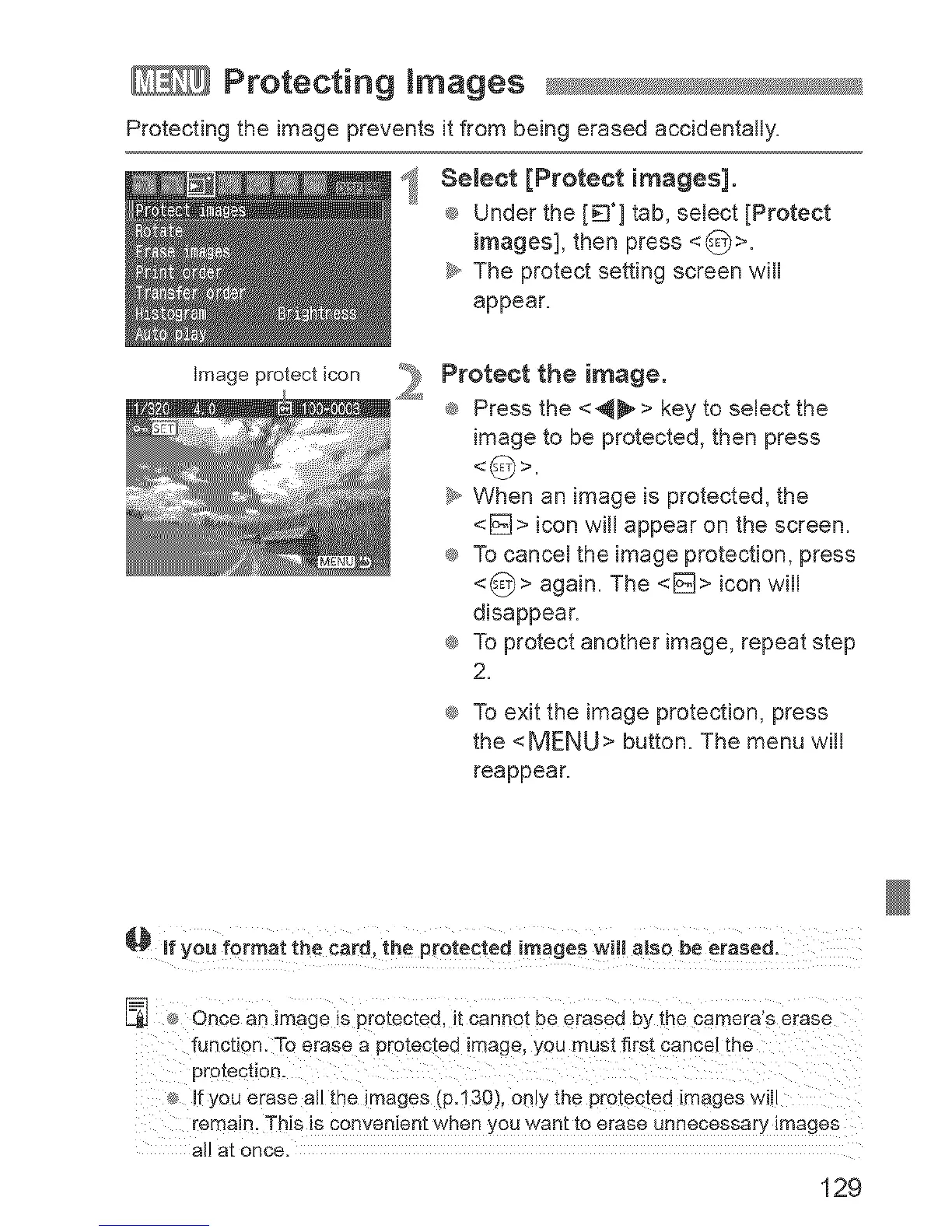
Select [Protect images].
_ Under the [_'] tab, select [Protect
images], then press <_>.
_y,,The protect setting screen will
appear.
Image protect icon
_: Protect the image.
_ Press the <_ > key to select the
image to be protected, then press
< _) >.
_y,,When an image is protected, the
<[_> icon will appear on the screen.
_ To cancel the image protection, press
<_> again. The <[_> icon will
disappear.
_ To protect another image, repeat step
2.
®_To exit the image protection, press
the <MENU> button. The menu will
reappear.
If you format the card. the protected images will also be erased.
Once an image is protected. _tcannot be erased by the cameras erase
function. To erase a protected image, you must first cancel the
pro-cectlon.
Ifyou erase aHme images (p.130), onlythe protected images will
remain. This isconvenientwhen you wan-c[o erase unnecessary _mages
all a[ once,
129


 To Next Page