f_ Printing
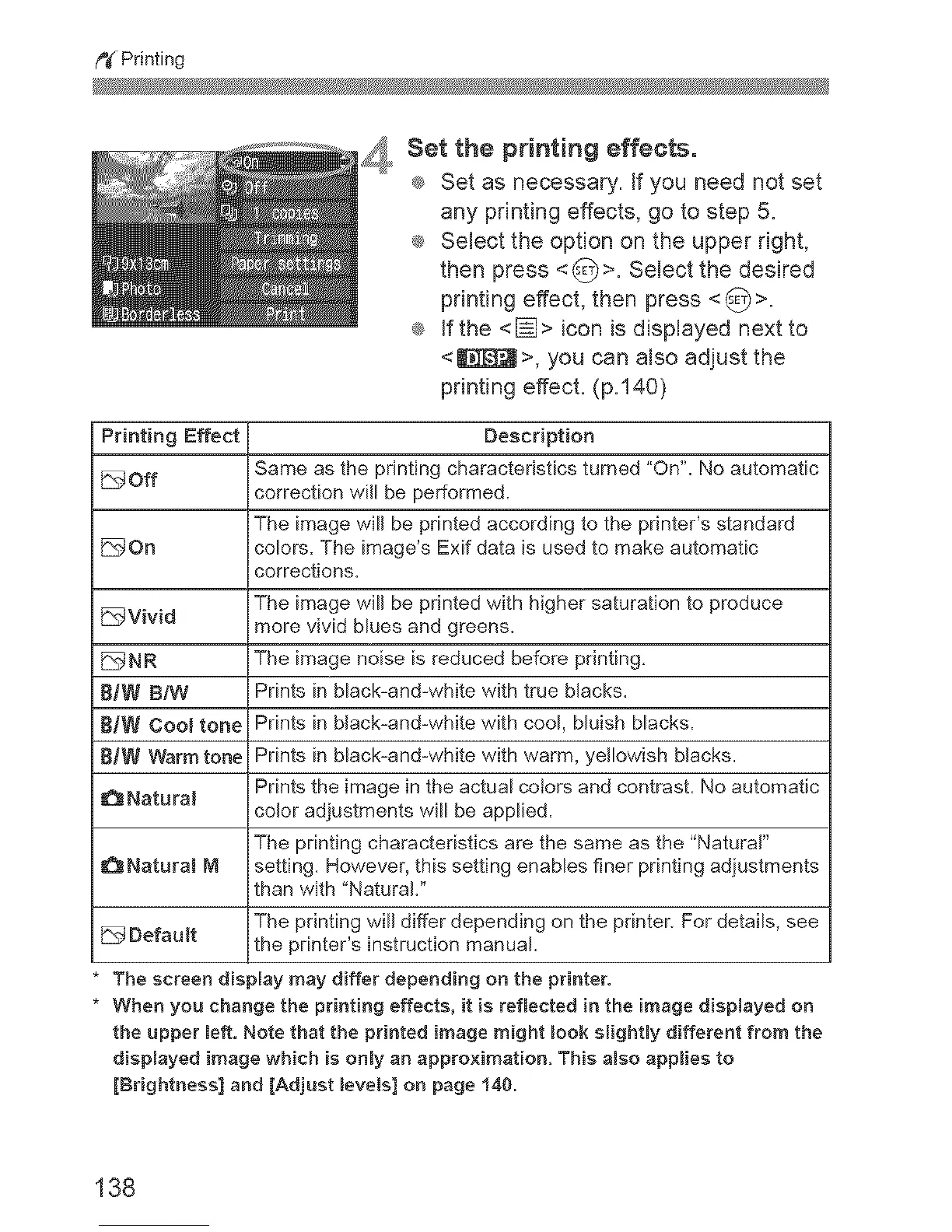
_,_ Set the printing effe¢%°
® Set as necessary. If you need not set
any printing effects, go to step 5.
® Select the option on the upper right,
then press <_>. Select the desired
printing effect, then press <_;>.
® If the <[]> icon is displayed next to
<_>, you can also adjust the
printing effect. (p.140)
Printing Effect Description
Off Same as the printing characteristics turned "On". No automatic
correction will be performed.
The image will be printed according to the printer's standard
DOn colors. The image's Exif data is used to make automatic
corrections.
The image will be printed with higher saturation to produce
_Vivid more vivid blues and greens.
_NR The image noise is reduced before printing.
B]W B/W Prints in black-and-white with true blacks.
BJW Cool tone Prints in black-and-white with cool, bluish blacks.
8]W Warm tone Prints in black-and-white with warm, yellowish blacks.
Prints the image in the actual colors and contrast. No automatic
_Naturai
coJor adjustments will be applied.
The printing characteristics are the same as the "Naturar
Natural M setting. However, this setting enables finer printing adjustments
than with "Natural."
The printing will differ depending on the printer, For details, see
Default the printer's instruction manual.
The screen display may differ depending on the printer.
* When you change the printing effects, it is reflected in the image dispJayed on
the upper left. Note that the printed image might _ook sJightly different from the
dispJayed image which is onJy an approximation. This also applies to
[Brightness] and [Adjust _eveis] on page 140.
138


 To Next Page