EasyManua.ls Logo

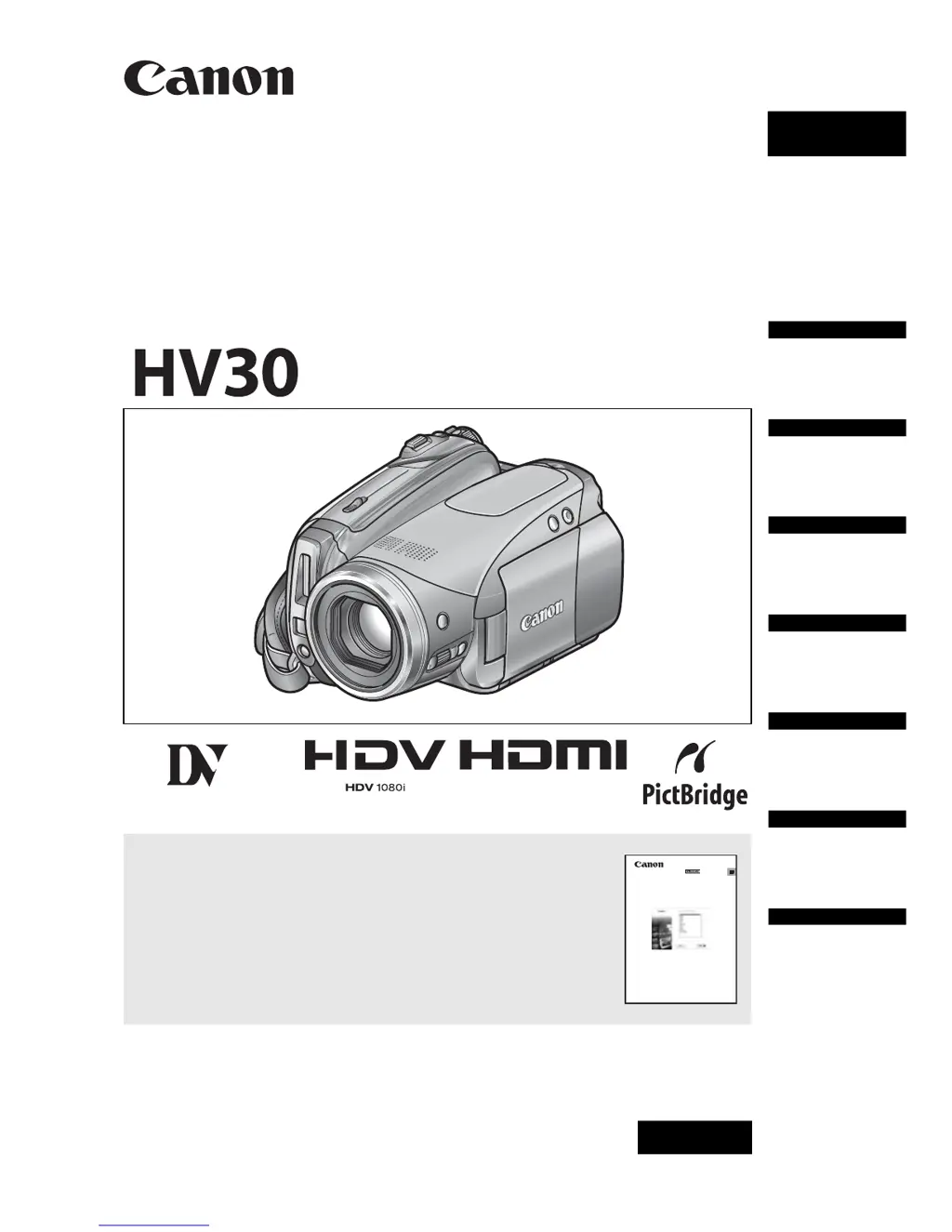
Canon HV30 - User Manual

Canon HV30
104 pages
Print Icon
To Next Page IconTo Next Page
Loading...
PUB.DIE-299
PAL
HD Camcorder
Instruction Manual
Please read also the following instruction manual
(electronic version on PDF file).
• Digital Video Software
E
Digital Video Software
Vers ion 23
Instruction Manual
English
Introduction
Preparations
Basic
Functions
Advanced
Functions
Editing
Functions
External
Connections
Additional
Information
Mini
Digital
Video
Cassette

Table of Contents

Questions and Answers

  • B
    Billy MedinaAug 29, 2025
    What does THE TAPE IS SET FOR ERASURE PREVENTION mean on my Canon HV30?
    • R
      robertthompsonAug 29, 2025
      If your Canon Camcorder displays “THE TAPE IS SET FOR ERASURE PREVENTION”, it means the cassette is protected. To resolve this, replace the cassette or change the position of the protect switch.
  • B
    bradley31Aug 30, 2025
    What to do if my Canon HV30 Camcorder says REMOVE THE CASSETTE?
    • B
      burgessseanAug 30, 2025
      If your Canon Camcorder displays “REMOVE THE CASSETTE”, it means that the camcorder stopped operating to protect the tape. Remove the cassette and reinsert it.
  • J
    jeannetaylorAug 30, 2025
    Why is the charge indicator flashing rapidly on my Canon HV30?
    • D
      Daniel JohnsonAug 31, 2025
      If the charge indicator on your Canon Camcorder flashes rapidly (about twice per second), it indicates that charging has stopped because the compact power adapter or the battery pack is faulty.
  • K
    Katie WellsAug 25, 2025
    How to fix Canon HV30 that will not focus?
    • A
      alicia18Aug 25, 2025
      If your Canon Camcorder will not focus, try focusing manually as the autofocus may not work on that subject. If you are using the viewfinder, adjust it with the dioptric adjustment lever. Clean the lens with a soft lens-cleaning cloth, and if you are using an optional Wide-converter or Tele-converter, set [AF MODE] to [NORMAL AF].
  • S
    shepherdmarioSep 1, 2025
    Why does my Canon HV30 Camcorder keep switching off by itself?
    • S
      solisgarySep 1, 2025
      If your Canon Camcorder switches off by itself, it is likely that the battery pack is exhausted. Replace or charge the battery pack to resolve this issue.
  • W
    William AllenSep 1, 2025
    What to do if my Canon HV30 Camcorder displays abnormal characters?
    • C
      christopheralvaradoSep 2, 2025
      If your Canon Camcorder displays abnormal characters or does not operate properly, disconnect the power source and reconnect it after a short time. If the issue persists, disconnect the power source and press the RESET button with a pointed item. Note that pressing the RESET button resets all settings.
  • J
    Jose CarrSep 2, 2025
    How to fix Canon Camcorder image not appearing on screen?
    • E
      Edward FranklinSep 2, 2025
      If the image will not appear on the screen of your Canon Camcorder, set the camcorder to the mode.
  • S
    sheila18Sep 3, 2025
    Why won't my Canon HV30 Camcorder record when I press START/STOP?
    • S
      Scott HaydenSep 3, 2025
      If pressing the START/STOP button on your Canon Camcorder does not start recording, make sure the camcorder is set to the mode and that a cassette is loaded. Also, check if the tape has reached the end, and rewind or replace the cassette if needed. Finally, ensure the cassette is not protected by changing the position of the protect switch if the icon flashes on the screen.
  • S
    Samantha AllenSep 4, 2025
    How to stop sound distortion on my Canon Camcorder?
    • L
      lewisjimmySep 4, 2025
      If you are experiencing distorted sound with your Canon Camcorder, especially when recording near loud sounds, you may need to manually adjust the audio recording level or set [MIC ATT.] to [ON].
  • J
    Joel MannSep 4, 2025
    How to eliminate video noise during playback on my Canon HV30?
    • D
      dennishollandSep 4, 2025
      If there is video noise during playback on your Canon Camcorder, it is possible that the video heads are dirty. Clean the video heads to resolve this issue.

Summary

Introduction

About this Manual

Provides information about the manual's conventions and structure.

Important Usage Instructions

Safety Warnings and Precautions

Details crucial safety instructions for operating the camcorder and power adapter.

Enjoying High-Definition Video

What is High-Definition Video?

Explains the concept and benefits of HDV video recording.

What is the Cinema Mode?

Describes how to achieve a cinematic look using specific recording settings.

Getting to Know the Camcorder

Joystick and Operating Modes

Explains joystick control and details the camcorder's operating modes.

Supplied Accessories

Lists all items included with the camcorder package.

Components Guide

Identifies and describes the various parts and buttons of the camcorder.

Screen Displays

Explains the various icons and information shown on the camcorder's screens.

Preparations

Getting Started

Covers initial setup steps like charging the battery and preparing the camcorder.

Using the Menus

Explains how to navigate and select options within the camcorder's menus.

First Time Settings

Guides on setting language, time zone, and date/time for initial use.

Basic Functions

Recording Movies

Instructions on how to record video footage using the camcorder.

Recording Still Images

Procedures for capturing still photos with the camcorder.

Playback

Guides on playing back recorded video and still images.

Adjusting Volume and Using Headphones

How to control audio output volume and connect headphones.

Advanced Functions

Menu Options Lists

Overview of available settings and options within the camcorder's menus.

Camera Setup Menu

Settings for shutter speed, zoom, focus, and image stabilization.

Recording and Input Setup

Configuration for recording standards (HDV/DV) and audio quality.

Still Image Recording Options

How to select size and quality for still photos, and capture methods.

Other Functions

Settings for flash, video light, self-timer, audio levels, and digital effects.

External Connections

Connecting to a TV or VCR

Guides on connecting the camcorder to televisions and VCRs using various terminals.

Connecting to a Computer

Illustrates how to connect the camcorder to a computer for data transfer.

Connecting to a Printer

Instructions for printing still images directly to a compatible printer.

Trouble?

Troubleshooting Guide

A comprehensive guide for common camcorder issues and their solutions.

List of Messages

Explains various error messages and how to resolve them.

Do’s and Don’ts

Handling Precautions

Essential guidelines for safely handling and operating the camcorder and its accessories.

Maintenance and Storage

Procedures for cleaning, storing, and caring for the camcorder and its components.

Using the Camcorder Abroad

Advice on power sources and TV system compatibility when traveling internationally.

General Information

System Diagram

Visual overview of the camcorder and its compatible accessories.

Optional Accessories

Details on compatible accessories like batteries, lenses, and microphones.

Specifications

Technical details of the camcorder's system, sensors, and dimensions.

Technical Details and Power

Information on file formats, terminals, power supply, and battery specifications.

Canon HV30 Specifications

General IconGeneral
Sensor1/2.7-inch CMOS
Optical Zoom10x
Digital Zoom200x
Image StabilizationOptical
Recording FormatHDV, DV
Storage MediaMiniDV tape
MicrophoneBuilt-in stereo microphone
Resolution2.96 megapixels
LCD Screen2.7-inch
ViewfinderColor
ConnectivityHDMI, USB, Component, Composite
Video Resolution1080i
AudioDolby Digital 2-channel
BatteryBP-2L13 Lithium-Ion
Weight540 g

Related product manuals