2. If possible, print the Configuration pages (see “Printing the Configuration pages” on page 66).
The Configuration pages contain a list of any installed options and a record of the customer’s current Setup configuration.
3. If you are reinstalling the same version of system software, back up the current system configuration (see “Backing
up the system configuration” on page 46).
4. Shut down the imagePRESS Server (see“Starting, shutting down, rebooting, and restarting the imagePRESS Server”
on page 11). Leave the imagePRESS Server power switch in the ON (|) position.
5. Power off the printer using the main power switch.
The imagePRESS Server will automatically shut down.
6. Move the imagePRESS Server power switch to the OFF (O) position.
7. Disconnect all external cables from the imagePRESS Server, except the power cable and the printer interface cable.
NOTE:
Be sure to leave the power cable connected between the imagePRESS Server and the power outlet.
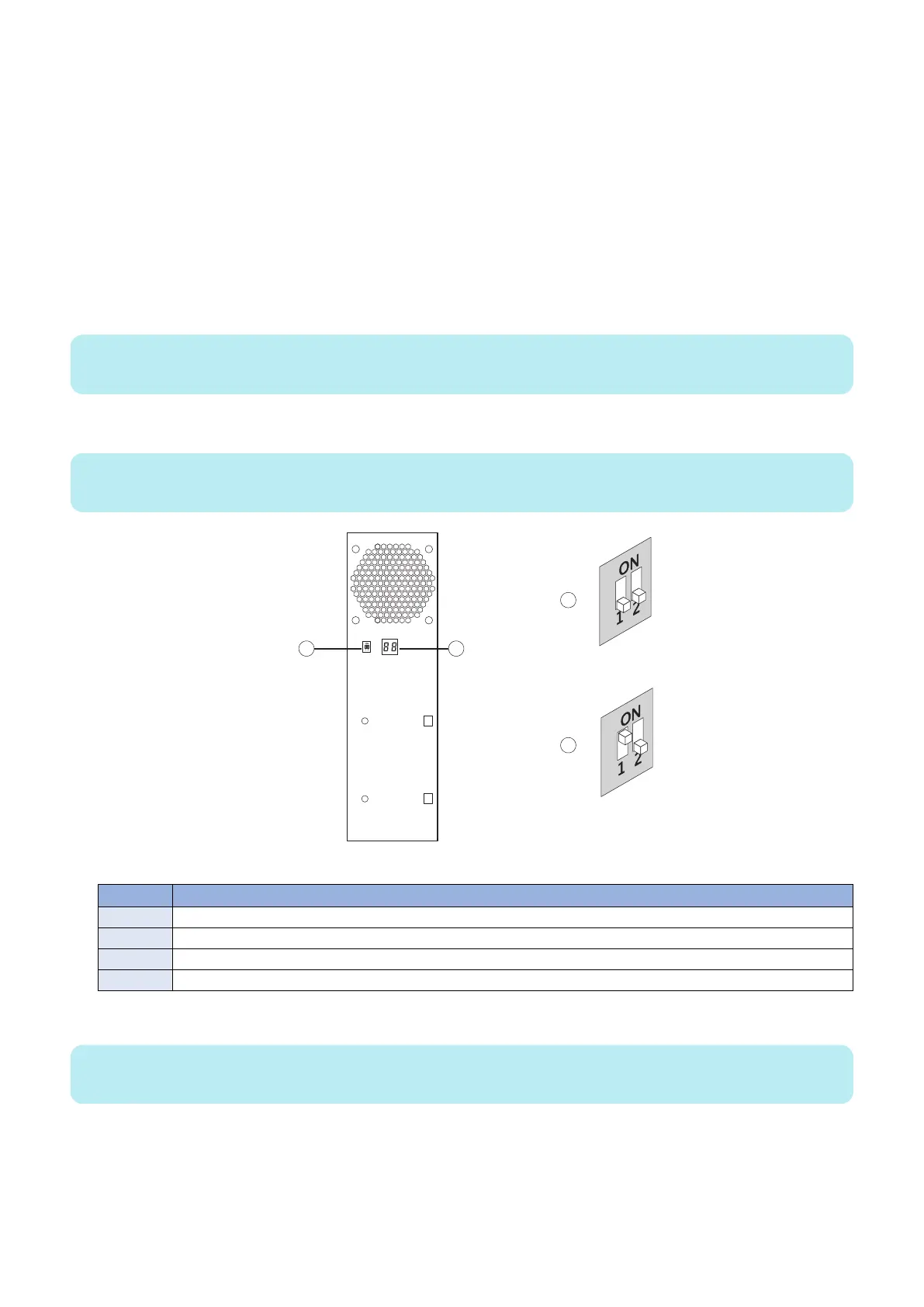
8. Flip the service switches to boot mode (set the switch 1 to ON; switch 2 to OFF).
NOTE:
The LED display is mounted in upside-down orientation.
Figure 30: Service switches on the imagePRESS Server
No. Name
1 Service switches
2 LED display
3 Flip the service switches from normal (OFF OFF) position...
4 ...to service mode (ON) position.
9. Attach the prepared USB flash drive to one of the USB connectors on the imagePRESS Server.
NOTE:
If dust covers are attached to the USB connectors, remove dust cover using needlenose pliers.
10. Power on the imagePRESS Server by pressing the power switch to set ON (|), and then power on the printer using
the main power switch on the front.
Make sure that the imagePRESS Server turns on.
4. INSTALLING SYSTEM SOFTWARE
60


 To Next Page