Settings After Installation
Settings After Installation
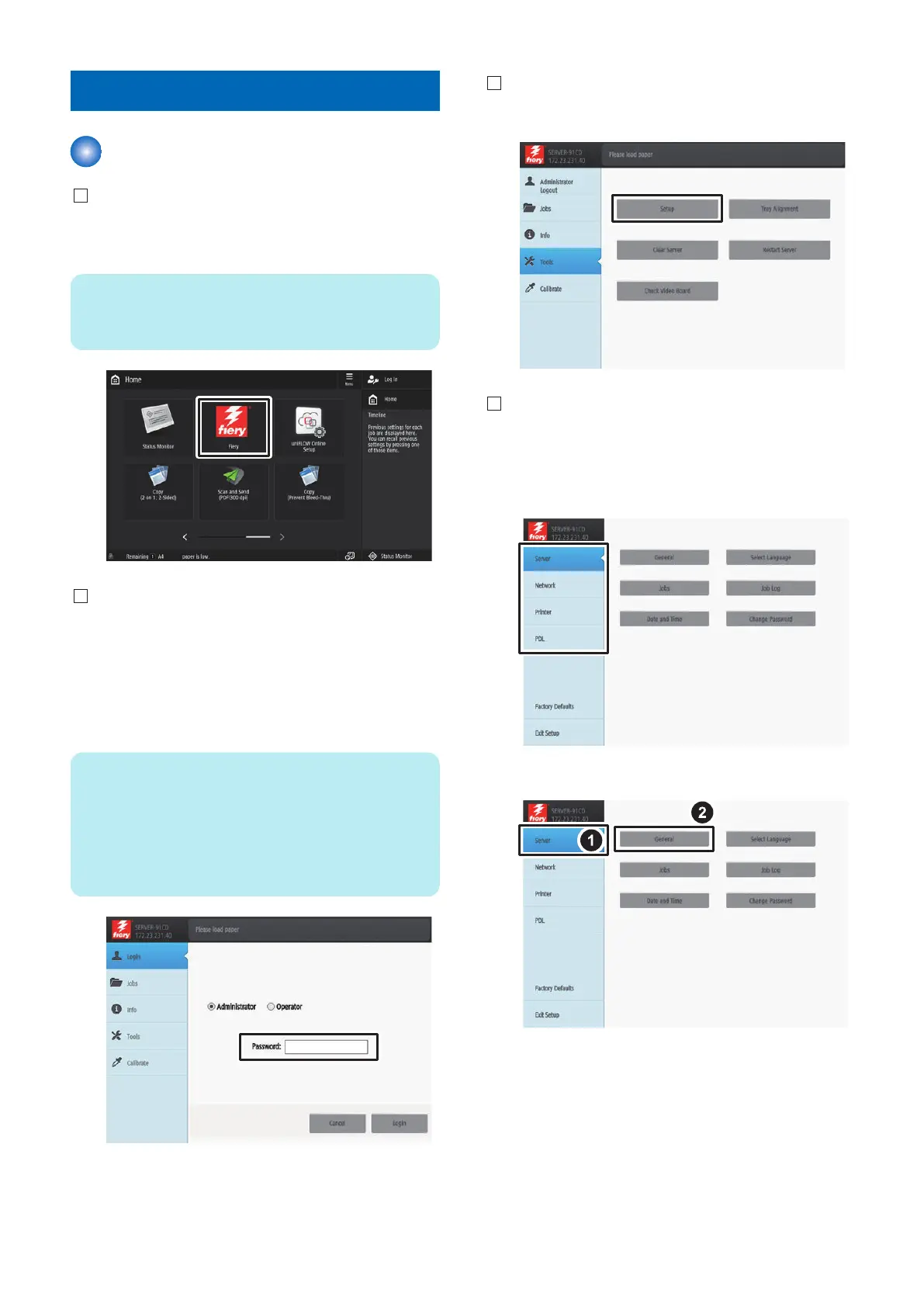
1. Select [Fiery] from the main menu on the host
machine's LCD.
NOTE:
It may take a while for the Fiery icon shown in the figure
below to appear.
2. Select [Login] to log in as a system administrator.
Input of password :
A password input screen is displayed at the time of
installation.
Entering "Fiery password" in the password field
displays the setting screen.
NOTE:
On the Fiery Server Configuration page, look
for ID in the BIOS Setup section. The
alphanumeric characters in the ID field is the
default password.(Print the Configuration
page: Press the Fiery logo, then press [Info]
> [Print Pages] > [Configuration].)
3. Select [Tools] > [Setup].
4. Check the settings of server, network, printer and
PDL, and press [Save Changes] even if there is no
change. At that time, the setting will not be
completed unless [Save Changes] is pressed.
Example : Select [Server] > [General].
6. INSTALLATION PROCEDURE
90


 To Next Page