■ Printing to the imagePRESS Server
If the customer can print the imagePRESS Server Test Page but cannot print a job from a computer on the network, you may
have to make a service call. However, first make sure that the site administrator has done the following:
• Checked all components of the network, including cables, connectors, terminators, network adapter boards, and network
drivers.
• Activated the network and used it to communicate with other printers.
• Confirmed that the applicable network settings in Setup (such as AppleTalk zone, IP address, subnet mask, and gateway
address) match the settings used in the network.
When you make a service call, check the imagePRESS Serverconnector panel to make sure that the appropriate network
connection is in place. Print quality problems are difficult to trace. Before you try to troubleshoot print quality problems, print a
Test Page to make sure that the printer does not need servicing or adjusting. Also, make sure that the correct paper is being
used in the printer.
NOTE:
EPS file generation is not completely standardized among applications. Some users may encounter problems while printing certain
EPS files.
● If the printer does not print
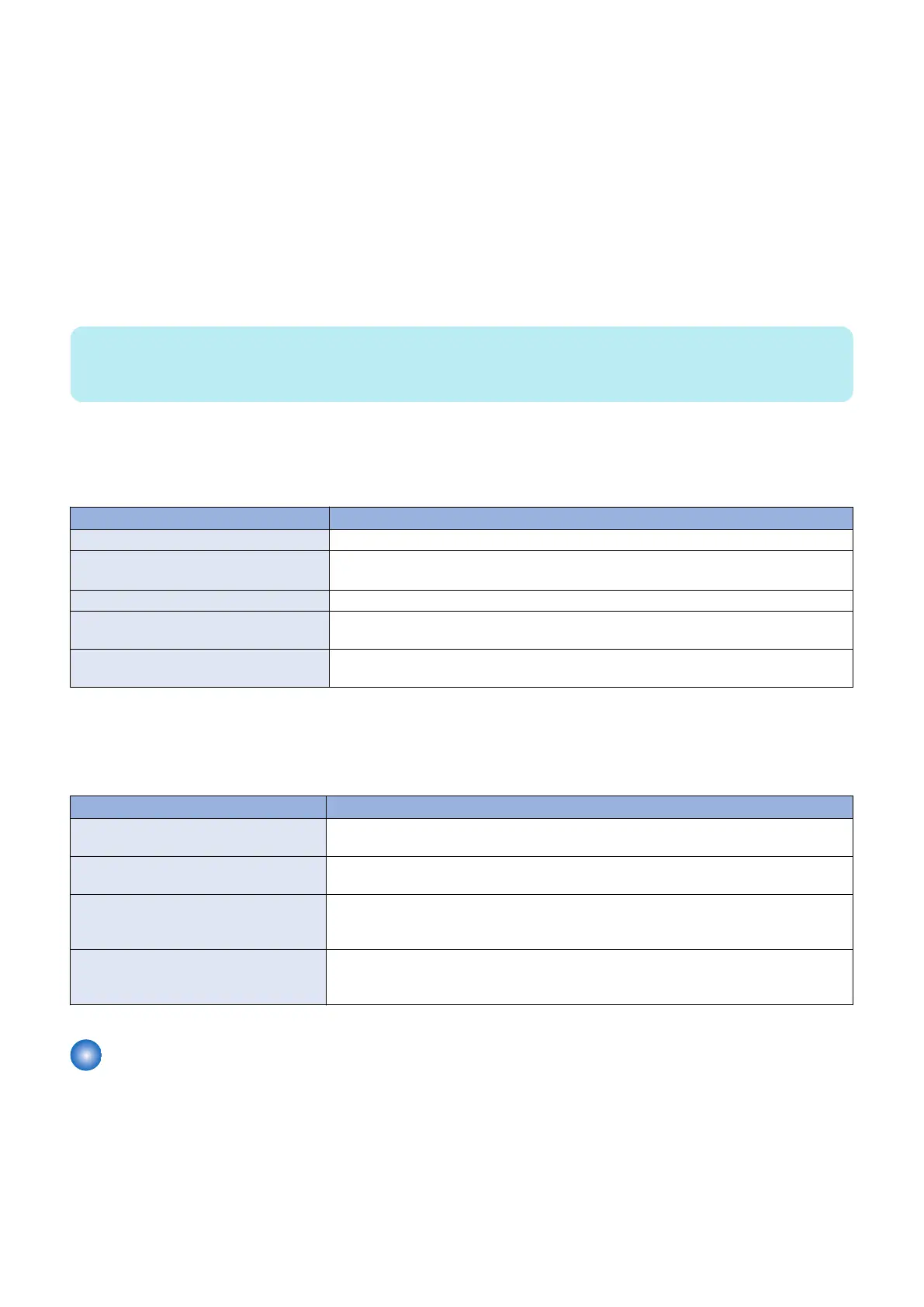
The following table lists possible causes and solutions when the printer does not print.
Table 1: Causes and solutions when printer does not print
Possible Cause Solution
Is the power on? • Turn on the imagePRESS Server using the power switch and the printer power switch.
Are the cables between the imagePRESS
Server and the printer connected?
• Make sure that the printer interface cables are completely and correctly connected to
the printer and the imagePRESS Server.
Is the specified paper loaded? • Load the specified paper in any of the input trays.
Can you print a Test Page from the printer
driver?
• If you cannot print the Test Page, the printer may be out of order.
• You may need to service the printer.
Is the enclosed fan present andfunctioning? • Verify that the enclosed fan is present, oriented correctly, and functioning (“To reinstall
and verify the imagePRESS Server” on page 43).
● Other printing problems
The following table lists other printing problems and what to do about them.
Table 2: Other printing problems
Problem Action
An image is printed on the reverse side of
the paper.
• Reload the paper in the paper tray upside down.
Multiple pages are fed through the printer at
once.
• Remove all the pages from the paper tray and fan them gently before reloading.
Paper misfeeds occur frequently. • Check the paper size settings.
• Use the recommended paper.
• Avoid using curled, folded, wrinkled, perforated, or glossy paper.
It takes too long to complete the print job. • The data is so large or complex that it takes additional time to process.
• If the Data indicator is blinking, data is being processed.
• Wait until it is finished.
Cleaning the imagePRESS Server
The accumulation of dust on the fans may cause the following problems.
• High temperature inside the chassis
• Noise from the fans
• Short-circuit or damage on the board assembly
As a regular maintenance, it is important to remove dust on the fans and air duct to keep the airflow inside the chassis.
5. TROUBLESHOOTING
76


 To Next Page