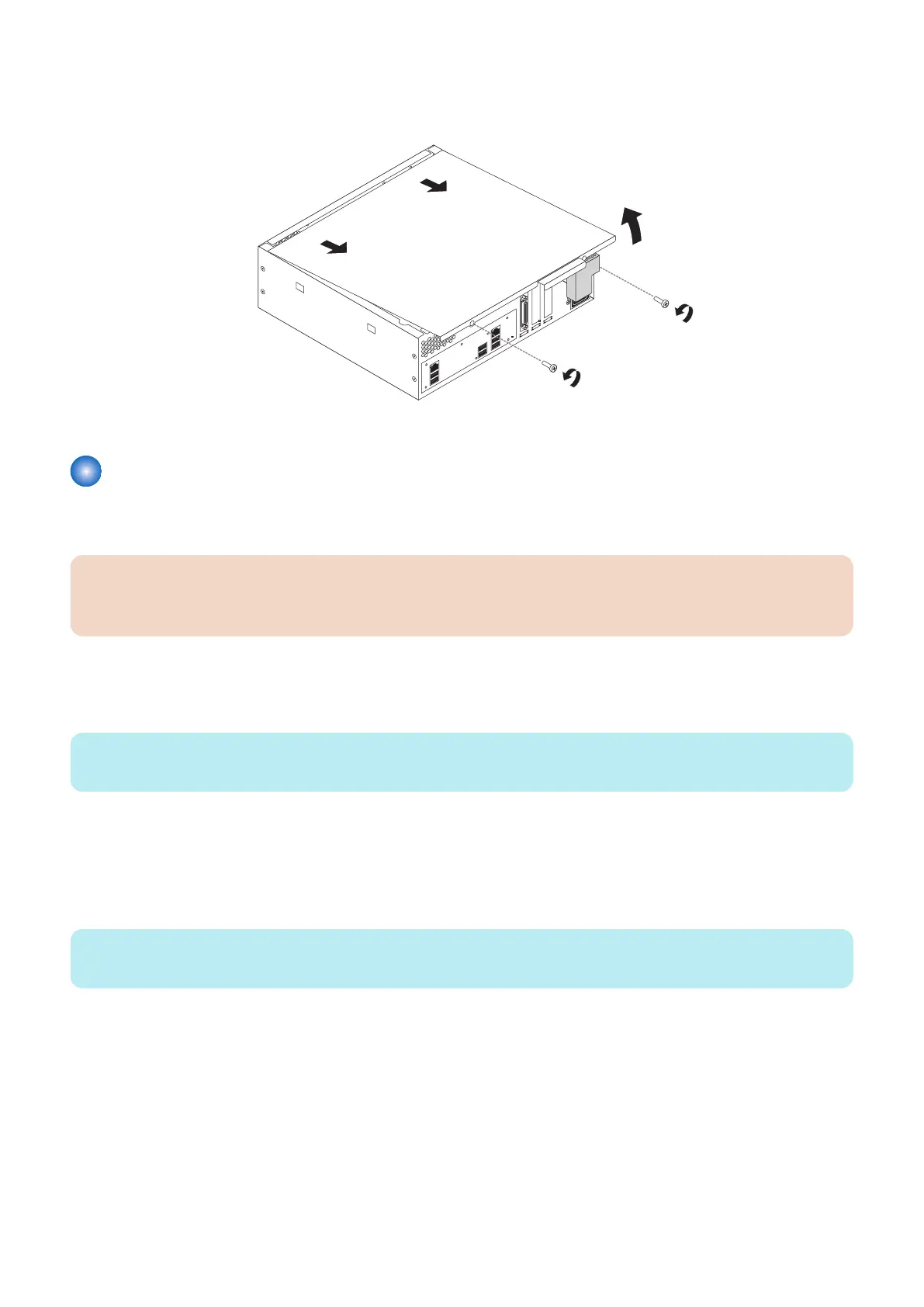
7. Raise the cover and slide it toward the connector panel of the chassis to remove it.
Set aside the cover so that you can replace it later.
The imagePRESS Server internal components are now accessible.
Figure 7: Removing the chassis cover
Checking imagePRESS Server internal connections
The most common causes of problems are faulty and loose connections. Before you conclude that any internal component has
failed, remove, inspect, and reseat all appropriate connections, and then verify that the problem still occurs.
IMPORTANT:
Before you touch any parts inside the imagePRESS Server, attach a grounding wrist strap. Touching the chassis also
discharges static electricity.
■ To check cable connections
1. Access and open the imagePRESS Server (see “Accessing the imagePRESS Server” on page 18).
NOTE:
Refer the label behind the chassis cover.
2. Place the imagePRESS Server on a flat surface so that the internal components are facing up.
3. Make sure that the battery is properly installed (see “Battery” on page 23).
4. Inspect the HDD data cable to make sure that it is intact and connected to the SATA0 connector on the motherboard
(see “Motherboard jumpers” on page 25).
NOTE:
The imagePRESS Server will not boot up if the HDD data cable is connected to any other SATA connector on the motherboard.
Faulty data cables are easily overlooked. Check the contact point between the cable and the connector to ensure that they
have not separated. If a data cable is suspect, substitute it with a tested cable.
5. Check the fan cables of the chassis fan and CPU fan.
Make sure that the cables are intact.
6. Check the service board cable.
Make sure that the cable is intact and properly connected to the service board and the motherboard. For more information,
see “To replace the motherboard” on page 30.
7. Make sure that the internal power cables are intact and properly connected to the power supply, HDD, and
motherboard.
3. REPLACING PARTS
19


 To Next Page