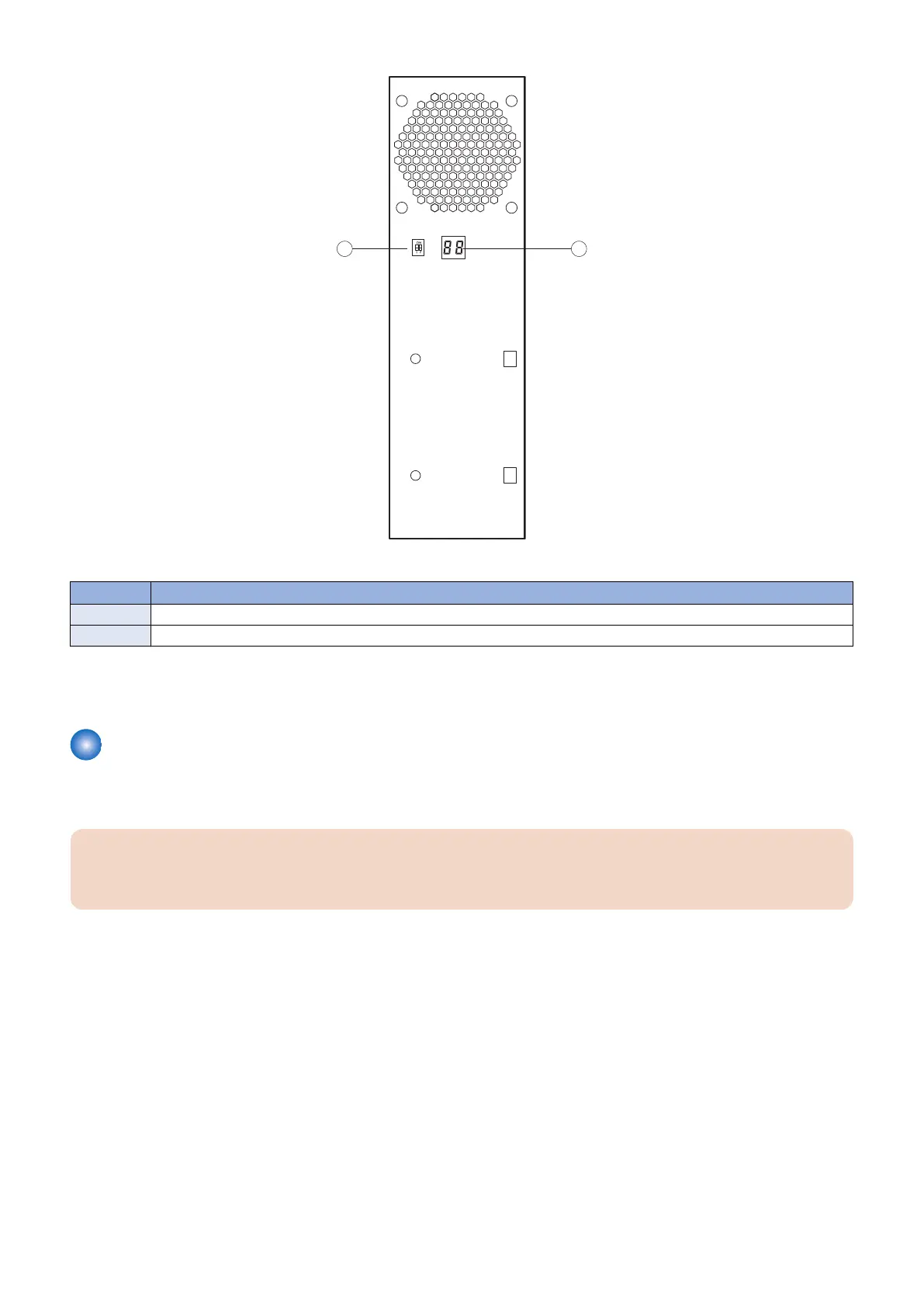
Figure 6: LED display
no. Name
1 Service switch
2 LED display
If the LED display hangs on a code other than 00, one or more diagnostic tests may have failed. Look up the diagnostic code in
“If the printer does not print” on page 76 to determine the troubleshooting actions that you should take.
Accessing the imagePRESS Server
Always use the following procedure to disconnect the imagePRESS Server from the printer and open the unit for inspection and
service.
IMPORTANT:
Make sure that you attach an ESD grounding wrist strap and follow standard ESD (electrostatic discharge) precautions
before following this procedure. For details, see “Tools you will need” on page 3.
■ To access the imagePRESS Server
1. Make sure that the imagePRESS Server is not receiving, processing, or printing any jobs.
2. Make sure that the printer is not in use, and power off the printer using the main power switch on the front.
Wait for the printer and the imagePRESS Server to power off completely.
3. Move the imagePRESS Server power switch to the OFF (O) position.
4. Remove all external cables from the imagePRESS Server connectors.
5. Remove the imagePRESS Server from the printer.
For detailed information about removing/installing the printer, see the installation instructions that accompany the printer (not
included in this service guide).
6. Remove the two screws that secure the cover of the imagePRESS Server to the chassis (see below figure).
Set aside the screws so that you can replace them later.
3. REPLACING PARTS
18


 To Next Page