Clearing Paper Jams
3-3
Troubleshooting
3
NOTE
If paper is jammed in several locations, remove the jammed paper in the order indicated on the touch
panel display.
1
Inspect all paper jam locations indicated on the touch panel display, and
remove any jammed paper.
See the appropriate pages below for instructions on finding and removing jammed paper. Or, you can
follow the instructions on the touch panel display.
If jammed paper tears while it is being removed, be sure to remove any remaining pieces from inside
the machine.
IMPORTANT
If the machine's power is turned OFF when there is a paper jam, detection of paper jams in the paper
drawers is not possible after the power is turned back ON. Clear paper jams without turning the
power OFF.
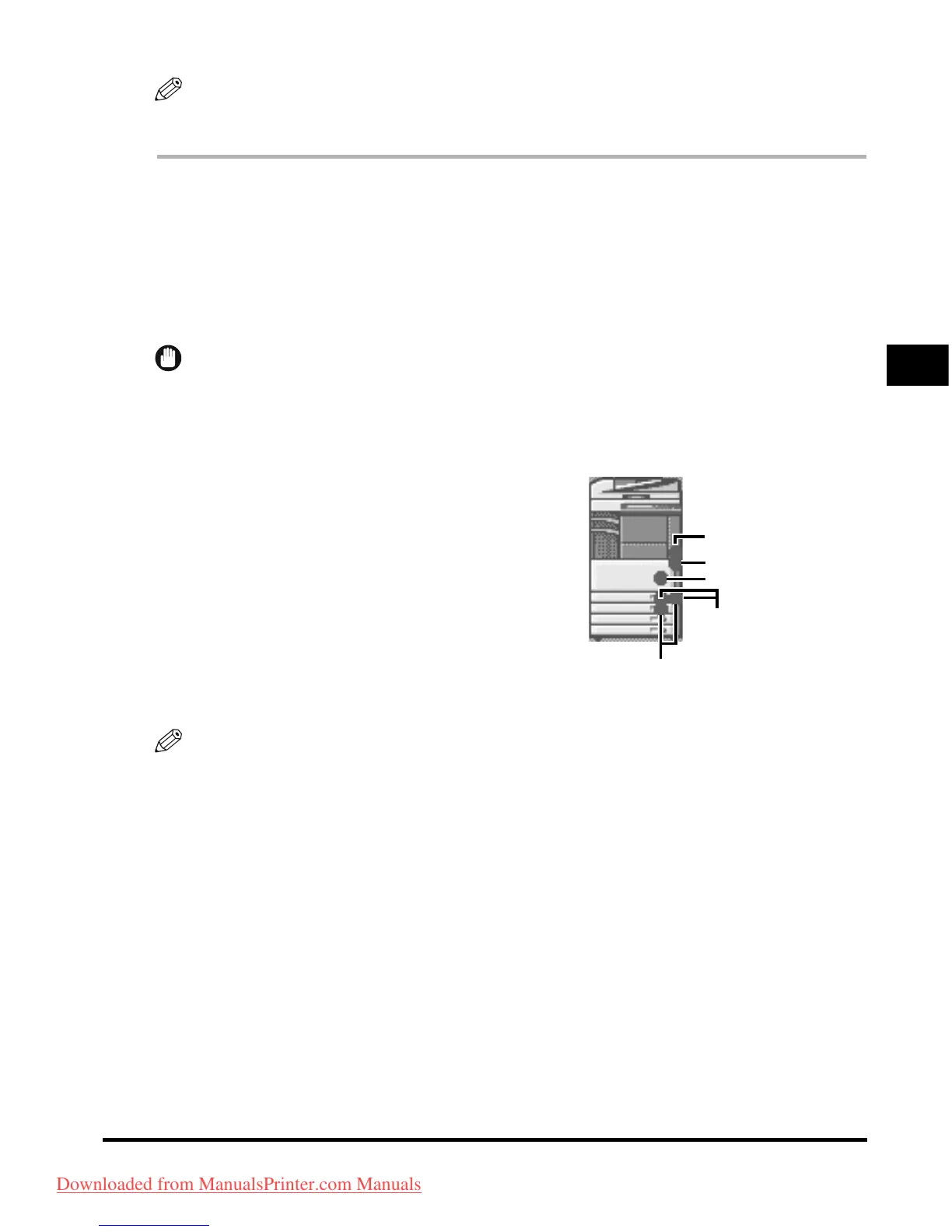
● If a paper jam occurs inside the main unit:
❑
See the instructions on the following pages.
a Fixing Unit
(See "Fixing Unit (Inside the Main Unit)," in
the Reference Guide.)
b Duple
xing Unit (See "Duplexing Unit (Inside the Main
Unit)," in the Reference Guide.)
c S
tack Bypass (See "Stack Bypass," in the Reference
Guide.)
d P
aper Drawer 1 (See "Paper Drawer 1," in the
Reference Guide.)
e Paper Drawer 2 (See "Paper Drawer 2," in the
Reference Guide.)
NOTE
Some areas that are shown to have paper jams may not actually have paper jams. However, always
check all locations indicated on the touch panel display in the order that is given.
a
b
c
d


 To Next Page