Clearing Paper Jams
3-5
Troubleshooting
3
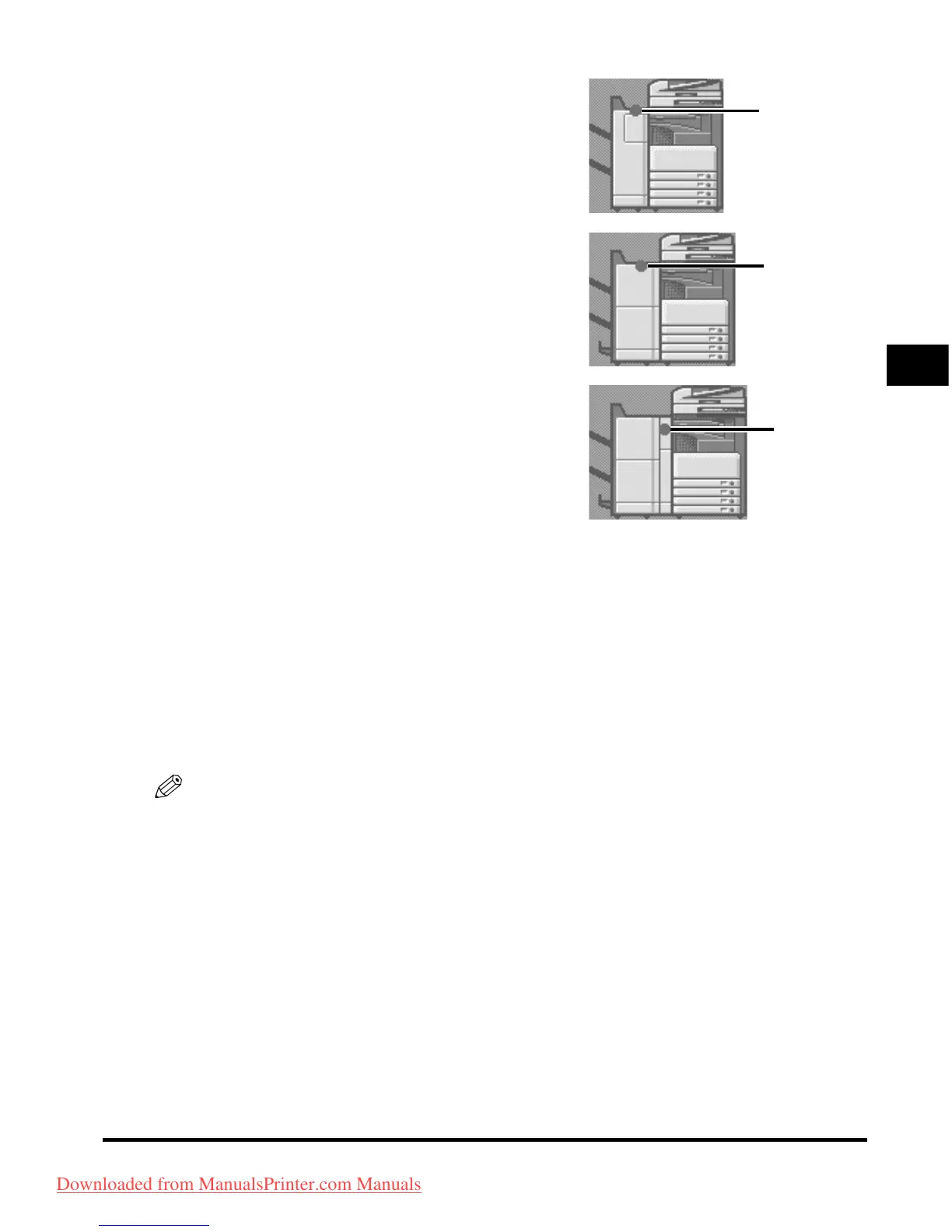
g Finisher-AE1 (See "Inside the Top Cover of
Finisher-AE1/Saddle Finisher-AE2 (Optional)," and
"Inside the Buffer Pass Unit-E2 of the Finisher-AE1/
Saddle Finisher-AE2 (Optional)" in the Reference
Guide.)
h S
addle Finisher-AE2 (See "Inside the Top Cover of
the Finisher-AE1/Saddle Finisher-AE2 (Optional),"
"Inside the Buffer Pass Unit-E2 of the Finisher-AE1/
Saddle Finisher-AE2 (Optional)," "Inside the Front
Cover of the Saddle Finisher-AE2 (Optional)," or
"Saddle Stitcher Unit (Optional)," in the Reference
Guide.)
i P
uncher Unit-L1 (See "Puncher Unit-L1(Optional),"
in the Reference Guide.)
2
After you have removed all of the jammed paper at the locations indicated
on the touch panel display, restore all levers and covers to their original
positions.
3
Continue to follow the procedure and instructions displayed on the touch
panel display.
Once you have removed all of the jammed paper in locations other than the feeder, printing or copying
resumes.
If there is paper that still needs to be removed, a screen indicating how to clear that paper jam
appears on the touch panel display. Repeat the procedure from step 1.
NOTE
You do not have to re-enter the number of copies or prints, even if you are printing multiple sets. The
machine automatically recalculates the number of copies or prints to make based on the number of
sheets that have jammed.
g
h
i
Downloaded from ManualsPrinter.com Manuals


 To Next Page