136
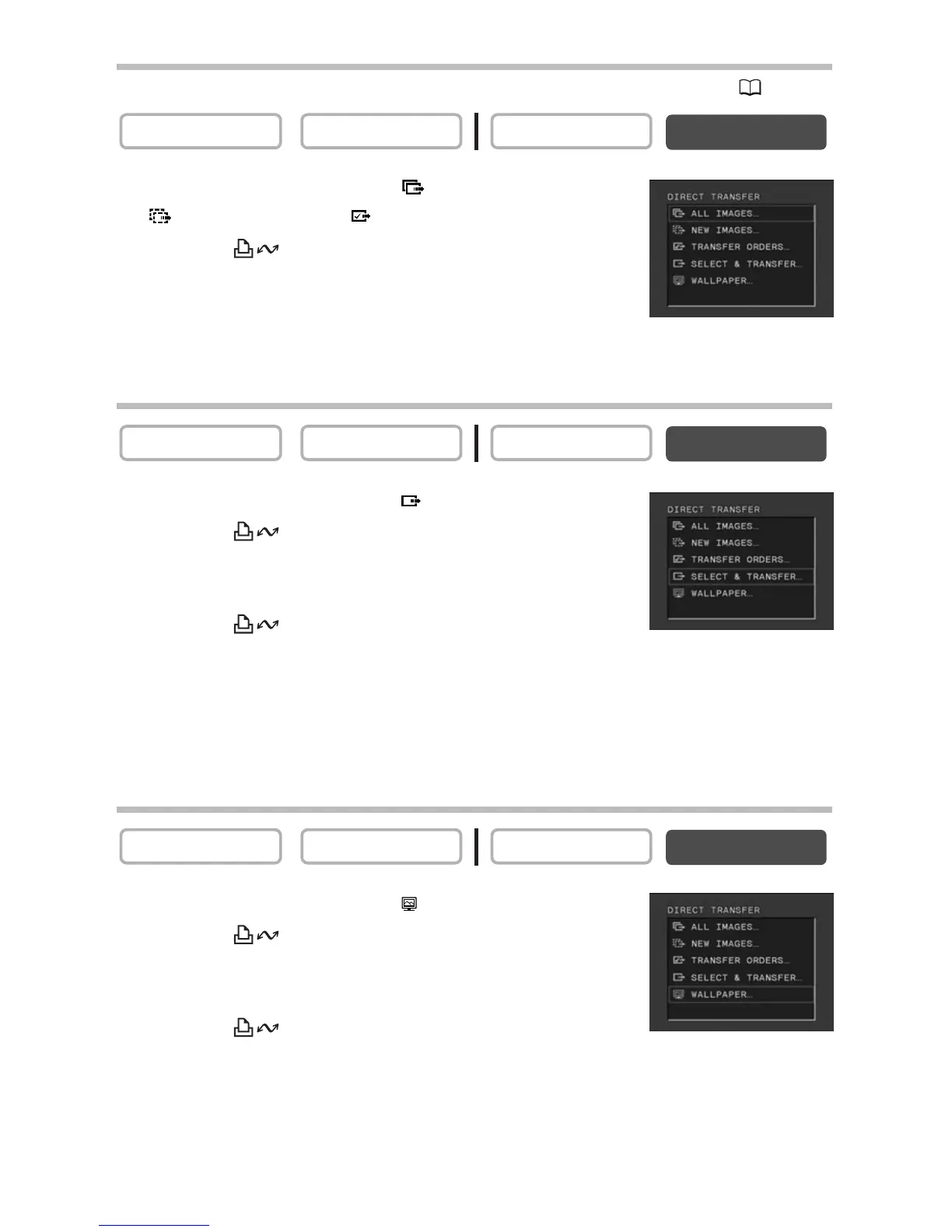
Transferring All Images, New Images or Images with Transfer Orders
To transfer images with transfer order, you need to set the transfer orders ( 138).
1. Turn the SET dial to select [ ALL IMAGES],
[ NEW IMAGES] or [ TRANSFER ORDERS].
2. Press the button.
• The images are transferred to the computer and displayed in
the Main Window of ZoomBrowser EX.
• The camcorder displays the transfer menu when transfer is complete.
Transferring a Selected Image
1. Turn the SET dial to select [ SELECT & TRANSFER].
2. Press the button.
3. Select the image you wish to transfer with the
CARD+/– button.
4. Press the button.
• The selected image is transferred to the computer and displayed in the Main Window
of ZoomBrowser EX.
•Pressing the MENU button brings you back to the transfer menu.
•To continue transferring, select another image with the CARD+/– button.
Transferring a Still Image as Wallpaper
1. Turn the SET dial to select [ WALLPAPER].
2. Press the button.
3. Select the still image you wish to transfer as
wallpaper with the CARD +/– button.
4. Press the button.
• The selected image is transferred to the computer and displayed on the desktop.
•Pressing the MENU button brings you back to the transfer menu.


 To Next Page