34 ImageBrowser Software User Guide
Chapter 4
Viewing Images
This chapter describes how to view and edit images in ImageBrowser.
In this section, you will learn how to use the Explorer View Section to
choose a folder containing the images that you want to see.
How to select a folder
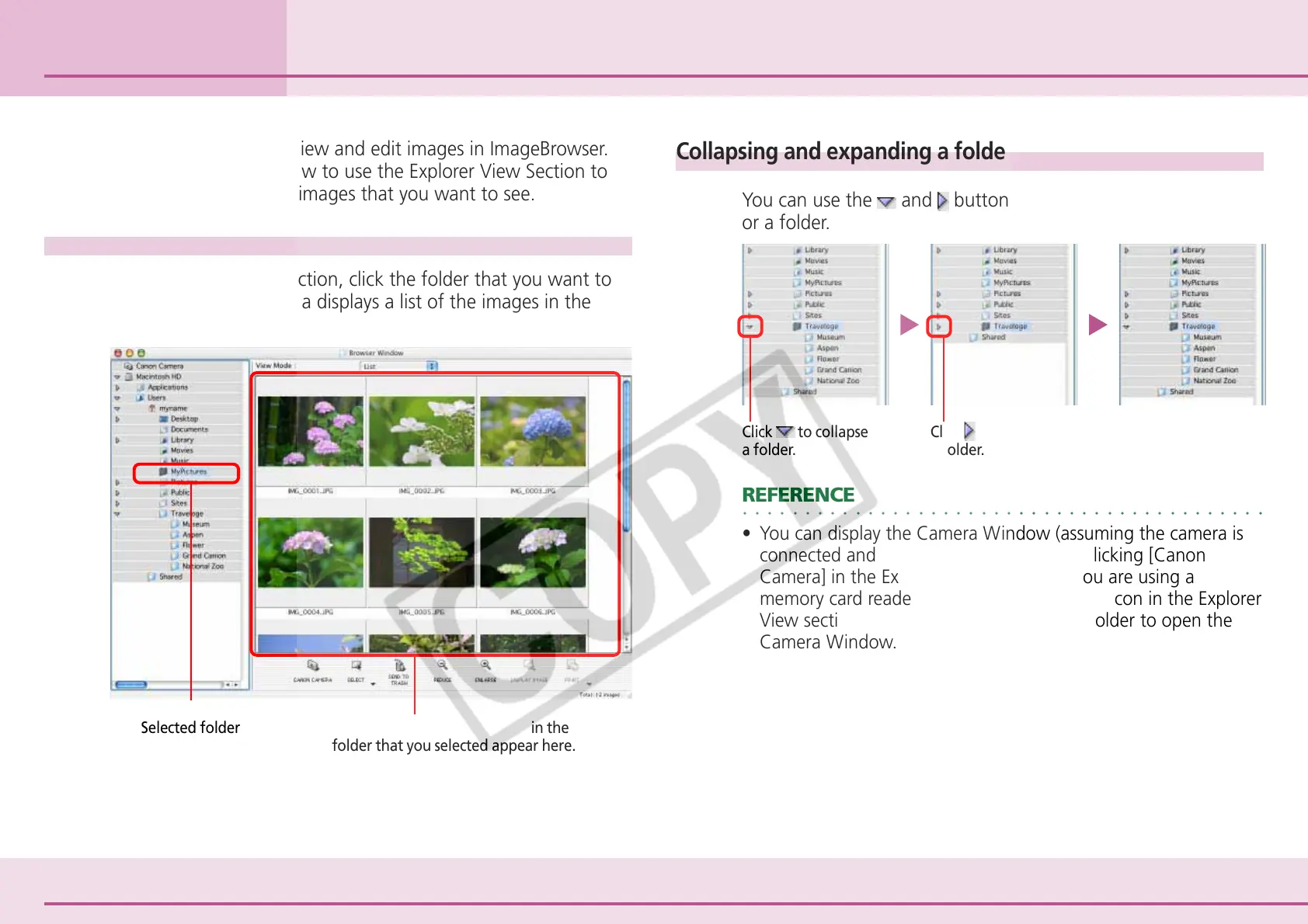
In the Explorer View Section, click the folder that you want to
open. The Browser Area displays a list of the images in the
selected folder.
Selecting Folders
Collapsing and expanding a folder
You can use the and buttons to collapse or expand a disk
or a folder.
○○○○○○○○○○○○○○○○○○○○○○○○○○○○○○○○○○○○○○○○○○
REFERENCE
• You can display the Camera Window (assuming the camera is
connected and ready to transfer data) by clicking [Canon
Camera] in the Explorer View section. If you are using a
memory card reader, open the memory card icon in the Explorer
View section and double-click the [DCIM] folder to open the
Camera Window.
The thumbnails of the images in the
folder that you selected appear here.
Selected folder
Click
to collapse
a folder.
Click to expand
a folder.




 To Next Page