76 ImageBrowser Software User Guide
Chapter 6
Using Supplementary Features
Printing Images (7/8)
Clipping area
Typing a header
You can type a page header.
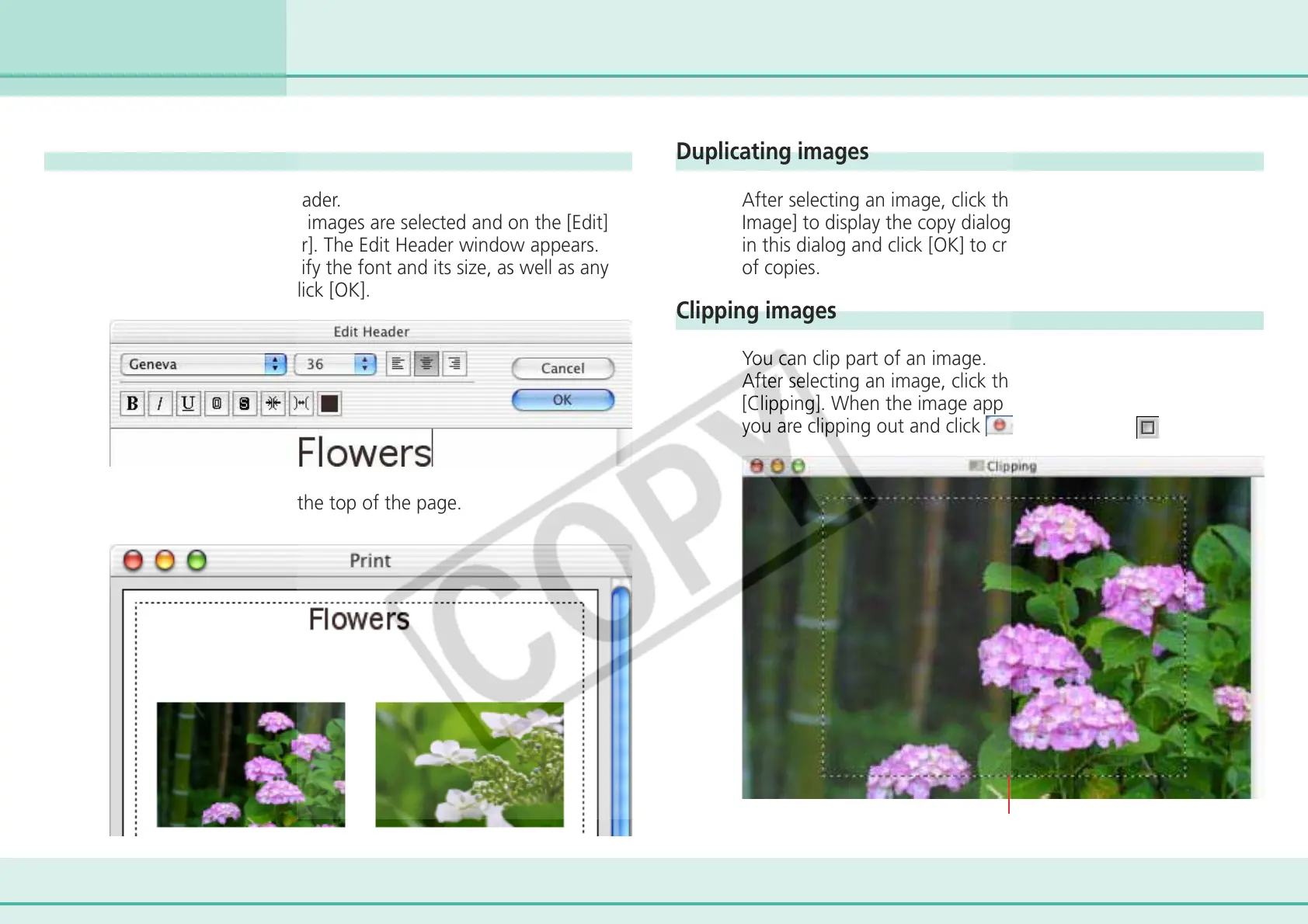
First, make sure that no images are selected and on the [Edit]
menu, click [Edit Header]. The Edit Header window appears.
Type your text and specify the font and its size, as well as any
styles that you want. Click [OK].
The header appears at the top of the page.
Duplicating images
After selecting an image, click the [Edit] menu and select [Copy
Image] to display the copy dialog. Specify the number of copies
in this dialog and click [OK] to create only the specified number
of copies.
Clipping images
You can clip part of an image.
After selecting an image, click the [Edit] menu and select
[Clipping]. When the image appears, drag to specify the area
you are clipping out and click
(Mac OS X) or (Mac OS 9).




 To Next Page