86 ImageBrowser Software User Guide
Chapter 6
Using Supplementary Features
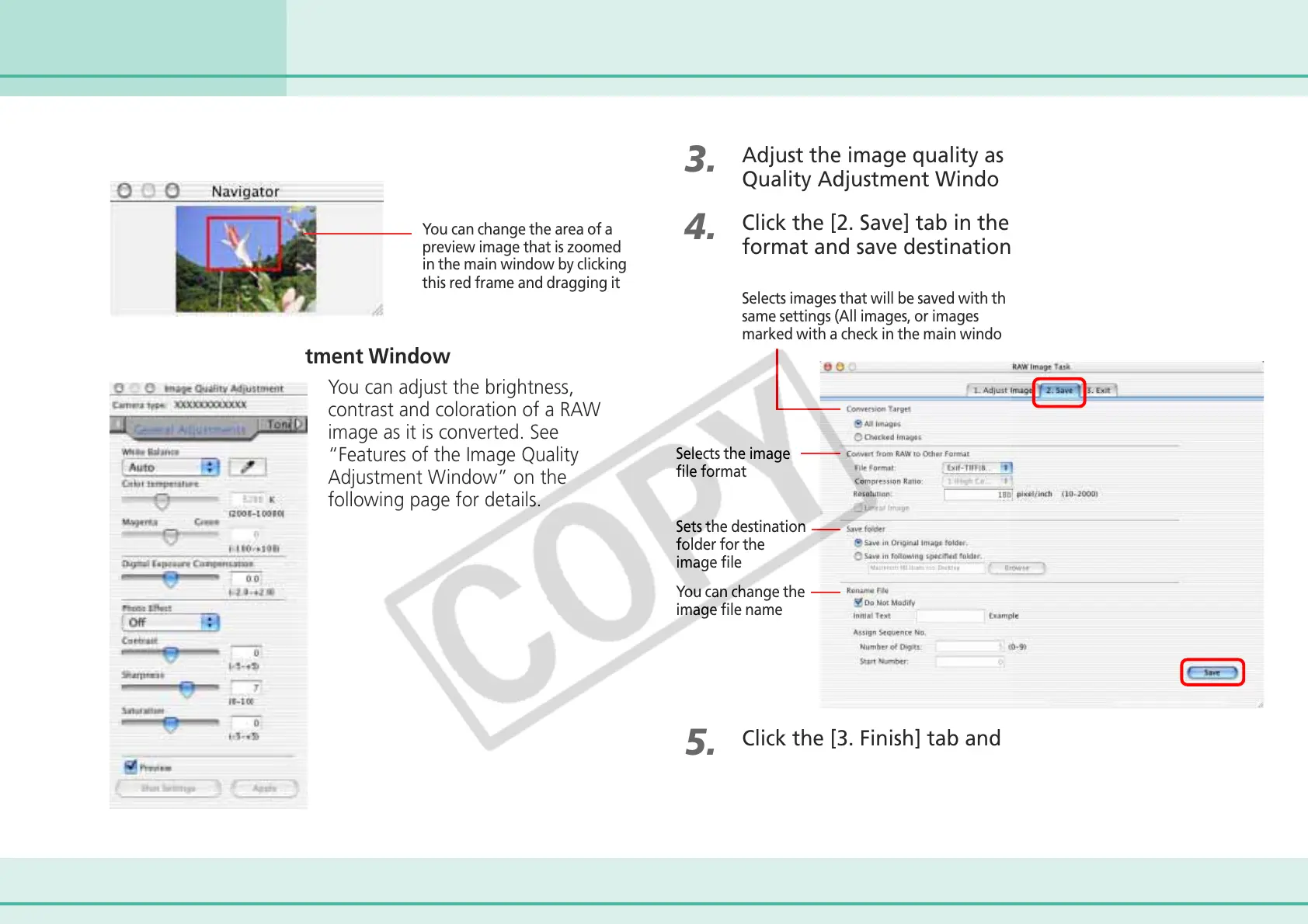
■ Navigator Window
■ Image Quality Adjustment Window
You can adjust the brightness,
contrast and coloration of a RAW
image as it is converted. See
“Features of the Image Quality
Adjustment Window” on the
following page for details.
You can change the area of a
preview image that is zoomed
in the main window by clicking
this red frame and dragging it
3.
Adjust the image quality as required in the Image
Quality Adjustment Window.
4.
Click the [2. Save] tab in the main window, set the file
format and save destination, and then click [Save].
5.
Click the [3. Finish] tab and click [OK].
Selects images that will be saved with the
same settings (All images, or images
marked with a check in the main window)
Selects the image
file format
Sets the destination
folder for the
image file
You can change the
image file name
Converting RAW Images (2/4)




 To Next Page