Accessing the Top Page of the Camera
4-3
4
Top Page of the Camera
Certificate Registration
In order to use [Admin Tools] and [Admin Viewer], you
must first install the two certificates issued by Canon Inc.
on your PC. The certificates are stored on the Setup
CD-ROM. Follow the procedure below to register the
certificates using Internet Explorer.
(1) Select [Place all certificates in the following store].
(2) Click [Browse], select [Intermediate Certification
Authorities], and click [OK].
(3) Click [Next].
When certificate registration is complete, a message,
“The import was successful”, will appear.
The [Certificate] dialog box will appear.
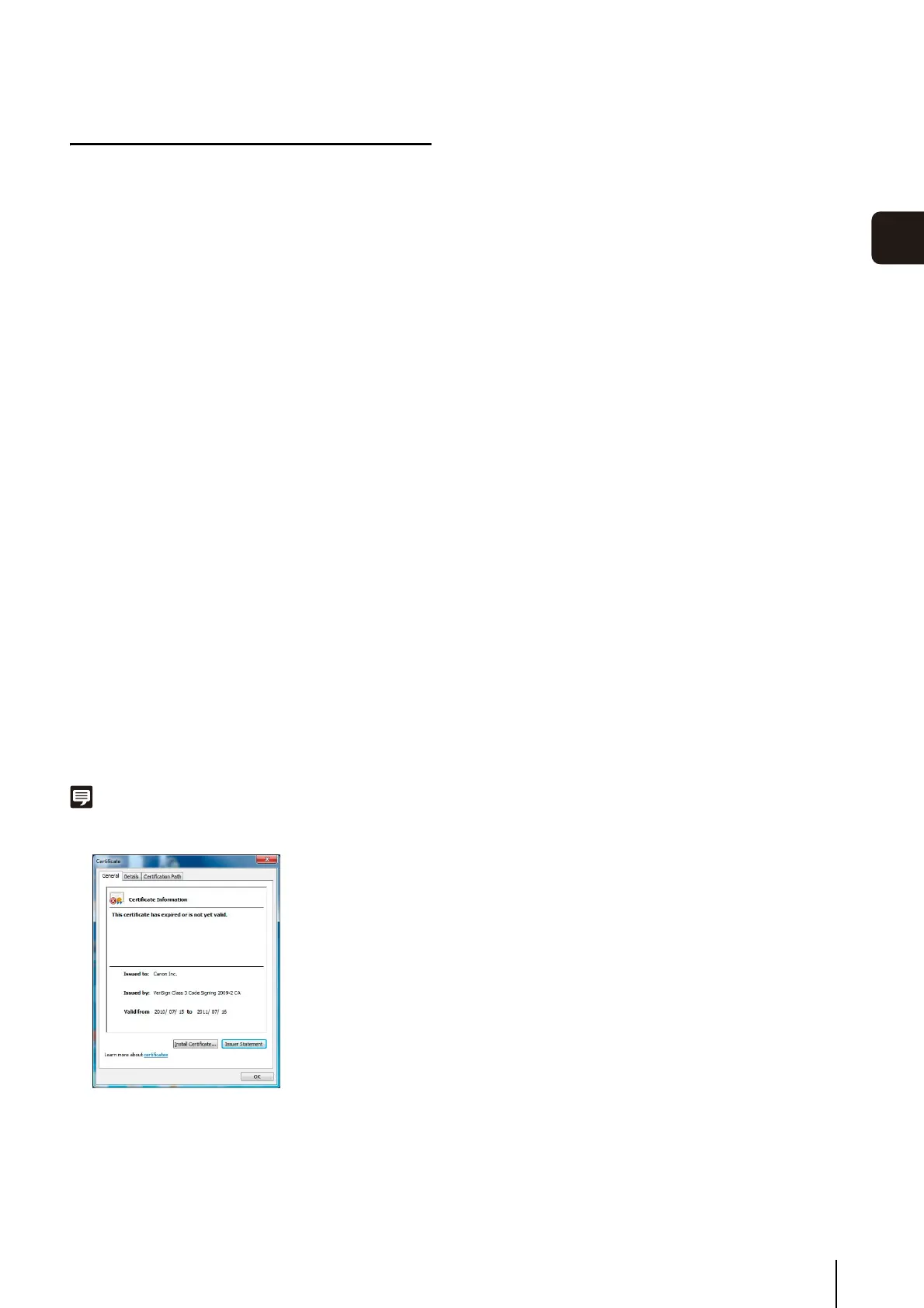
Note
PCs configured after July 17, 2011 will display the following
window. You can continue certificate registration without issue.
(1) Select [Place all certificates in the following store].
(2) Click [Browse], select [Trusted Publishers], and click
[OK].
(3) Click [Next].
When certificate registration is complete, a message,
“The import was successful”, will appear.
1
Double-click admintools1 found in the [Certificate]
folder in the [Applications] folder on the bundled Setup
CD-ROM.
2
Click [Install Certificate].
3
Click [Next] in the [Certificate Import Wizard].
4
Follow the procedure below to import the certificate on
the [Certificate Store] screen.
5
Click [Finish] to close the Certificate Import Wizard.
6
Double-click admintools2 found in the [Certificate]
folder in the [Applications] folder.
7
Click [Install Certificate].
8
Click [Next] in the [Certificate Import Wizard].
9
Follow the procedure below to import the certificate
on the [Certificate Store] screen.
10
Click [Finish] to close the Certificate Import Wizard.




 To Next Page